


Exos thermal planning guide
There is no single correct temperature for every Exos generation and chassis. Use the exact product manual’s limits, monitor sustained-workload temperature and design airflow across the drive body. High-capacity helium drives in dense bays need deliberate intake, exhaust and cable management.
Aim for stable, well-cooled operation rather than chasing one universal number
A reading within an absolute specification can still be undesirable when it rises sharply under ordinary load or differs from neighboring bays. Compare exact models, ambient temperature, workload and sensor history. Fix airflow and enclosure design before relying on aggressive power cycling.
Interactive decision tool
Exos cooling and airflow checker
Current exact-model offers
Verify model, interface, condition and warranty before purchase
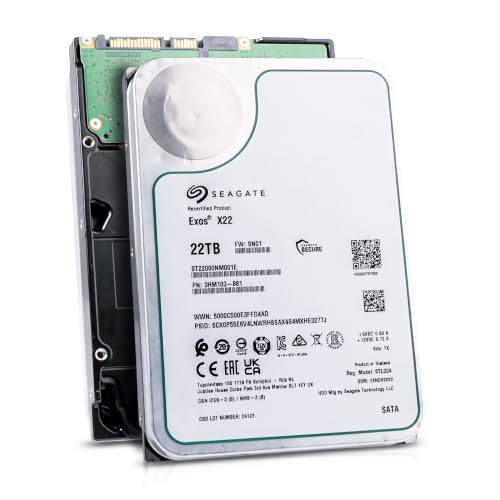
ST22000NM001E
Seagate (Recertified) Exos X22 22TB Internal Hard Drive - 3.5 Inch Hyperscale SATA 6Gb/s HDD, 7200 RPM, 2.5M MTBF, 512e…
$719.99
$32.73 per TB
Seagate factory-recertified warranty — verify serial
Buy on Amazon
ST16000NM001G
HDD for 16TB 3.5" SATA 6 Gb/s 256MB 7200RPM for Internal HDD for Enterprise Class HDD for ST16000NM001G
$721.48
$45.09 per TB
Warranty not verified
Buy on Amazon
ST28000NM003K
Enterprise 28TB SATA 6Gb/s Hard Drive - Seagate Exos M ST28000NM003K
$1,531.29
$54.69 per TB
Warranty not verified
Buy on Amazon
ST20000NM007D
Seagate Exos X20 ST20000NM007D 20TB 7.2K RPM SATA 6Gb/s 3.5in Hard Drive
Price Options
Warranty not verified
Buy on AmazonAmazon prices shown are retained for up to 24 hours. Latest price refresh: 2026-10-23 18:26:50 UTC. Price/availability may change; Amazon at purchase time controls.
Exact-model ownership reference
Keep model, interface, status and warranty route separate
Exos capacities overlap across generations and conditions. Use the complete model and serial number before applying firmware, warranty or reliability guidance.
| Exact model | Generation | Capacity | Interface | Status | Warranty route |
|---|---|---|---|---|---|
| ST16000NM001G | Exos X16 | 16TB | SATA | older | Verify by serial number, region and seller source |
| ST18000NM000J | Exos X18 | 18TB | SATA | older | Verify by serial number, region and seller source |
| ST20000NM007D | Exos X20 | 20TB | SATA | older | Verify by serial number, region and seller source |
| ST22000NM001E | Exos X22 | 22TB | SATA | older | Verify by serial number, region and seller source |
| ST24000NM002H | Exos X24 | 24TB | SATA | current | Verify by serial number, region and seller source |
| ST24000NM001K | Exos M | 24TB | SATA | current | Verify by serial number, region and seller source |
| ST30000NM004K | Exos M | 30TB | SATA | current | Verify by serial number, region and seller source |
| ST32000NM004K | Exos M | 32TB | SATA | current | Verify by serial number, region and seller source |
Use the exact manual
X16, X18, X20, X22, X24, Exos M and specialist families do not share one thermal table. Record the exact operating limits. Published operating limits and sensor behavior can differ by generation, so begin with the exact ST model and its current product manual. Do not turn one internet temperature number into a universal rule for X16, X18, X24 and Exos M. Record the model, ambient temperature and workload when evaluating a reading.
Track trends
Record idle, sustained read, write, scrub and rebuild temperatures along with room temperature. A sudden bay change can reveal a fan or airflow problem. Trends are usually more actionable than a single snapshot. Compare idle, sustained-write, scrub or rebuild temperatures and note how quickly the drive recovers after load. A gradual rise over weeks can reveal dust accumulation or fan degradation, while one hot bay can reveal a local airflow obstruction.
Measure intake conditions
A hot cupboard can recirculate exhaust even with strong fans. Measure ambient and intake temperature and clear the exhaust path. Measure the air entering the drive cage, not only the room. A closed cabinet can recirculate warm exhaust and create a much hotter intake than the thermostat suggests. Ensure the chassis has a clear exhaust route and that nearby equipment is not feeding hot air directly into the storage intake.
Direct airflow across every drive
Dense cages need air through the front and along drive bodies, not around the cage. Cable bundles and missing ducts create dead zones. Air must pass across the drive bodies and electronics. Fans that move air around the outside of a dense cage may leave the middle bays stagnant. Restore missing ducts, organize cables and close unused openings that short-circuit the designed airflow path. Validate the hottest drive rather than relying on a fan specification.
More drives add heat and vibration
Expansion increases thermal load, startup current and vibration. Recalculate fan and PSU headroom, especially above six drives. Adding drives changes more than capacity. It increases heat, blocks airflow, adds vibration and raises startup-current demand. Re-test the completed chassis under realistic load instead of assuming the original fan curve will scale. Dense arrays may need higher minimum fan speed or a dedicated storage-temperature control source.
Rebuilds are stress events
Parity rebuilds, resilvers and surface verification keep drives busy for hours. Monitor the complete event and do not start with marginal cooling. Rebuilds, resilvers, parity checks and full-surface tests can hold every drive busy for many hours. Monitor the whole event, including the middle bays and room intake. Do not begin a large rebuild when cooling is already marginal, because elevated temperature and heavy activity can coincide with the period of greatest redundancy exposure.
Filters reduce airflow as they load
Establish cleaning intervals and compare fan RPM and temperature trends. Avoid overspinning fans with compressed air. Dust filters become a performance component as they load. Establish a cleaning interval based on measured temperature, fan RPM and environment rather than a calendar alone. Power down or secure fans before cleaning; spinning a fan excessively with compressed air can damage it or its control electronics.
CPU-based fan curves can fail storage
The CPU can be cool while drives are busy. Use a fan policy that protects the drive cage with a fail-safe minimum. A CPU-based fan curve may leave the drive cage undercooled when the processor is idle but storage is rebuilding. Use motherboard, HBA, BMC or external control that can maintain a safe minimum and respond to drive or inlet temperature. Configure a fail-safe state for sensor loss rather than allowing fans to stop.
Do not solve heat with excessive cycling
Frequent spindown introduces latency and transitions. Airflow is the primary answer to sustained heat. Frequent spindown is not a substitute for airflow. It can add latency and start-stop transitions while leaving the underlying hot-cabinet problem unsolved. First correct intake, exhaust, dust and fan control. Then choose a power-management policy that matches workload and the exact system design.
Check sensor interpretation
Tools may show current, lifetime maximum, threshold or placeholders. Verify impossible readings with another trusted tool. Some tools display unsupported attributes, lifetime maxima or placeholder values. Compare readings from the operating system, HBA or SeaTools and confirm which sensor is being shown. An impossible value should trigger verification, not an immediate conclusion that the drive is physically at that temperature.
Preserve evidence
Save logs after fan or chassis failures. Correct the environment before installing a replacement. Preserve logs when a fan, PSU or chassis event causes a thermal excursion. Record duration, affected bays, workload and post-event SMART or diagnostic results. Correct the environment before installing a replacement; otherwise the new drive will inherit the same cooling problem and the root cause remains hidden.
Create a thermal acceptance test
Run a controlled sustained workload while recording all drive temperatures, fans and ambient conditions. Keep the result with the serial register. Create a repeatable acceptance test after any chassis expansion. Run a controlled sustained workload long enough for temperatures to stabilize, record ambient and every drive, then verify fan redundancy and recovery after load. Keep the results with the asset register so later changes can be compared against a known-good thermal baseline.
Seagate Exos authority cluster
Continue the exact-model decision
Frequently asked questions
Exos ownership and troubleshooting answers
What is normal Exos temperature?
Use the exact model manual and consider ambient, workload and consistency with neighboring drives.
Is 50°C safe for every model?
Do not generalize. Check the exact specification and investigate why the drive reaches that level.
Why is one drive hotter?
Bay airflow, cable blockage, fan problems, workload or model differences can explain it.
Do helium drives need airflow?
Yes. Electronics, motor and media still generate heat.
Can scrubs increase temperature?
Yes. Scrubs and rebuilds create sustained activity.
Should I spin down drives to cool them?
Not as the first solution. Improve airflow and evaluate workload.
Can CPU fan control undercool HDDs?
Yes. Storage can be busy while the CPU remains cool.
Why does a tool show 253°C?
It can be an unsupported sensor placeholder. Verify with another tool and manual.
How often should filters be cleaned?
Base it on dust and measured airflow trends.
Do recertified drives need different cooling?
No. They require the same exact-model environment.
Official references
Cloudzat may earn a commission from qualifying purchases. Protect important data before diagnostics, and verify exact model, serial, interface, sector format, condition, seller and warranty source.