


Exos detection decision guide
An Exos drive that does not appear can be unpowered, connected through the wrong protocol, hidden by a controller, affected by PWDIS, unsupported because of sector format, uninitialized, offline or genuinely failed. Start with the exact model and divide the problem by where detection stops.
Do not format, convert or repeatedly power-cycle until you know whether important data is at risk
A new empty drive and a previously working drive require different priorities. For a new unit, verify interface, power, controller, sector format and initialization. For a drive that disappeared with data, minimize writes and repeated stress while preserving logs and recovery options.
Interactive decision tool
Exos not-detected decision tree
Current exact-model offers
Verify model, interface, condition and warranty before purchase
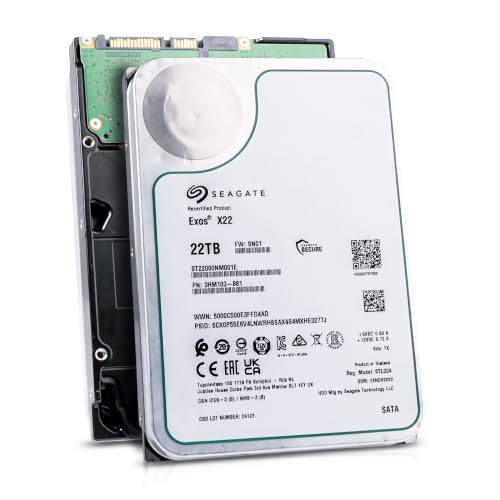
ST22000NM001E
Seagate (Recertified) Exos X22 22TB Internal Hard Drive - 3.5 Inch Hyperscale SATA 6Gb/s HDD, 7200 RPM, 2.5M MTBF, 512e…
$719.99
$32.73 per TB
Seagate factory-recertified warranty — verify serial
Buy on Amazon
ST16000NM001G
HDD for 16TB 3.5" SATA 6 Gb/s 256MB 7200RPM for Internal HDD for Enterprise Class HDD for ST16000NM001G
$721.48
$45.09 per TB
Warranty not verified
Buy on Amazon
ST28000NM003K
Enterprise 28TB SATA 6Gb/s Hard Drive - Seagate Exos M ST28000NM003K
$1,531.29
$54.69 per TB
Warranty not verified
Buy on Amazon
ST20000NM007D
Seagate Exos X20 ST20000NM007D 20TB 7.2K RPM SATA 6Gb/s 3.5in Hard Drive
Price Options
Warranty not verified
Buy on AmazonAmazon prices shown are retained for up to 24 hours. Latest price refresh: 2026-10-23 18:26:50 UTC. Price/availability may change; Amazon at purchase time controls.
Exact-model ownership reference
Keep model, interface, status and warranty route separate
Exos capacities overlap across generations and conditions. Use the complete model and serial number before applying firmware, warranty or reliability guidance.
| Exact model | Generation | Capacity | Interface | Status | Warranty route |
|---|---|---|---|---|---|
| ST16000NM001G | Exos X16 | 16TB | SATA | older | Verify by serial number, region and seller source |
| ST16000NM002G | Exos X16 | 16TB | SAS | older | Verify by serial number, region and seller source |
| ST18000NM000J | Exos X18 | 18TB | SATA | older | Verify by serial number, region and seller source |
| ST18000NM004J | Exos X18 | 18TB | SAS | older | Verify by serial number, region and seller source |
| ST22000NM001E | Exos X22 | 22TB | SATA | older | Verify by serial number, region and seller source |
| ST22000NM000E | Exos X22 | 22TB | SAS | older | Verify by serial number, region and seller source |
| ST24000NM002H | Exos X24 | 24TB | SATA | current | Verify by serial number, region and seller source |
| ST24000NM007H | Exos X24 | 24TB | SAS | current | Verify by serial number, region and seller source |
Identify SATA or SAS first
A SAS drive requires a SAS HBA, RAID controller or backplane. A passive cable connected to a SATA-only motherboard does not translate SAS. SATA can often operate behind SAS infrastructure, but not the reverse. Begin with the label, not the connector shape in a marketplace photo. SATA and SAS Exos drives may share capacity and chassis dimensions, but a SATA motherboard cannot communicate with a SAS drive. Confirm the exact model and compare it with the controller, HBA or backplane before spending time on operating-system settings.
Check whether the drive spins
No spin can point to power, PWDIS, backplane state, PSU cabling or failure. A spinning drive absent from the controller follows a different path. Do not repeatedly hot-plug unsupported equipment. A drive that never spins follows a different path from a drive that spins but is not enumerated. Listen and feel carefully without repeatedly cycling power. Record whether the motor starts, whether there are repeated attempts, and whether other known-good drives work on the same power branch. This separates power-path diagnosis from controller and software diagnosis.
Test the power path safely
Use a known-good compatible connector, bay or backplane. Avoid questionable splitters. Multiple enterprise drives starting together can expose a marginal PSU or backplane. Test power safely with known-compatible hardware. Confirm PSU capacity, connectors, backplane state and startup-current headroom. Do not assume that an adapter delivers the required 5V and 12V correctly, and do not modify modular PSU cables. If multiple drives fail on one branch, investigate the shared power path before blaming each disk.
Check PWDIS on SATA P3
Some Exos SATA manuals define P3 as optional Power Disable. A legacy cable supplying 3.3V can keep a supporting drive disabled. Test a safe compatible path rather than cutting wires. On supported SATA models, 3.3V on power pin P3 can assert Power Disable and keep the drive from spinning. The strongest evidence is a SATA drive that works on another known-good power path. Check the exact product manual and use a supported backplane, harness or power source rather than cutting wires or making an undocumented permanent alteration.
Confirm controller visibility
Check BIOS, HBA or RAID utility for exact model and capacity. For an HBA, verify driver, cable lanes, expander and backplane. Hardware RAID may expose the physical disk only in its utility. If the drive spins, confirm whether the controller sees it before opening Disk Management or creating partitions. Review HBA firmware, controller mode, link state and backplane cabling. A SAS drive must be behind a compatible SAS controller, and a RAID controller can hide the physical device unless management software or pass-through is used.
Separate BIOS from OS detection
If the controller sees the drive but the OS does not, check drivers, multipath, Disk Management, Storage Spaces, device nodes or a controller-created virtual disk. When BIOS, UEFI or the HBA sees the disk but the operating system does not, inspect kernel logs, Device Manager, storage services and multipath or RAID configuration. In Windows, distinguish Device Manager visibility from Disk Management state. In Linux and TrueNAS, review the device path and controller logs before changing on-disk metadata.
Initialize only a new or erasable drive
A new disk can appear offline or unallocated. Use GPT for modern large capacity. Do not initialize or format a previously working drive with missing data. Initialize only a genuinely new, empty or deliberately erasable drive. If the disk was previously working or contains needed data, initialization and formatting can overwrite metadata required for recovery. First capture the current state, confirm the correct device identifier and decide whether the problem is compatibility, corruption or hardware instability.
Check 512e and 4Kn support
A controller, bridge or appliance can reject 4Kn. Verify the current format through a native supported path. Sector conversion is destructive and is not an exploratory fix. Logical sector format can block older systems even when the controller sees the drive. Verify whether the disk is 512e or 4Kn and whether the OS, HBA, enclosure and storage application support it. Do not start FastFormat or another conversion as a casual detection fix; sector conversion is destructive and must be planned with verified backup.
Avoid USB for primary diagnosis
USB can impose capacity limits, hide SMART or translate sector size. Connect directly to compatible SATA or SAS when possible. USB bridges are useful for limited testing but can hide SMART details, truncate capacity, reject 4Kn or fail to pass enterprise commands. A bridge that cannot see an Exos drive does not prove the drive is defective. Retest with a native SATA connection or appropriate SAS HBA before making a warranty or recovery decision.
Treat sudden disappearance as a health event
Review link resets, I/O errors, timeouts and medium errors. Repeated disconnects, clicking or failed diagnostics should trigger backup, cloning or professional recovery decisions. A previously working drive that suddenly disappears deserves a health-first response. Repeated resets, timeouts, clicking or intermittent detection can signal power, cabling, controller or media problems. Protect accessible data, collect logs and change one variable at a time. Do not repeatedly rescan or reboot an unstable drive containing irreplaceable files.
Change one thing at a time
Swap one cable, port, controller or power path at a time and record the result. Identify by serial because device names can change. Use a controlled A/B method: known-good cable, known-good port, known-good power path and, when possible, another compatible host. Change only one component per step and record the outcome. This prevents several simultaneous changes from hiding the real cause and creates useful evidence for the seller, system vendor or manufacturer.
Know when to stop
Stop when the drive clicks repeatedly, disappears under light access, overheats or contains irreplaceable inaccessible data. Warranty solves hardware, not data. Stop when the risk exceeds the value of further testing. A drive with important inaccessible data, repeated hard clicks, burning smell, visible damage or unstable enumeration should not be subjected to long benchmarks or repeated power cycles. Move to a recovery consultation or replacement path based on the importance and recoverability of the data.
Seagate Exos authority cluster
Continue the exact-model decision
Frequently asked questions
Exos ownership and troubleshooting answers
Why is my Exos not detected in BIOS?
Common causes include wrong interface, missing power, PWDIS, bad cabling, unsupported controller or drive failure.
Can SAS Exos connect to SATA motherboard?
No. Use a compatible SAS HBA/controller or choose the SATA exact model.
Why does it spin but not appear in Windows?
Check controller utility, Device Manager, Disk Management, Storage Spaces, drivers and offline or uninitialized state.
Should I initialize a drive with old data?
No. Initialization writes metadata and can make recovery harder.
Can 4Kn make a drive invisible?
Yes. Unsupported controllers, bridges or appliances can fail to present it correctly.
Does Exos need a special Windows driver?
Direct SATA normally uses the storage-controller driver. SAS and RAID require the correct HBA/controller driver.
What is PWDIS?
An optional signal on SATA power pin P3 that can keep a supporting drive disabled.
Can I diagnose through USB?
Basic tests may work, but direct compatible connection is preferred.
What if it suddenly disappeared?
Protect data, review logs and reduce repeated power cycles.
Should firmware be the first fix?
No. Use serial-specific firmware only after identity and hardware stability are established.
Official references
Cloudzat may earn a commission from qualifying purchases. Protect important data before diagnostics, and verify exact model, serial, interface, sector format, condition, seller and warranty source.