


Destructive data sanitization
Choose the correct sanitization route for resale, troubleshooting or redeployment without confusing formatting, BitLocker, Samsung Magician Secure Erase and unsupported third-party commands.
Use Samsung’s supported Secure Erase workflow only after a verified backup
Secure Erase permanently removes data. It is appropriate for disposal, ownership transfer or a defined reset procedure—not as the first response to every performance issue.
This operation is intentionally destructive
Stop until every required file, recovery key, license and configuration has been copied and tested elsewhere. Selecting the wrong drive can erase the only usable copy of your data.
Secure Erase readiness checker
Describe the goal, backup, boot status and controller path. The tool identifies stop conditions and the safest supported route.
Sanitization methods and consequences
| Method | What it changes | Data-recovery expectation | Typical use |
|---|---|---|---|
| Delete files | Removes directory references | Data may remain recoverable | Routine cleanup only |
| Quick format | Recreates file-system structures | Old data may remain | Fresh volume, not sanitization |
| BitLocker key destruction | Makes encrypted data inaccessible when implemented correctly | Depends on key handling and prior encryption | Managed cryptographic retirement |
| Samsung Secure Erase | Erases SSD cells through supported utility | Intended to destroy all stored data | Resale, redeployment or reset |
| Physical destruction | Destroys media and controller | Strongest when performed correctly | Highly sensitive retired hardware |
Current exact-product and professional-workload offers

Samsung SSD 990 PRO 2TB, PCIe 4.0 M.2 2280, Up to 7,450 MB/s | NVMe Internal Solid State Hard Drive for High End Computing, Gaming, and Heavy Duty Workstations, (MZ-V9P2T0B/AM)
New · PCIe 4.0 x4 NVMe · Bare or not stated · Amazon.com

Samsung 990 PRO 2TB PCIe Gen 4.0 x4 (Maximum Transfer Rate 7,450MB/s) NVMe M.2 (2280) Internal SSD MZ-V9P2T0B-IT/EC
New · PCIe 4.0 x4 NVMe · Bare or not stated · All About Office

Samsung 990 PRO Heatsink Model, 2TB PS5 Operation Verified, PCIe 4.0 (Max Transfer Rate 7,450 MB/s), NVMe M.2 MZ-V9P2T0G-IT/EC
New · PCIe 4.0 x4 NVMe · Heatsink · SiliconValleySeller (SN# Recorded)

Samsung 2TB 990 PRO with Heatsink PCIe Gen4 NVMe M.2 2280 Up to 7450 MB/s, 6900 MB/s
New · PCIe 4.0 x4 NVMe · Heatsink · SiliconValleySeller (SN# Recorded)
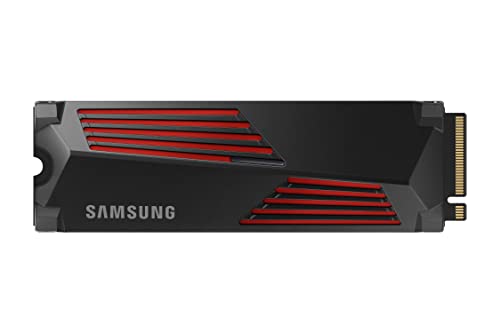
SAMSUNG 990 PRO w/ Heatsink SSD 2TB, PCIe Gen4 M.2 2280 Internal Solid State Hard Drive, Seq. Read Speeds Up To 7,450MB/s for High End Computing, Workstations, Compatible w/ PlayStation 5, MZ-V9P2T0CW
New · PCIe 4.0 x4 NVMe · Heatsink · Amazon.com
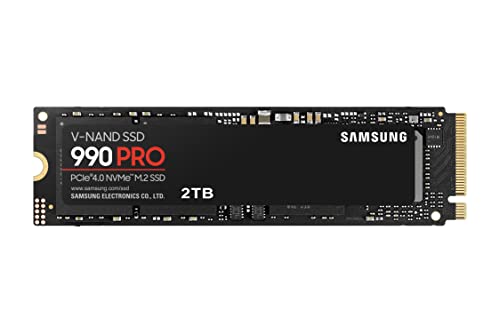
Samsung 990 PRO NVMe M.2 SSD, 2 TB, PCIe 4.0, 7,450 MB/s Read, 6,900 MB/s Write, Internal SSD, for Gaming and Video Editing, MZ-V9P2T0BW
New · PCIe 4.0 x4 NVMe · Bare or not stated · Stavvy Sales

Samsung SSD 990 PRO 4TB, PCIe 4.0 M.2 2280, Up to 7,450 MB/s | NVMe Internal Solid State Hard Drive for High End Computing, Gaming, and Heavy Duty Workstations (MZ-V9P4T0B/AM)
New · PCIe 4.0 x4 NVMe · Bare or not stated · Amazon.com

Samsung SSD 990 PRO with Heatsink 4TB, NVMe M.2, Up to 7,450MB/s | NVMe Internal Solid State Hard Drive best for PlayStation 5 (PS5 SSD) Console Expansion (MZ-V9P4T0CW)
New · PCIe 4.0 x4 NVMe · Heatsink · eKings

Samsung 990 PRO 4TB PCIe Gen 4.0 x4 (Maximum Transfer Rate 7,450MB/s) NVMe M.2 (2280) Internal SSD MZ-V9P4T0B-IT/EC
New · PCIe 4.0 x4 NVMe · Bare or not stated · SiliconValleySeller (SN# Recorded)

SAMSUNG - SOLID STATE DRIVES (SS SSD 4TB 990 PRO PCIE 4.0 X4 NVME 2.0 M.2 2280
New · PCIe 4.0 x4 NVMe · Bare or not stated · SiliconValleySeller (SN# Recorded)

Samsung SSD 990 PRO 2TB, PCIe 4.0 M.2 2280, Up to 7,450 MB/s | NVMe Internal Solid State Hard Drive for High End Computing, Gaming, and Heavy Duty Workstations, (MZ-V9P2T0B/AM)
Renewed · PCIe 4.0 x4 NVMe · Bare or not stated · Amazon.com

Samsung 990 PRO 2TB PCIe Gen 4.0 x4 (Maximum Transfer Rate 7,450MB/s) NVMe M.2 (2280) Internal SSD MZ-V9P2T0B-IT/EC
Renewed · PCIe 4.0 x4 NVMe · Bare or not stated · All About Office
Amazon prices shown are retained for up to 24 hours. Latest price refresh: 2026-10-22 00:37:13 UTC. Price and availability may change; Amazon at purchase time controls.
Secure Erase is not the same as formatting
Deleting partitions or performing a quick format changes how an operating system sees the volume, but it is not the same as asking the SSD to erase stored data. Samsung describes Secure Erase as permanently destroying data in the cells and as a possible reset route for certain operational or performance problems.
Use the destructive function only for a defined reason. If the goal is simply to reinstall Windows, ordinary setup can delete partitions and create a new file system. If the goal is ownership transfer or sensitive data retirement, use a supported sanitization process and verify that the correct drive was selected.
- Formatting is not sanitization
- Choose the method from the actual objective
Build and test the backup first
A backup is complete only when the necessary files can be restored. Copy project data, browser exports, application settings, encryption recovery keys, virtual machines, local AI models and any license information that is not stored elsewhere. Then open a sample of critical files from the backup location.
For a boot drive, also prepare Windows installation or recovery media and record the edition, activation state and storage-controller configuration. Do not assume cloud synchronization contains every local folder. Secure Erase provides no undo button and warranty service does not restore user data.
- Test the backup before erasing
- Prepare boot and application recovery materials
Update firmware and inspect drive health first
Samsung advises using current firmware before Secure Erase. Check the exact 990 PRO model and firmware in Samsung Magician while the drive is still accessible. Record SMART information, Total Bytes Written, critical warnings and any errors before destroying evidence that may matter for warranty or troubleshooting.
A drive that is disappearing, reporting media errors or failing to complete reads should not be stressed merely to reach a clean erase state. Secure the accessible data and decide whether warranty service or professional recovery is required. Sanitization is appropriate only when the device can complete the process reliably and no recovery need remains.
- Record SMART and firmware
- Do not erase a drive that still needs data recovery
Use the Samsung Magician supported route
Samsung provides Secure Erase through its SSD management tooling and can create bootable media for the supported procedure. Use the current official Magician package and follow the prompts for the exact selected SSD. Disconnect unrelated removable drives when practical and label multiple identical NVMe devices before booting the utility.
The tool may need a direct controller path. Samsung notes limitations with RAID, SCSI controller presentation and some external connections. If Magician cannot expose the function, do not substitute an unverified command from a forum. Resolve the controller path or use Samsung support documentation for the model.
- Use official current software
- Reduce the chance of selecting the wrong identical drive
Boot drives need a separate startup environment
A running Windows installation cannot safely erase the device it is actively using. Secure Erase therefore requires a bootable environment or another supported arrangement in which the target 990 PRO is not the active system volume. Prepare the media before deleting the current installation.
Confirm the firmware boot mode, keyboard and display work in the utility. On systems using Intel VMD or motherboard RAID, changing the mode solely to expose the drive can make the current Windows installation unbootable. Record the original BIOS setting and avoid casual controller-mode changes without a recovery plan.
- The active boot volume cannot erase itself
- Record VMD or RAID settings before changes
Understand frozen-state handling
Security freeze mechanisms can block destructive commands after system startup. Samsung’s troubleshooting guidance discusses a frozen state in its Secure Erase workflow. Follow the exact official prompt for the platform and drive rather than improvising cable or power steps on an NVMe device.
A desktop M.2 module is not handled like a hot-pluggable SATA drive. Removing an NVMe SSD while powered can damage hardware or data. When the utility cannot clear the state safely, shut down and use a supported cold-boot sequence, another compatible system or Samsung support guidance.
- Do not hot-remove an M.2 NVMe SSD
- Follow the current utility’s supported procedure
External USB enclosures are the wrong path
An NVMe-to-USB bridge usually hides native management commands and controller identity. Samsung Magician features can be limited or unavailable through an external enclosure, and the enclosure may expose the SSD as a generic SCSI or USB storage device.
Install the 990 PRO in a compatible internal M.2 slot or supported PCIe adapter for management work. Do not assume an enclosure that can read files can also pass firmware, authentication or Secure Erase commands. After sanitization, the drive can be returned to an enclosure if that is its intended use.
- File access does not prove command passthrough
- Use a direct internal path for management
VMD, RAID and storage-controller complications
Intel VMD, motherboard RAID and add-in controllers can present the SSD through an abstraction layer. Samsung states that Magician does not officially support SSDs configured in RAID mode. The drive may remain usable to Windows while health, firmware and Secure Erase functions are unavailable.
Changing controller mode can break the boot path and may expose or destroy an existing array. For a secondary drive, moving it temporarily to a direct NVMe slot may be simpler. For a boot or array member, document the configuration, back up every volume and follow the motherboard or controller vendor’s migration procedure.
- RAID visibility and Magician support are different
- Never dismantle an array without a restore plan
Encryption and cryptographic retirement
The 990 PRO supports AES 256-bit and TCG Opal capabilities, while Windows may protect volumes with BitLocker. Hardware capability does not prove that a particular volume was encrypted, that keys were managed correctly or that destroying one key meets an organization’s sanitization standard.
For personal resale, a supported Secure Erase offers a straightforward route after backup. Enterprises should follow their approved media-sanitization policy, asset records and verification requirements. A quick format after turning on BitLocker is not equivalent to a drive that was encrypted for its entire data life.
- Verify encryption was actually active
- Follow organizational sanitization policy
When Secure Erase is a poor troubleshooting step
Do not begin with Secure Erase because a benchmark is slightly low, the drive is on PCIe 3.0, the volume is nearly full or cooling is inadequate. Those conditions are better diagnosed through slot, firmware, temperature, free-space and background-workload checks.
Secure Erase may reset a corrupted software state or prepare a clean test, but it also removes the evidence and every file. Use it near the end of a documented troubleshooting process when a clean state is necessary and the drive is stable enough to finish. A failing device should move toward backup and warranty decisions.
- Diagnose simple causes first
- Use erase as a deliberate reset, not a reflex
Verify the result before transferring ownership
After the operation completes, power-cycle as directed, return the system to its recorded controller settings and confirm the SSD appears as unallocated. Do not create a new personal volume merely to test it if the drive is leaving your possession. Record the model, serial, erase date and utility result when asset tracking matters.
A buyer or recipient should initialize the SSD in their own environment. When the drive cannot complete Secure Erase or produces new errors, do not market it as a healthy wiped product. Retire or return it according to the risk and warranty situation.
- Confirm unallocated status
- Keep an erase record for managed assets
A safe decision sequence
First determine whether the goal is cleanup, reinstall, resale, troubleshooting or regulated disposal. Second, create and test the backup. Third, verify exact model, firmware, controller presentation and drive health. Fourth, use Samsung’s supported utility in a non-running environment. Finally, verify the result and restore the original controller configuration.
Stop the process when the only backup is untested, the drive contains inaccessible important data, the selected device is uncertain or the controller path requires risky changes. The safest erase is the one planned before any destructive button is pressed.
- Goal → backup → identity → supported erase → verify
- Stop when target identity or recovery is uncertain
Official references and methodology
Cloudzat separates manufacturer specifications from buying analysis. Live offers appear only when this plugin’s dedicated catalogue accepts the exact family and capacity, rejects accessories and conflicting variants, and preserves condition and cooling distinctions. Prices are not invented when Amazon exposes only buying options.
Frequently asked questions
Does Secure Erase permanently delete everything?
It is designed to destroy all data on the selected SSD. Treat the operation as irreversible.
Is a quick format enough before selling the drive?
A quick format is not equivalent to SSD sanitization and may leave recoverable data.
Can Samsung Magician erase the Windows boot drive while Windows is running?
No. A supported bootable environment or another arrangement is required because the active volume cannot erase itself.
Can I Secure Erase through a USB enclosure?
Management functions are often blocked by USB bridges. Use a compatible direct internal path.
What should I do if Magician reports a frozen state?
Follow the current Samsung utility guidance and avoid hot-removing an M.2 NVMe SSD.
Should I disable Intel VMD to erase the drive?
Not casually. Changing the controller mode can prevent Windows from booting. Record settings and prepare recovery first.
Does BitLocker make Secure Erase unnecessary?
Not automatically. It depends on whether encryption covered the data life and whether key destruction satisfies the required sanitization policy.
Will Secure Erase repair a failing SSD?
No. It can reset data state but cannot repair worn NAND, controller faults or physical damage.
Should firmware be current first?
Samsung advises updating firmware before Secure Erase when the drive is stable and accessible.
Can data be recovered after a completed Secure Erase?
The process is intended to prevent recovery. Do not rely on any possibility of undoing it.
Affiliate disclosure: Cloudzat may earn a commission from qualifying Amazon purchases. The checkout page controls the final price, condition, seller, warranty and availability.