


Laptop upgrade
Check whether the Samsung 990 PRO fits your laptop’s M.2 2280 NVMe bay, cooling clearance, PCIe link and controller mode before buying.
Most laptops need the bare 990 PRO, not the integrated-heatsink version
The laptop must support M.2 2280 PCIe NVMe and provide a safe thermal path without forcing the chassis closed.
Power down and preserve the recovery path
Disconnect or disable the battery as directed, keep BitLocker recovery information and prepare a backup before replacing the boot drive.
990 PRO laptop fit checker
Check bay length, NVMe protocol, heatsink clearance, controller mode and upgrade path.
Laptop compatibility checklist
| Area | Good fit | Needs verification | Stop |
|---|---|---|---|
| Slot | M.2 2280 PCIe NVMe | Gen3 or controller-limited NVMe | SATA-only, 2230/2242 or proprietary |
| Cooling | Bare drive with approved spreader | Low-profile pad or airflow needed | Integrated heatsink cannot fit |
| Migration | Second slot or NVMe enclosure available | Clean install planned | No backup or recovery key |
| Controller | Direct NVMe or documented VMD | Driver required during setup | Changing storage mode without boot plan |
Current compatible SSD and accessory offers

WAVLINK NVMe Heatsink with M.2 Thermal Pads, 2280 SSD Heatsink Cooler for PC/Laptop/PS3/PS4/PS5/XBOX, M.2 Heatsink Includes 4x1mm and 2x0.5mm NVMe Thermal Pads (6PCS Pack)
New · Passive thermal accessory · Heatsink accessory · WAVLINK Direct

GLOTRENDS M.2 SSD Heatsink for 2280 NVMe/SATA SSD, Low-Profile
New · Passive thermal accessory · Heatsink accessory · GLOTRENDS US Official Store

SGTKJSJS m.2 Thermal pad, 70x20x1.5mm for Pcie M.2 2280 SSD NVMe Heatsinks (2PCS Pack)…
New · Passive thermal accessory · Heatsink accessory · SGTKJSJS

M.2 Heatsink Cooler 2280 SSD Double-Sided Heat Sink with Thermal Silicone pad for PS5/PC PCIE NVME M2 SSD(Black))
New · Passive thermal accessory · Heatsink accessory · SGTKJSJS

Atdcoek 5 Pack SSD Heat Sink Cooler for 2280 SSD, nvme Heatsink with Thermal Silicone Pad for for Desktop PC/Workstation (5 Pack Black)
New · Passive thermal accessory · Heatsink accessory · Atdcoek

SGTKJSJS M.2 Thermal Pad, 70x20x1mm for M.2 2280 SSD NVMe Heatsinks (4PCS Pack)
New · Passive thermal accessory · Heatsink accessory · SGTKJSJS
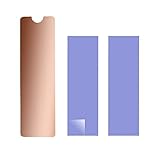
M.2 Heatsink Copper, m2 pcie NVMe Laptop PS5 Heatsink Copper,with Silicone Thermal Pad, for M.2 2280 SSD Laptop
New · Passive thermal accessory · Heatsink accessory · SGTKJSJS

ARCTIC M2 Pro - Heatsink Cooler for M.2 2280 SSD, Compatible with PC & PS5
New · Passive thermal accessory · Heatsink accessory · ARCTIC Inc

Easycargo Laptop M.2 Heatsink Kit, Copper m.2 Heat Sink + Thermal pad 1mm 0.5mm for Cooling Laptop M.2 2280 SSD (1-Pack)
New · Passive thermal accessory · Heatsink accessory · Easycargo

ELUTENG M.2 SSD Heatsink 4PCS 2280 SSD Heat Sink with NVMe SSD Thermal Pad NVMe Heat Sink with 8 Black Rubber Straps for PC/PS5 M.2 PCIE NVMe SSD or M.2 SATA SSD
New · Passive thermal accessory · Heatsink accessory · ELUTENG Direct

Thermalright TR-M.2 2280 Type A B 2280 heatsink for SSD Cooling M.2 2280 heatsink Cooler, Aluminum, with 2 Thermal Conductivity, Desktop High Performance SSD Cooler, Black
New · Passive thermal accessory · Heatsink accessory · Thermalright Direct 2

NVME M.2 Thermal pad,M.2 SSD Thermal Cooling Pad, 70x20x0.5/1mm for M.2 2280 SSD NVMe Heatsinks (20PCS Pack)
New · Passive thermal accessory · Heatsink accessory · SGTKJSJS
Confirm that the laptop has a user-accessible M.2 NVMe slot
Laptop model names often cover several internal configurations. One version may include a spare M.2 socket while another uses the only socket for the factory boot drive. Service manuals and teardown diagrams are more reliable than retailer summaries.
Confirm whether the slot is user-accessible, whether opening the chassis affects support terms, and whether the machine accepts a second drive or requires replacement of the existing one. Some ultrathin systems use soldered storage or proprietary modules rather than standard M.2 2280.
- Check the exact laptop submodel and service manual
- Determine whether the upgrade adds or replaces storage
Verify 2280 length and M-key NVMe support
The bare 990 PRO is 22 mm wide and 80 mm long. The laptop needs an M.2 2280 mounting point and a PCIe NVMe M-key socket. A shorter 2230 or 2242 bay cannot secure the drive correctly, and an M.2 SATA-only socket will not communicate with it.
Look for NVMe or PCIe wording in the service manual. Do not rely only on the fact that the factory drive has an M.2 shape because SATA and NVMe modules can use similar-looking slots.
- Require both 2280 length and PCIe NVMe protocol
- Do not force an unsupported module into the bay
Choose the bare model for most laptops
The integrated-heatsink 990 PRO is generally too thick for ordinary laptop M.2 bays. Laptop covers, battery packs and thermal plates are designed around low-profile modules. The bare model is the safer starting point unless the laptop manufacturer explicitly documents clearance for a thicker assembly.
Use the laptop’s original thermal pad, heat spreader or approved replacement when provided. An aftermarket heatsink must fit without pressing against the bottom cover, battery or keyboard deck. Compression can bend the SSD or prevent the chassis from closing correctly.
- Default to the bare 990 PRO in laptops
- Reuse the approved low-profile thermal solution
Understand PCIe generation limits
A laptop with PCIe 3.0 x4 can use the 990 PRO but will not reach Gen4 sequential speeds. Some models advertise PCIe 4.0 while routing only one slot at Gen4 and a second slot at Gen3. Power-saving modes can also lower benchmark results.
The practical value of the 990 PRO may still come from responsiveness, endurance, DRAM and current price, but do not pay a large premium solely for headline throughput that the laptop cannot expose.
- Check the exact slot generation, not the CPU headline
- Separate compatibility from maximum performance
Check single-sided and component clearance
The 2TB 990 PRO is designed as an M.2 2280 client SSD, but component height, label position and thermal pad placement still matter. Some laptop bays place a metal shield or antenna cable directly above the drive.
Inspect the original installation before removing anything. Keep screws, insulating films and spacers in the same orientation. A missing insulator can allow the module or screw to contact conductive chassis parts.
- Photograph the original assembly
- Restore insulators, pads and screws exactly
Plan around battery and power safety
Power the laptop down fully, disconnect external power and disable or disconnect the internal battery as the service manual instructs. Sleep mode is not enough. Residual power and a connected battery increase the risk of accidental short circuits while the cover is open.
Use ESD precautions and handle the module by its edges. Insert it at the recommended angle, lower it gently and secure it without overtightening the small mounting screw.
- Follow the manufacturer battery-disconnect procedure
- Never work on the slot while the laptop is merely sleeping
Decide whether to clone or reinstall Windows
When the laptop has one M.2 slot, cloning normally requires a compatible external NVMe enclosure or another computer. A clean installation avoids carrying old partitions and drivers but requires application setup and data restoration.
Choose the route before opening the laptop. Verify backups, recovery keys and installation media. For BitLocker-encrypted systems, preserve the recovery key and understand whether the clone tool needs protection suspended.
- Prepare the migration path before removing the source drive
- Keep an independent backup even when cloning
Check Intel VMD, RAID and storage-controller presentation
Some laptops present the NVMe SSD through Intel VMD or a RAID controller. Windows may require the matching storage driver during a clean installation, and Samsung Magician can expose fewer management features through certain controller paths.
Do not disable VMD or change RAID mode merely to make a utility recognize the drive. A boot installation created under one controller mode may fail to start after the mode changes.
- Record the current BIOS storage mode
- Load the manufacturer driver during installation when required
Evaluate cooling under laptop workloads
Laptop airflow and chassis temperature can vary sharply between idle, gaming and charging. A drive that looks cool at idle can throttle during a long game installation or media transfer. Use controller temperature and sustained speed together.
Make sure the thermal pad contacts the intended laptop spreader rather than the label alone. Avoid thick generic pads that bow the board or lift the cover. If the laptop has no cooling provision, prioritize airflow and realistic workload expectations.
- Validate temperature during sustained work
- Do not solve heat with excessive pad thickness
Verify BIOS, Windows and Magician detection
After installation, confirm the SSD in BIOS or UEFI first. Then check Windows Setup or Disk Management. Samsung Magician can help confirm model, firmware and negotiated interface after the operating system detects the drive.
If the laptop does not see the SSD, power down and reseat it before changing software settings. A drive absent from BIOS cannot be fixed by initializing it in Windows.
- Use BIOS detection as the first checkpoint
- Do not initialize a drive that may contain needed data
Consider power and battery-life tradeoffs
A high-performance NVMe SSD can draw more power under heavy work than a modest client drive, although completion time and idle behavior also matter. Laptop battery impact depends on workload, firmware, power plan and the platform’s ability to enter low-power states.
For a lightly used travel laptop, a lower-cost efficient SSD may be a better fit. For creative work, large games or repeated transfers, the 990 PRO’s performance may justify the tradeoff when thermals are controlled.
- Match the SSD to the laptop workload
- Judge battery impact with real usage, not one peak-power number
When the laptop is not a good 990 PRO host
Avoid the upgrade when the machine supports only SATA M.2, lacks a 2280 bay, has soldered storage, cannot physically clear the module, or requires an unsupported proprietary bracket. Also reconsider when the laptop’s Gen3 ceiling makes a cheaper drive equally useful.
A compatibility checker cannot replace the exact service manual. When documentation is unclear, identify the factory SSD model and consult the laptop manufacturer before buying.
- Do not buy until the exact bay is confirmed
- Use the manufacturer support route for ambiguous configurations
Official references and methodology
Cloudzat separates confirmed manufacturer facts from compatibility guidance and system-specific inference. Prices appear only when this plugin’s dedicated catalogue accepts an eligible 990 PRO 2TB, M.2 heatsink or NVMe enclosure offer. The motherboard, laptop and enclosure manufacturer documentation remains the final authority for physical fit, lane allocation, boot support and thermal clearance.
Frequently asked questions
Will the 990 PRO fit every laptop with an M.2 slot?
Should I buy the 990 PRO with heatsink for a laptop?
Can a PCIe 3.0 laptop use the 990 PRO?
Can I add the drive without removing the current SSD?
Why is the SSD not visible during Windows installation?
Does opening the laptop void the warranty?
Do I need to disconnect the battery?
Can I use an external enclosure to clone the old drive?
How can I check the negotiated PCIe speed?
Why is my laptop benchmark lower than desktop reviews?
Affiliate disclosure: Cloudzat may earn a commission from qualifying Amazon purchases. The price, condition, seller and availability shown at checkout control the transaction.