


Migration
Move Windows, applications and files to a Samsung 990 PRO with Samsung Data Migration while preserving BitLocker recovery, controller settings and a rollback path.
Clone only from a stable source and keep an independent backup
The destination must have enough usable space, the controller mode must remain boot-compatible and the original drive should stay untouched until validation is complete.
Do not combine cloning with an unplanned VMD or RAID change
A successful data copy can still fail to boot when the controller mode or UEFI boot path changes.
Windows-to-990-PRO cloning planner
Check capacity, connection, encryption, controller mode and rollback readiness before starting.
Migration readiness table
| Check | Ready | Needs action | Stop |
|---|---|---|---|
| Source health | Stable, no critical errors | Repairable file-system issue | Disconnecting or unreadable |
| Capacity | Used data comfortably fits | Cleanup or partition plan needed | Selected data exceeds destination |
| Connection | Second slot or stable NVMe enclosure | Adapter needs verification | Both drives cannot be connected |
| Recovery | Backup and BitLocker key saved | Partial backup | No recovery path |
Current compatible SSD and accessory offers

Plugable M.2 NVMe SSD Enclosure; Tool-Free & Driverless
New · Thunderbolt host link · Heatsink · Plugable Technologies
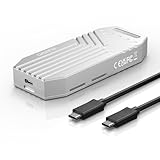
MAIWO 40Gbps M.2 NVMe SSD Enclosure Built-in Fan Tool Free All-Aluminium
New · USB4 40Gbps host link · Bare or not stated · MAIWO STORE

40Gbps M.2 NVMe SSD Enclosure, ICY BOX M.2 Enclosure Support SSD M/B+M Key Size 2280/2260/2242/2230 Compatible with Thunderbolt 4/3/USB4/3.2/3.1, Tool-Free Aluminum Thunderbolt 4 Enclosure
New · Thunderbolt host link · Heatsink · ICY BOX US
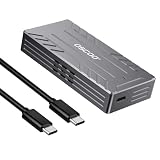
40Gbps USB4 NVMe M.2 Enclosure with Active Cooling & Silent Fan, Aluminum Heat Dissipation, Compatible with Thunderbolt 5/4/3, USB4, USB 3.2, M1/M2 Pro/Max – External SSD Enclosure - SSD Not Included
New · USB4 40Gbps host link · Bare or not stated · OSCOO STORE

ORICO 40Gbps M.2 NVMe SSD Enclosure with Built-in Cooling Fan, Tool-Free, Support 2230 2242 2260 2280(M Key), Compatible with Thunderbolt 4/3 USB4/3.2-TCM2U4-BLACK
New · USB4 40Gbps host link · Bare or not stated · ORICO Direct US Store

Yottamaster M.2 NVMe SSD Enclosure 40Gbps, for Thunderbolt 4/USB4 Interface
New · Thunderbolt host link · Bare or not stated · Yottamaster Mingdao Direct

UGREEN 40Gbps M.2 NVMe Enclosure (SSD Not Included)
New · Thunderbolt host link · Bare or not stated · UGREEN GROUP LIMITED

ACASIS 40Gbps M.2 NVMe SSD Enclosure, TBU 405 for M1 M2 Pro/Max, Compatible with 、USB4/USB3.2/3.1/3.0/2.0, M.2 Enclosure Support 2280/2260/2242/2230 (TBU405)
New · USB4 40Gbps host link · Bare or not stated · ACASIS Direct US

UGREEN 40Gbps M.2 NVMe Enclosure with Cooling Fan, Aluminum
New · Thunderbolt host link · Heatsink · UGREEN GROUP LIMITED

ACASIS 40Gbps M.2 NVMe SSD Enclosure with Cooling Fan
New · Thunderbolt host link · Bare or not stated · ACASIS Direct US

OWC Express 1M2 40Gb/s Portable NVMe SSD
New · Thunderbolt host link · Bare or not stated · OWC (Other World Computing)

Zike USB4 40Gbps M.2 NVMe SSD Enclosure,3811 MB/s,M-Key 2280,Thunderbolt 5
New · USB4 40Gbps host link · Bare or not stated · ZIKE DE Official Store
Decide whether cloning is the right migration method
Cloning copies the operating system, applications, settings and user data to the Samsung SSD. It is useful when the current Windows installation is healthy and you want minimal reconfiguration. A clean installation is usually better when the source has corruption, unwanted software or an incompatible legacy boot layout.
Run system-file, malware and storage-health checks before cloning. Copy irreplaceable files separately because a clone is a migration operation, not an independent backup.
- Clone a healthy installation
- Keep a separate backup of important files
Confirm destination capacity and used space
The 2TB 990 PRO must have enough usable capacity for all selected source partitions. Compare actual used space, not only the source drive’s advertised size. Hidden recovery partitions and manufacturer tools also consume room.
A larger source disk can still be cloned to 2TB when the used data and required partitions fit and the software can resize them. Remove temporary files and unused applications before migration.
- Compare used space with destination capacity
- Leave free space for Windows and SSD management
Prepare BitLocker and recovery information
Save the BitLocker or device-encryption recovery key before changing storage. Depending on the migration method, protection may need to be suspended temporarily. The destination can require recovery after the first hardware or boot change.
Do not decrypt a large source drive merely because a generic guide says so. Follow the current Samsung Magician or Data Migration instructions and the organization’s security policy.
- Save recovery keys outside the source PC
- Follow the cloning tool’s encryption guidance
Connect the destination through the best available path
A desktop with a spare M.2 slot can clone internally. A one-slot laptop normally needs a compatible NVMe enclosure or another computer. The enclosure must support M-key NVMe 2280, not only M.2 SATA.
A USB enclosure is adequate for migration even though it cannot expose full PCIe 4.0 speed. Use a stable cable and port, avoid hubs and keep the system on reliable power.
- Confirm NVMe rather than SATA enclosure support
- Connect directly to a stable host port
Install current Samsung Magician and Data Migration
Samsung describes Data Migration as a way to transfer the current OS, applications and user data to a Samsung SSD. Use the current official software and read its limitations before starting.
Close unnecessary applications and pause activities that continually modify the source. Do not download cloning software from unofficial mirrors. Record the source and destination model shown in the tool before proceeding.
- Use Samsung’s current official software
- Verify source and destination before starting
Handle VMD, RAID and storage drivers carefully
A source Windows installation may boot through Intel VMD, RAID or a manufacturer storage driver. The clone generally needs to boot with a compatible controller path. Changing the BIOS storage mode during migration can make Windows inaccessible.
Keep the existing mode unchanged for the first boot unless a documented migration plan includes driver preparation. Samsung Magician may show limited functions through some controller paths, but utility access is not more important than a bootable system.
- Preserve the boot controller mode
- Do not disable VMD solely for Magician visibility
Start the clone and avoid interrupting it
Connect AC power, prevent sleep and avoid heavy workloads while the clone runs. Do not disconnect the enclosure or reboot until the software reports completion. A migration can take much longer than a simple file copy because it processes partitions and many small files.
If the process fails, capture the exact error. Repeatedly restarting without checking source health, encryption, free space and USB stability can waste time and increase wear.
- Use stable power and disable sleep
- Save the exact error before retrying
Shut down before changing drive positions
After a successful clone, perform a full shutdown. In a one-slot laptop, replace the source with the 990 PRO. In a desktop, disconnect or temporarily disable the old boot drive for the first test so the firmware cannot silently boot the original.
Keep the source untouched and stored safely. Do not format it until the new drive has booted repeatedly and the files, applications and recovery environment have been checked.
- Test the destination without relying on the old boot disk
- Keep the source unchanged during validation
Set the correct UEFI boot entry
Enter firmware setup and select Windows Boot Manager associated with the new SSD. On a GPT/UEFI installation, the boot entry is more important than the raw drive name. Avoid enabling Legacy or CSM mode unless the original installation requires it.
If the system returns to the old disk or shows no boot device, verify that the EFI System Partition was copied and that the firmware detects the new module. Use Windows recovery tools before altering partitions manually.
- Select the destination Windows Boot Manager
- Keep UEFI mode consistent with the source layout
Expand the Windows partition when needed
Some cloning tools preserve the source partition size and leave the remainder of the 2TB destination unallocated. After the clone is stable, use Disk Management to extend the Windows volume when the free space is adjacent and the recovery partition layout permits it.
Do not delete recovery partitions blindly to reach unallocated space. Understand the partition order and keep a recovery backup before restructuring the disk.
- Verify the clone before resizing partitions
- Preserve recovery partitions unless the plan replaces them
Validate the destination thoroughly
Confirm that Windows is actually running from the 990 PRO by checking the system disk model. Test applications, user files, updates, sleep and restart. Then review Magician for firmware, health, interface and temperature.
Keep the old drive for a defined rollback period. A successful first boot does not prove that every file or recovery feature is correct.
- Verify the active system disk
- Test restart, sleep, updates and key applications
Resolve common cloning failures
Typical causes include insufficient destination space, source errors, BitLocker state, USB enclosure instability, VSS problems, unsupported dynamic disks and controller changes. Diagnose the reported stage rather than immediately reformatting the destination.
When the source drive is failing, ordinary cloning software may not be appropriate. Prioritize a read-minimizing image or professional recovery depending on data importance.
- Treat source-health errors as a data-risk issue
- Do not repeatedly clone a failing drive
Official references and methodology
Cloudzat separates confirmed manufacturer facts from compatibility guidance and system-specific inference. Prices appear only when this plugin’s dedicated catalogue accepts an eligible 990 PRO 2TB, M.2 heatsink or NVMe enclosure offer. The motherboard, laptop and enclosure manufacturer documentation remains the final authority for physical fit, lane allocation, boot support and thermal clearance.
Frequently asked questions
Can Samsung Magician clone Windows to the 990 PRO?
Can I clone a larger drive to the 2TB 990 PRO?
Do I need an external enclosure?
Should I initialize the destination before cloning?
Can I clone a BitLocker-encrypted Windows drive?
Why does the PC still boot from the old SSD?
Why is part of the 2TB drive unallocated after cloning?
Can I change from VMD to direct NVMe during the clone?
When can I erase the old drive?
What if the source drive has errors?
Affiliate disclosure: Cloudzat may earn a commission from qualifying Amazon purchases. The price, condition, seller and availability shown at checkout control the transaction.