


UGREEN NAS systems can serve as modern Time Machine destinations when configured with the current UGOS Pro workflow over SMB + Bonjour. The important work happens on the NAS side: create or enable the correct backup share, use a restricted account, set a sensible quota, size the protected drive pool and validate an actual restore. This page keeps those steps specific to UGREEN so Mac owners do not accidentally copy menu paths or permission assumptions from another NAS platform.
Built for current SMB-based Time Machine workflows, with capacity planning, restore checks and hardware choices separated so one weak link does not undermine the whole backup plan.
Use UGREEN Time Machine over SMB + Bonjour, keep the backup in a dedicated share, set a quota for each Mac and validate one restore after the first full backup. UGOS Pro can designate a Time Machine folder and advertise it for Macs; current firmware and share permissions should be verified before the first backup.
What matters before you start
Time Machine over a NAS is a chain of storage, protocol, account, quota and network decisions. Check the chain before buying more hardware.
Use the current vendor workflow.
Avoid the NAS administrator login.
Use Mac storage plus history/growth.
Recover one file before trusting the workflow.
UGREEN Time Machine Setup Checker
Answer five setup questions about UGOS Pro, the backup share, account, quota and restore test. The checker identifies the next step without changing NAS settings automatically.
Choose your inputs, then calculate a practical next step.
UGREEN NAS and drive options for Time Machine
Complete UGREEN NAS systems are separated from NAS-rated hard drives and optional Mac/network upgrades. Accessories cannot qualify as a NAS listing.
UGREEN NAS
4 options
UGREEN NAS DH2300 2-Bay Bundle 16 Inch 2.5K Portable Monitor with Magnetic Stand for Work & Gaming

UGREEN DXP4800 Plus 4-Bay NAS for Families, Creators & Small Teams

UGREEN DXP2800 GT NAS for Smart Home Enthusiasts, Creators & Freelancers
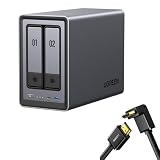
UGREEN NASync DXP2800 2-Bay Desktop NAS,Network Attached Storage (Diskless) Bundle with HDMI Cable Right Angle 4K 90 Degree HDMI Cord 3.3FT
NAS hard drives
4 options
Toshiba N300 14TB NAS 3.5-Inch Internal Hard Drive - CMR SATA 6 Gb/s 7200 RPM 512 MB Cache - HDWG51EXZSTA

Western Digital 18TB WD Red Pro NAS Internal Hard Drive HDD - 7200 RPM, SATA 6 Gb/s, CMR, 512 MB Cache, 3.5" - WD181KFGX

Western Digital 12TB WD Red Pro NAS Internal Hard Drive HDD - 7200 RPM, SATA 6 Gb/s, CMR, 256 MB Cache, 3.5" - WD121KFBX

Western Digital 12TB WD Red Plus NAS Internal Hard Drive HDD - 7200 RPM, SATA 6 GB/s, CMR, 512 MB Cache, 3.5" - WD120EFBX
Mac 2.5GbE adapters
4 options
StarTech 2.5GbE USB-C to Ethernet Adapter, USB-A Converter, NBASE-T NIC

StarTech 2.5GbE USB-C to Ethernet Adapter, 100W PD Pass-Through, NBASE-T

StarTech 2.5GbE USB C to Ethernet Adapter, NBASE-T NIC, 3.1 Laptop, MacBook

StarTech 2.5GbE USB-C to Ethernet Adapter, NBASE-T NIC, Thunderbolt
2.5GbE switches
4 options
YuanLey 8 Port 2.5G Ethernet Switch Unmanaged, 8 x 2.5GbE RJ45

8 Port 2.5G Ethernet Switch Unmanaged Network Switch with 8 x 2.5 Gigabit | Work with 10-100-1000Mbps Devices | 40G Bandwidth | Plug & Play | Fanless Quiet Internet Switch Ethernet Splitter

NUBASA 8 Port 2.5Gb Switch, Pro-Level 2.5 Gigabit Ethernet Switch Unmanaged

Tenda 2.5Gb Ethernet Switch, 5 Port Multi-Gigabit 2.5G Ethernet Splitter
Amazon prices, sellers and stock can change. Confirm the exact model, capacity, condition and final price at checkout.
Time Machine on UGREEN NAS: UGOS Pro Setup, Quotas and Mac Backup Guide decision matrix
Use this as a planning shortcut, then verify the exact NAS model, operating-system version, drive support and network path before buying.
| Choice | Best fit | Why it works | Watch for |
|---|---|---|---|
| 2-bay UGREEN | One or two Macs | Simple mirror and lower cost | Capacity ceiling |
| 4-bay UGREEN | Several Macs or shared storage | Better expansion runway | Higher initial cost |
| NAS HDD mirror | Backup-focused pool | Simple redundancy model | Half raw two-drive capacity is usable |
| 2.5GbE path | Large first backups | Faster transfers when both ends support it | Not required for routine Time Machine |
Before you commit the backup
Use current UGOS Pro
Vendor menu paths and SMB behavior should match the installed OS release.
Dedicated backup identity
Keep Time Machine credentials separate from NAS administration.
Quota and reserve
Do not assign every terabyte of the pool to backup quotas.
Restore drill
Test recovery after setup and major updates.
How Time Machine works on UGREEN
UGREEN’s current Mac guidance uses UGOS Pro with a designated Time Machine folder, SMB and Bonjour discovery. That combination matters because SMB carries the backup while Bonjour helps the Mac discover the advertised destination on the local network. This section focuses on how time machine works on ugreen because it is a different decision from simply seeing the NAS in Finder. The objective is a configuration that stays understandable months later, when the backup has accumulated history and the NAS is doing other work.
For UGREEN owners, the practical standard is repeatability: another administrator should be able to identify the UGOS Pro setting, the Mac account and the storage boundary without guessing. Keep the working path documented, preserve free-space headroom, and avoid changing several variables at once when a backup is interrupted.
SMB + Bonjour is the transport
Within UGOS Pro, treat smb + bonjour is the transport as a visible configuration checkpoint. Confirm the designated Time Machine folder, the account allowed to use it and the available capacity before asking macOS to write hundreds of gigabytes. On NASync hardware, this check also helps separate a platform setting from a disk or network problem.
UGOS Pro settings control the destination
A UGREEN-specific check for ugos pro settings control the destination should finish with a simple Finder access test or file restore. Bonjour can make the NAS easy to discover, but discovery alone does not prove that permissions, quota and backup history are correct. On NASync hardware, this check also helps separate a platform setting from a disk or network problem.
Create the UGREEN Time Machine share
On NASync hardware, make the Time Machine folder a deliberate part of the storage plan instead of reusing a general download or media directory. UGOS Pro permissions are easier to audit when backup data has a clear boundary. This section focuses on create the ugreen time machine share because it is a different decision from simply seeing the NAS in Finder. The objective is a configuration that stays understandable months later, when the backup has accumulated history and the NAS is doing other work.
Share creation
Within UGOS Pro, treat share creation as a visible configuration checkpoint. Confirm the designated Time Machine folder, the account allowed to use it and the available capacity before asking macOS to write hundreds of gigabytes. On NASync hardware, this check also helps separate a platform setting from a disk or network problem.
Permissions for the backup account
A UGREEN-specific check for permissions for the backup account should finish with a simple Finder access test or file restore. Bonjour can make the NAS easy to discover, but discovery alone does not prove that permissions, quota and backup history are correct. On NASync hardware, this check also helps separate a platform setting from a disk or network problem.
Set quotas for each Mac
A UGREEN quota should reflect Mac SSD size, current used space and expected history instead of the enclosure’s headline raw capacity. Leave pool headroom because a NASync box is often purchased for photos, media and containers in addition to Mac backups. This section focuses on set quotas for each mac because it is a different decision from simply seeing the NAS in Finder. The objective is a configuration that stays understandable months later, when the backup has accumulated history and the NAS is doing other work.
Quota sizing
Within UGOS Pro, treat quota sizing as a visible configuration checkpoint. Confirm the designated Time Machine folder, the account allowed to use it and the available capacity before asking macOS to write hundreds of gigabytes. On NASync hardware, this check also helps separate a platform setting from a disk or network problem.
Free-space reserve
A UGREEN-specific check for free-space reserve should finish with a simple Finder access test or file restore. Bonjour can make the NAS easy to discover, but discovery alone does not prove that permissions, quota and backup history are correct. On NASync hardware, this check also helps separate a platform setting from a disk or network problem.
Connect macOS to the NAS
Use Finder to confirm the NASync share and credentials before opening Time Machine settings. If Finder cannot reliably reach the UGOS Pro share, changing Time Machine preferences will not fix the underlying network or account problem. This section focuses on connect macos to the nas because it is a different decision from simply seeing the NAS in Finder. The objective is a configuration that stays understandable months later, when the backup has accumulated history and the NAS is doing other work.
Finder connectivity
Within UGOS Pro, treat finder connectivity as a visible configuration checkpoint. Confirm the designated Time Machine folder, the account allowed to use it and the available capacity before asking macOS to write hundreds of gigabytes. On NASync hardware, this check also helps separate a platform setting from a disk or network problem.
Select the destination in Time Machine
A UGREEN-specific check for select the destination in time machine should finish with a simple Finder access test or file restore. Bonjour can make the NAS easy to discover, but discovery alone does not prove that permissions, quota and backup history are correct. On NASync hardware, this check also helps separate a platform setting from a disk or network problem.
Run the first backup efficiently
UGREEN systems frequently include faster Ethernet than old Time Capsule hardware, but the first backup still benefits most from a stable wired NAS connection. A 2.5GbE Mac adapter is useful only when the NAS, switch and Mac path can all use the extra speed. This section focuses on run the first backup efficiently because it is a different decision from simply seeing the NAS in Finder. The objective is a configuration that stays understandable months later, when the backup has accumulated history and the NAS is doing other work.
Initial full backup
Within UGOS Pro, treat initial full backup as a visible configuration checkpoint. Confirm the designated Time Machine folder, the account allowed to use it and the available capacity before asking macOS to write hundreds of gigabytes. On NASync hardware, this check also helps separate a platform setting from a disk or network problem.
Later incremental behavior
A UGREEN-specific check for later incremental behavior should finish with a simple Finder access test or file restore. Bonjour can make the NAS easy to discover, but discovery alone does not prove that permissions, quota and backup history are correct. On NASync hardware, this check also helps separate a platform setting from a disk or network problem.
Use NAS HDDs and redundancy deliberately
Many NASync buyers use the same enclosure for backup and general storage, so drive layout needs to protect both roles. A two-bay mirror is simple; DXP4800-class four-bay systems create more capacity choices when backup history and media libraries grow together. This section focuses on use nas hdds and redundancy deliberately because it is a different decision from simply seeing the NAS in Finder. The objective is a configuration that stays understandable months later, when the backup has accumulated history and the NAS is doing other work.
Two-drive mirror
Within UGOS Pro, treat two-drive mirror as a visible configuration checkpoint. Confirm the designated Time Machine folder, the account allowed to use it and the available capacity before asking macOS to write hundreds of gigabytes. On NASync hardware, this check also helps separate a platform setting from a disk or network problem.
Four-bay growth path
A UGREEN-specific check for four-bay growth path should finish with a simple Finder access test or file restore. Bonjour can make the NAS easy to discover, but discovery alone does not prove that permissions, quota and backup history are correct. On NASync hardware, this check also helps separate a platform setting from a disk or network problem.
Multiple Macs on one UGREEN NAS
For several Macs, create clear UGOS Pro identities or permissions and avoid one shared superuser credential. Capacity tracking becomes much easier when each computer has a recognizable backup allocation rather than one unlimited pool. This section focuses on multiple macs on one ugreen nas because it is a different decision from simply seeing the NAS in Finder. The objective is a configuration that stays understandable months later, when the backup has accumulated history and the NAS is doing other work.
Separate backup identities
Within UGOS Pro, treat separate backup identities as a visible configuration checkpoint. Confirm the designated Time Machine folder, the account allowed to use it and the available capacity before asking macOS to write hundreds of gigabytes. On NASync hardware, this check also helps separate a platform setting from a disk or network problem.
Track capacity per Mac
A UGREEN-specific check for track capacity per mac should finish with a simple Finder access test or file restore. Bonjour can make the NAS easy to discover, but discovery alone does not prove that permissions, quota and backup history are correct. On NASync hardware, this check also helps separate a platform setting from a disk or network problem.
Troubleshoot failed backups in layers
When a UGREEN backup fails, check current UGOS Pro firmware, share visibility, account access, quota and free pool capacity before assuming the sparse backup is corrupt. A service or permission change can look like a Time Machine failure from the Mac side. This section focuses on troubleshoot failed backups in layers because it is a different decision from simply seeing the NAS in Finder. The objective is a configuration that stays understandable months later, when the backup has accumulated history and the NAS is doing other work.
NAS-side checks
Within UGOS Pro, treat nas-side checks as a visible configuration checkpoint. Confirm the designated Time Machine folder, the account allowed to use it and the available capacity before asking macOS to write hundreds of gigabytes. On NASync hardware, this check also helps separate a platform setting from a disk or network problem.
Mac-side checks
A UGREEN-specific check for mac-side checks should finish with a simple Finder access test or file restore. Bonjour can make the NAS easy to discover, but discovery alone does not prove that permissions, quota and backup history are correct. On NASync hardware, this check also helps separate a platform setting from a disk or network problem.
Restore testing and disaster planning
After the first UGREEN backup, recover a test document and confirm that historical versions appear. The exercise proves more than the dashboard status and gives you a baseline to repeat after a major UGOS Pro or macOS update. This section focuses on restore testing and disaster planning because it is a different decision from simply seeing the NAS in Finder. The objective is a configuration that stays understandable months later, when the backup has accumulated history and the NAS is doing other work.
Test a file restore
Within UGOS Pro, treat test a file restore as a visible configuration checkpoint. Confirm the designated Time Machine folder, the account allowed to use it and the available capacity before asking macOS to write hundreds of gigabytes. On NASync hardware, this check also helps separate a platform setting from a disk or network problem.
Plan for NAS failure too
A UGREEN-specific check for plan for nas failure too should finish with a simple Finder access test or file restore. Bonjour can make the NAS easy to discover, but discovery alone does not prove that permissions, quota and backup history are correct. On NASync hardware, this check also helps separate a platform setting from a disk or network problem.
When to upgrade the UGREEN hardware
Move from an entry NASync model to a larger UGREEN enclosure when actual capacity or bay requirements justify it. Time Machine itself does not need a high-end CPU, so pay first for reliable disks, sufficient usable space and the network path you will use. This section focuses on when to upgrade the ugreen hardware because it is a different decision from simply seeing the NAS in Finder. The objective is a configuration that stays understandable months later, when the backup has accumulated history and the NAS is doing other work.
Capacity-driven upgrades
Within UGOS Pro, treat capacity-driven upgrades as a visible configuration checkpoint. Confirm the designated Time Machine folder, the account allowed to use it and the available capacity before asking macOS to write hundreds of gigabytes. On NASync hardware, this check also helps separate a platform setting from a disk or network problem.
Network-driven upgrades
A UGREEN-specific check for network-driven upgrades should finish with a simple Finder access test or file restore. Bonjour can make the NAS easy to discover, but discovery alone does not prove that permissions, quota and backup history are correct. On NASync hardware, this check also helps separate a platform setting from a disk or network problem.
Time Machine NAS questions
Does UGREEN NAS support Time Machine?
UGREEN provides a Time Machine workflow on its current NAS platform. Use the current UGOS Pro documentation and SMB-based setup.
Should I use a separate user for Time Machine on UGREEN?
Yes, a dedicated backup account improves isolation and makes permissions and quotas easier to reason about.
How large should the quota be?
Apple’s ideal baseline is at least twice the Mac storage capacity. Increase that for desired history depth, growth and multiple Macs.
Should I use Wi-Fi or Ethernet?
Keep the NAS itself on Ethernet. Macs can back up over Wi-Fi, but wired Ethernet can make a large first backup faster and more stable.
Primary setup references
Use current vendor documentation for final menu paths and compatibility details because NAS operating systems and macOS behavior can change.
- Apple: Backup disks you can use with Time Machine
- Apple: Time Machine storage sizing guidance
- UGREEN guide to Mac files and Time Machine
Cloudzat may earn from qualifying Amazon purchases. Confirm the exact product, capacity, condition and checkout price before buying.