


Apple has discontinued the AirPort line, and its current support guidance makes macOS 26 the last release to officially support using AirPort Time Capsule or AirPort Extreme for Time Machine backups. The durable replacement path is a current SMB-capable NAS, another Mac shared as a backup destination, or direct-attached storage. For households that liked the always-on network behavior of Time Capsule, a two-bay NAS is usually the closest modern replacement because it adds drive redundancy, quotas and an upgrade path.
Built for current SMB-based Time Machine workflows, with capacity planning, restore checks and hardware choices separated so one weak link does not undermine the whole backup plan.
The closest modern replacement for an Apple Time Capsule is a small SMB-capable NAS with one Time Machine share, a quota for each Mac and two NAS-rated drives in a mirror. It preserves the automatic network-backup idea while moving away from the AFP-based AirPort workflow that Apple no longer recommends for macOS 27 and later.
What matters before you start
Time Machine over a NAS is a chain of storage, protocol, account, quota and network decisions. Check the chain before buying more hardware.
Do not depend on it for a new macOS 27 backup plan.
Use SMB Time Machine support and per-Mac quotas.
A Mac can share a folder as a Time Machine destination.
Good when network backup is not required.
Time Capsule Replacement Planner
Tell the planner how many Macs you back up, how much internal storage they have, whether you want drive redundancy and how much network speed you need. It maps the old Time Capsule role to a modern replacement.
Choose your inputs, then calculate a practical next step.
Modern replacements for Apple Time Capsule
These options focus on current NAS systems, NAS hard drives and practical Mac networking. Used Time Capsules are not promoted as the forward-looking answer.
Synology NAS
4 options
Synology 2-Bay DiskStation DS223j (Diskless)

Synology DiskStation DS124 NAS Server with RTD1619B 4-Core 1.7GHz CPU, 1GB Memory, 22TB HDD Storage, 1 x 1GbE LAN Port, DSM Operating System
Synology DiskStation DS124 NAS Server with RTD1619B 4-Core 1.7GHz CPU, 1GB Memory, 4TB SSD Storage, 1 x 1GbE LAN Port, DSM Operating System
Synology DiskStation DS124 NAS Server with RTD1619B 4-Core 1.7GHz CPU, 1GB Memory, 1TB SSD Storage, 1 x 1GbE LAN Port, DSM Operating System
UGREEN NAS
4 options
UGREEN NAS DH2300 2-Bay Bundle 16 Inch 2.5K Portable Monitor with Magnetic Stand for Work & Gaming

UGREEN DXP4800 Plus 4-Bay NAS for Families, Creators & Small Teams

UGREEN DXP2800 GT NAS for Smart Home Enthusiasts, Creators & Freelancers
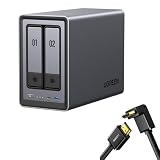
UGREEN NASync DXP2800 2-Bay Desktop NAS,Network Attached Storage (Diskless) Bundle with HDMI Cable Right Angle 4K 90 Degree HDMI Cord 3.3FT
QNAP NAS
4 options
QNAP TS-464eU-8G-US 4 Bay 1U Short Depth Rackmount NAS

QNAP TS-264-8G-US 2 Bay Desktop NAS
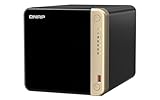
QNAP TS-464-8G-US 4 Bay Desktop NAS

QNAP TS-433-4G-US 4 Bay NAS
TerraMaster NAS
4 options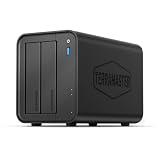
TERRAMASTER F2-425 2-Bay NAS Intel x86 Quad-Core CPU 4GB RAM (Diskless)

TERRAMASTER F4-425 4-Bay NAS Intel x86 Quad-Core CPU 4GB RAM (Diskless)

TERRAMASTER F4-425 Plus NAS 4-Bay, Intel N95 4-Core CPU, 8GB RAM (Diskless)

TERRAMASTER F4-425 Pro NAS 4-Bay, Intel N305 8-Core, 8GB RAM (Diskless)
ASUSTOR NAS
4 options
Asustor AS5402T, 2 Bay NAS with 1 x 4TB SSD (WDS400T4B0E), Intel Quad-Core 2.0GHz CPU, 4X M.2 NVMe SSD Slots, 2x2.5GbE Ports, 4GB DDR4 RAM, for Gaming and Live Stream, Network Attached Storage

Asustor Drivestor 2 Pro Gen2 AS3302T v2, 2 Bay NAS, Home Cloud Backup

Asustor Drivestor 2 Gen 2 AS1202T 2 Bay NAS Storage for Personal Home Users

Asustor Drivestor 4 Gen 2 AS1204T, 4 Bay NAS, Personal Home Cloud Backup
NAS hard drives
4 options
Toshiba N300 14TB NAS 3.5-Inch Internal Hard Drive - CMR SATA 6 Gb/s 7200 RPM 512 MB Cache - HDWG51EXZSTA

Western Digital 18TB WD Red Pro NAS Internal Hard Drive HDD - 7200 RPM, SATA 6 Gb/s, CMR, 512 MB Cache, 3.5" - WD181KFGX

Western Digital 12TB WD Red Pro NAS Internal Hard Drive HDD - 7200 RPM, SATA 6 Gb/s, CMR, 256 MB Cache, 3.5" - WD121KFBX

Western Digital 12TB WD Red Plus NAS Internal Hard Drive HDD - 7200 RPM, SATA 6 GB/s, CMR, 512 MB Cache, 3.5" - WD120EFBX
Mac 2.5GbE adapters
4 options
StarTech 2.5GbE USB-C to Ethernet Adapter, USB-A Converter, NBASE-T NIC

StarTech 2.5GbE USB-C to Ethernet Adapter, 100W PD Pass-Through, NBASE-T

StarTech 2.5GbE USB C to Ethernet Adapter, NBASE-T NIC, 3.1 Laptop, MacBook

StarTech 2.5GbE USB-C to Ethernet Adapter, NBASE-T NIC, Thunderbolt
Amazon prices, sellers and stock can change. Confirm the exact model, capacity, condition and final price at checkout.
Best Apple Time Capsule Replacement: NAS Options for Time Machine decision matrix
Use this as a planning shortcut, then verify the exact NAS model, operating-system version, drive support and network path before buying.
| Choice | Best fit | Why it works | Watch for |
|---|---|---|---|
| 2-bay NAS + mirror | Closest network replacement | Always-on SMB backup plus redundancy | Requires separate drives and setup |
| Single direct drive | One Mac, lowest complexity | Fast and simple | No network automation when disconnected |
| Another Mac share | Existing always-on Mac | No NAS purchase required | Depends on that Mac staying available |
| 4-bay NAS | Several Macs + shared storage | Longer growth runway | Higher initial cost |
Before you commit the backup
Use SMB, not AFP
The migration should land on a current protocol rather than recreate the legacy AirPort path.
Preserve network convenience
Keep the NAS always reachable on stable Ethernet so Time Machine can run without attaching a cable to each Mac.
Separate household backups
Use dedicated accounts or shares and quotas for multiple Macs.
Keep the old backup intact
Do not erase the Time Capsule until the new destination has completed and passed a restore test.
Why the Time Capsule era is ending
For Best Apple Time Capsule Replacement: NAS Options for Time Machine, the useful starting point is Apple has moved the compatibility boundary. Apple now states that macOS 26 is the last macOS version to officially support Time Machine backups to AirPort Time Capsule and AirPort Extreme. That makes replacement planning a compatibility issue rather than a cosmetic upgrade. Build the new destination before upgrading every Mac so there is no gap in backup coverage. That sequence keeps the backup plan tied to an observable requirement instead of a headline specification.
macOS 27 changes the decision
Apple has moved the compatibility boundary. Confirm the exact setting on both the NAS and the Mac before starting a large backup. That makes replacement planning a compatibility issue rather than a cosmetic upgrade. Keep this check narrow enough that a failed first backup does not trigger unrelated changes elsewhere in the NAS.
AirPort Utility is now a legacy management tool
In this part of Best Apple Time Capsule Replacement: NAS Options for Time Machine, Build the new destination before upgrading every Mac so there is no gap in backup coverage.. Use a small validation step first, then expand the configuration only after the first backup and restore behave correctly. Apple now states that macOS 26 is the last macOS version to officially support Time Machine backups to AirPort Time Capsule and AirPort Extreme. Validate one change at a time and record the setting that made the difference.
What a modern replacement should preserve
The decision around Best Apple Time Capsule Replacement: NAS Options for Time Machine changes once the useful idea was automatic network backup. Time Capsule succeeded because Macs could see an always-on destination without attaching a drive for every backup. In practice, A replacement should preserve automation while improving storage redundancy, quotas and capacity growth. Define the experience you want first, then choose NAS hardware rather than shopping for a router-shaped clone. This makes it easier to separate a capacity problem from a protocol or permissions problem.
Always-on behavior matters more than shape
This is where the useful idea was automatic network backup. Confirm the exact setting on both the NAS and the Mac before starting a large backup. A replacement should preserve automation while improving storage redundancy, quotas and capacity growth. A short verification now is more useful than discovering the assumption during a restore emergency.
Separate Wi-Fi from backup storage
The operational rule is simple: Define the experience you want first, then choose NAS hardware rather than shopping for a router-shaped clone.. Use a small validation step first, then expand the configuration only after the first backup and restore behave correctly. Time Capsule succeeded because Macs could see an always-on destination without attaching a drive for every backup. Re-test after a major macOS, NAS OS or storage-layout change.
Why a two-bay NAS is the closest successor
A reliable Best Apple Time Capsule Replacement: NAS Options for Time Machine workflow depends on more than the enclosure. Start by recognizing that a mirror adds a protection layer Time Capsule lacked. A compact two-bay system can expose an SMB Time Machine share while keeping copies across two drives when configured as a mirror. Drive redundancy does not replace backup, but it reduces downtime from a single disk failure. Choose drives large enough that the mirrored usable capacity meets the backup plan for several years. The result is a configuration that can be checked again after a macOS or NAS update.
Mirror two NAS drives
Use this step to confirm that a mirror adds a protection layer Time Capsule lacked. Confirm the exact setting on both the NAS and the Mac before starting a large backup. Drive redundancy does not replace backup, but it reduces downtime from a single disk failure. Once it works, leave the configuration stable long enough to observe an automatic backup cycle.
Know what RAID does not protect
Choose drives large enough that the mirrored usable capacity meets the backup plan for several years.. Use a small validation step first, then expand the configuration only after the first backup and restore behave correctly. A compact two-bay system can expose an SMB Time Machine share while keeping copies across two drives when configured as a mirror. Keep this check narrow enough that a failed first backup does not trigger unrelated changes elsewhere in the NAS.
Synology, UGREEN and QNAP replacement paths
When planning Best Apple Time Capsule Replacement: NAS Options for Time Machine, treat vendor setup differs but the outcome is similar as a design constraint rather than an afterthought. Each platform can provide network shares, users and capacity controls, but menus and defaults are different. Copying instructions from the wrong NAS brand is a common way to create permissions confusion. Use the dedicated vendor guide for the platform you actually buy. That is more useful than buying extra hardware before the actual bottleneck is known.
Synology DSM migration path
In this part of Best Apple Time Capsule Replacement: NAS Options for Time Machine, vendor setup differs but the outcome is similar. Confirm the exact setting on both the NAS and the Mac before starting a large backup. Copying instructions from the wrong NAS brand is a common way to create permissions confusion. Validate one change at a time and record the setting that made the difference.
UGREEN and QNAP alternatives
This is where Use the dedicated vendor guide for the platform you actually buy.. Use a small validation step first, then expand the configuration only after the first backup and restore behave correctly. Each platform can provide network shares, users and capacity controls, but menus and defaults are different. A short verification now is more useful than discovering the assumption during a restore emergency.
Moving without deleting the old backup
The strongest way to evaluate Best Apple Time Capsule Replacement: NAS Options for Time Machine is to ask whether migration should create overlap, not a cliff. The safest move is to establish the NAS as a new Time Machine destination while the old Time Capsule remains untouched for a transition period. Erasing the legacy disk on day one removes historical recovery points before the new destination has earned trust. Complete a new full backup, restore a test file, then decide how long to retain the old archive. Keeping that distinction clear prevents raw capacity, usable capacity and backup history from being mixed together.
Start a fresh destination cleanly
The operational rule is simple: migration should create overlap, not a cliff. Confirm the exact setting on both the NAS and the Mac before starting a large backup. Erasing the legacy disk on day one removes historical recovery points before the new destination has earned trust. Re-test after a major macOS, NAS OS or storage-layout change.
Retain legacy history deliberately
Use this step to confirm that Complete a new full backup, restore a test file, then decide how long to retain the old archive.. Use a small validation step first, then expand the configuration only after the first backup and restore behave correctly. The safest move is to establish the NAS as a new Time Machine destination while the old Time Capsule remains untouched for a transition period. Once it works, leave the configuration stable long enough to observe an automatic backup cycle.
Wi-Fi router and backup storage are now separate purchases
For households using Best Apple Time Capsule Replacement: NAS Options for Time Machine, modern networks do not need one combined appliance often determines whether the setup stays simple as more data accumulates. A current mesh or standalone router can handle Wi-Fi while the NAS sits on wired Ethernet elsewhere. Separating the roles lets you upgrade wireless networking without moving terabytes of backup data. Connect the NAS to the router or switch by Ethernet and judge Wi-Fi only by the Mac-to-network leg. A small amount of planning here avoids disruptive migrations later.
Put the NAS on Ethernet
modern networks do not need one combined appliance. Confirm the exact setting on both the NAS and the Mac before starting a large backup. Separating the roles lets you upgrade wireless networking without moving terabytes of backup data. Keep this check narrow enough that a failed first backup does not trigger unrelated changes elsewhere in the NAS.
Upgrade Wi-Fi independently
In this part of Best Apple Time Capsule Replacement: NAS Options for Time Machine, Connect the NAS to the router or switch by Ethernet and judge Wi-Fi only by the Mac-to-network leg.. Use a small validation step first, then expand the configuration only after the first backup and restore behave correctly. A current mesh or standalone router can handle Wi-Fi while the NAS sits on wired Ethernet elsewhere. Validate one change at a time and record the setting that made the difference.
Capacity planning after a Time Capsule
The practical test for Best Apple Time Capsule Replacement: NAS Options for Time Machine is not a benchmark but whether old 2TB or 3TB limits are no longer useful anchors. Modern Macs with 1TB or larger SSDs can fill an old Time Capsule quickly once multiple machines and history are included. Replicating the old capacity exactly can recreate the same shortage immediately. Use each Mac SSD size and current used space to set the new pool, then add room for growth. This keeps day-to-day backup reliability ahead of features that do not improve recovery.
Use Apple’s twice-capacity baseline
This is where old 2TB or 3TB limits are no longer useful anchors. Confirm the exact setting on both the NAS and the Mac before starting a large backup. Replicating the old capacity exactly can recreate the same shortage immediately. A short verification now is more useful than discovering the assumption during a restore emergency.
Plan several Macs together
The operational rule is simple: Use each Mac SSD size and current used space to set the new pool, then add room for growth.. Use a small validation step first, then expand the configuration only after the first backup and restore behave correctly. Modern Macs with 1TB or larger SSDs can fill an old Time Capsule quickly once multiple machines and history are included. Re-test after a major macOS, NAS OS or storage-layout change.
Performance expectations during migration
Think of Best Apple Time Capsule Replacement: NAS Options for Time Machine as a chain in which the first NAS backup is the heavy transfer. A Time Machine first run can take much longer than later incrementals and may expose weak Wi-Fi, sleep settings or undersized networking. Judging the NAS by one congested wireless first backup can lead to unnecessary hardware upgrades. Use wired Ethernet where possible for the first backup and observe later incremental behavior separately. If one link is weak, more CPU or a faster drive will not fix the underlying workflow.
First backup versus incremental backup
Use this step to confirm that the first NAS backup is the heavy transfer. Confirm the exact setting on both the NAS and the Mac before starting a large backup. Judging the NAS by one congested wireless first backup can lead to unnecessary hardware upgrades. Once it works, leave the configuration stable long enough to observe an automatic backup cycle.
When 2.5GbE helps
Use wired Ethernet where possible for the first backup and observe later incremental behavior separately.. Use a small validation step first, then expand the configuration only after the first backup and restore behave correctly. A Time Machine first run can take much longer than later incrementals and may expose weak Wi-Fi, sleep settings or undersized networking. Keep this check narrow enough that a failed first backup does not trigger unrelated changes elsewhere in the NAS.
Security and account cleanup
A good Best Apple Time Capsule Replacement: NAS Options for Time Machine setup leaves room for change because legacy AirPort passwords should not define the new system. A NAS gives you separate users, stronger account controls and more granular share permissions than an old household Time Capsule. A shared administrator login used by every Mac creates unnecessary access risk. Create a dedicated backup identity, restrict the share and keep NAS administration separate. Planning the upgrade path now is usually cheaper than replacing every drive under capacity pressure.
Dedicated Time Machine account
In this part of Best Apple Time Capsule Replacement: NAS Options for Time Machine, legacy AirPort passwords should not define the new system. Confirm the exact setting on both the NAS and the Mac before starting a large backup. A shared administrator login used by every Mac creates unnecessary access risk. Validate one change at a time and record the setting that made the difference.
Encryption and remote access choices
This is where Create a dedicated backup identity, restrict the share and keep NAS administration separate.. Use a small validation step first, then expand the configuration only after the first backup and restore behave correctly. A NAS gives you separate users, stronger account controls and more granular share permissions than an old household Time Capsule. A short verification now is more useful than discovering the assumption during a restore emergency.
Replacement checklist before macOS 27
Before finalizing Best Apple Time Capsule Replacement: NAS Options for Time Machine, verify that finish the migration before the compatibility deadline matters. The best time to move is while the old backup still works and before a major OS change forces troubleshooting under pressure. Parallel operation gives you room to validate capacity, discovery and restores without losing the legacy history. Install the NAS, complete one full backup, restore a file, then upgrade macOS and retest. The final check should always include a small restore, because recovery is the reason the backup exists.
Pre-upgrade checklist
The operational rule is simple: finish the migration before the compatibility deadline matters. Confirm the exact setting on both the NAS and the Mac before starting a large backup. Parallel operation gives you room to validate capacity, discovery and restores without losing the legacy history. Re-test after a major macOS, NAS OS or storage-layout change.
Post-upgrade verification
Use this step to confirm that Install the NAS, complete one full backup, restore a file, then upgrade macOS and retest.. Use a small validation step first, then expand the configuration only after the first backup and restore behave correctly. The best time to move is while the old backup still works and before a major OS change forces troubleshooting under pressure. Once it works, leave the configuration stable long enough to observe an automatic backup cycle.
Time Machine NAS questions
What replaces Apple Time Capsule for Time Machine?
A current SMB-capable NAS is the closest always-on network replacement. Another Mac shared as a Time Machine destination or a direct USB/Thunderbolt drive are also valid approaches.
Will Time Capsule work with macOS 27?
Apple says Time Capsule and AirPort Extreme Time Machine backup use AFP, which is not supported in macOS 27 or later. macOS 26 is the last macOS release with official support for that Time Machine use.
Should I buy a used Time Capsule?
Not as a new long-term macOS 27 backup plan. A modern SMB NAS provides a forward-looking protocol and replaceable storage.
Can I keep my old Time Capsule backup?
Yes. Keep it untouched during migration until the new NAS has completed a full backup and passed a restore test.
Primary setup references
Use current vendor documentation for final menu paths and compatibility details because NAS operating systems and macOS behavior can change.
- Apple: Backup disks you can use with Time Machine
- Apple: Time Machine storage sizing guidance
- Apple: AirPort Utility availability and compatibility
Cloudzat may earn from qualifying Amazon purchases. Confirm the exact product, capacity, condition and checkout price before buying.