


Canada
Best PC for Premiere Pro in Canada: Codecs, RAM and GPU
For a new Premiere editing PC, start with 32 GB RAM, an 8 GB or larger GPU and a 1–2 TB SSD. Choose 64 GB RAM and more SSD space for complex 4K multicamera work or After Effects multitasking. For H.264 and HEVC footage, supported hardware decoding can matter more than buying the most expensive GPU.
Choose the right option
CyberPowerPC GXiVR8080A39 · 32 GB RAM · 2 TB SSD
For a balanced editing shortlist. Match decoding support to the camera format; RAM capacity alone does not establish smooth playback.
Compare exact offers ↓Zonic 14900K / RTX 5070 Ti · 64 GB RAM · 2 TB SSD
Consider for the different CPU, memory or graphics configuration shown. The Intel iGPU status below matters if Quick Sync is part of the intended workflow.
Compare exact offers ↓Amazon offers in Canada
Confirm the selected capacity, seller and delivered total.
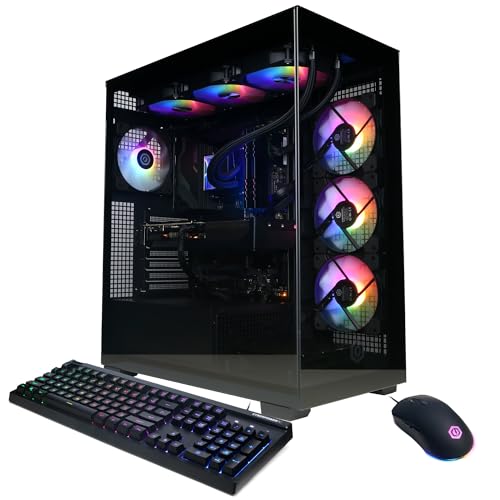
CyberPowerPC GXiVR8080A39 · 32 GB RAM · 2 TB SSD
CyberPowerPC Gamer Xtreme VR Gaming PC, Intel Core i9-14900KF 3.2GHz, GeForce RTX 5070 12GB, 32GB DDR5, 2TB PCIe 4.0 SSD, WiFi Ready & Windows 11 Home (GXiVR8080A39)
Core i9-14900KF · RTX 5070 12 GB · Windows 11 Home · No Intel iGPU / Quick Sync.
CA$2,954.05Price observed 02.11.2026 06:27 UTCBuy on Amazon ↗
Zonic 14900K / RTX 5070 Ti · 64 GB RAM · 2 TB SSD
Zonic Gaming PC (Intel i9 14900K, RTX 5070 Ti, 64GB DDR5 RAM, 2TB M.2 SSD, Windows 11, AI Ready)
Core i9-14900K · RTX 5070 Ti 16 GB · Windows 11
CA$5,395.97Price observed 02.11.2026 22:27 UTCBuy on Amazon ↗
Skytech Azure 14700F / RTX 5070 Ti · 32 GB RAM · 1 TB SSD
Skytech Azure Gaming PC Desktop, Intel i7 14700F 2.1 GHz (5.3GHz Turbo), NVIDIA RTX 5070 Ti 16GB, 1TB Gen4 NVMe SSD, 32GB DDR5 RAM 6000 RGB, 850W Gold ATX 3 PSU, 360mm ARGB AIO, Wi-Fi, Win 11
Core i7-14700F · RTX 5070 Ti 16 GB · Windows 11 · No Intel iGPU / Quick Sync.
CA$3,474.04Price observed 02.11.2026 14:27 UTCBuy on Amazon ↗
Zonic 9700X / RTX 5070 Ti · 64 GB RAM · 2 TB SSD
Zonic Gaming PC (AMD Ryzen 7 9700X, RTX 5070 Ti, 64GB DDR5 RAM, 2TB M.2 SSD, Windows 11, AI Ready)
Ryzen 7 9700X · RTX 5070 Ti 16 GB · Windows 11
CA$4,815.97Price observed 02.11.2026 22:27 UTCBuy on Amazon ↗As an Amazon Associate, Cloudzat earns from qualifying purchases. Prices are dated observations and can change. Check the exact variant and delivery to your address before ordering.
Buying guide
Which of these exact configurations should you choose?
First option: CyberPowerPC GXiVR8080A39. The installed specification is Core i9-14900KF, 32 GB RAM, 2 TB SSD, RTX 5070 12 GB VRAM. For a balanced editing shortlist. Match decoding support to the camera format; RAM capacity alone does not establish smooth playback.
Second option: Zonic 14900K / RTX 5070 Ti. The installed specification is Core i9-14900K, 64 GB RAM, 2 TB SSD, RTX 5070 Ti 16 GB VRAM. Consider for the different CPU, memory or graphics configuration shown. The Intel iGPU status below matters if Quick Sync is part of the intended workflow.
The memory difference is 32 GB. Choose the larger capacity when the workload tier in this guide needs it; otherwise keep that part of the budget for useful storage or peripherals. A higher RAM number is not a measured speed ranking.
CyberPowerPC GXiVR8080A39: no Intel integrated graphics or Quick Sync. Zonic 14900K / RTX 5070 Ti: Intel integrated graphics present; enable and verify the supported codec path in the software.
| Option | Installed specification | Best reason to compare |
|---|---|---|
| CyberPowerPC GXiVR8080A39 · 32 GB RAM · 2 TB SSD | Core i9-14900KF · RTX 5070 12 GB · Windows 11 Home · No Intel iGPU / Quick Sync. | For a balanced editing shortlist. Match decoding support to the camera format; RAM capacity alone does not establish smooth playback. |
| Zonic 14900K / RTX 5070 Ti · 64 GB RAM · 2 TB SSD | Core i9-14900K · RTX 5070 Ti 16 GB · Windows 11 | Consider for the different CPU, memory or graphics configuration shown. The Intel iGPU status below matters if Quick Sync is part of the intended workflow. |
When paying more makes sense
For regular editing, start with 32 GB RAM and enough SSD space for your active footage. Choose 64 GB for complex 4K multicamera projects or work alongside After Effects. The ability to play your camera files smoothly can depend on supported hardware decoding, so the most expensive gaming graphics card is not automatically the best editing purchase.
The useful starting specification for editing
Our general purchase target is 32 GB RAM, a modern desktop processor, a supported GPU with at least 8 GB VRAM and a fast SSD. Adobe recommends 32 GB or more for 4K and higher resolutions. This is a sensible place to start comparing machines for typical 4K editing, rather than buying a minimum-spec computer and immediately upgrading it.
For demanding multicamera projects, many effects or regular use with After Effects, 64 GB RAM is a more comfortable tier. Choose a 2 TB SSD if substantial active footage and cache will live internally. These are planning recommendations, not a guarantee that every 4K codec plays smoothly on every machine with those numbers. The format of the footage is an important part of the choice.
Why the footage format changes the recommendation
H.264 and HEVC are compressed formats commonly used by cameras and phones. Hardware decoding allows a supported chip to help unpack that footage for playback. Support depends on the codec, bit depth and colour sampling, as well as the software and hardware generation. '4K video' alone does not describe all of those details.
Intel Quick Sync is one hardware route; supported NVIDIA, AMD and Apple hardware can provide other acceleration paths. An Intel processor ending in F or KF does not have the integrated graphics needed for Quick Sync. A PC with that processor can still edit using other supported hardware, but it should not be sold as having Intel Quick Sync. For the reviewed Intel configurations, the exact CPU suffix therefore matters.
32 GB or 64 GB RAM for Premiere?
Choose 32 GB for straightforward editing and many normal 4K projects. Choose 64 GB for heavier multicamera work, demanding effects and simultaneous use of Premiere, After Effects and Photoshop. More memory gives these applications room to work together. It does not change unsupported footage into a supported hardware-decoding format.
If your budget is tight, a balanced 32 GB machine with suitable decoding and enough SSD space can be preferable to a 64 GB machine with a weak or poorly matched processor. If you already know the work needs 64 GB, compare the complete upgraded price of a 32 GB offer with a machine that includes 64 GB. Count installed memory, not the motherboard's advertised maximum.
How much GPU should you buy?
An 8 GB GPU is a useful starting point in Adobe's recommended range. The 12 GB RTX 5070 and 16 GB RTX 5070 Ti offer more memory headroom. The GPU matters for supported effects, some AI features and hardware encoding or decoding, but it is not responsible for every editing operation. A costly gaming card cannot remove every CPU or storage bottleneck.
Choose a higher GPU tier when your effects and other applications make use of it. For simpler cuts and supported compressed footage, a balanced processor, GPU and storage arrangement is usually the better purchase. Desktop and laptop versions with similar names are different products, so their memory, power and performance should not be assumed to match.
Plan storage around hours of footage
A 1 TB SSD can work for smaller projects, while 2 TB is a more comfortable internal starting size for regular editing. Media, cache, previews, proxies and exports all consume space. For a concrete example, one hour of 100 Mb/s footage is about 45 GB in decimal units. Two such camera streams total about 90 GB before extra working files and backups.
Use a fast SSD for active editing. A separate SSD for media or cache is useful when the machine allows it, but a second disk is not compulsory for every small project. An archive hard disk serves a different purpose from a fast working drive. Keep original footage backed up independently, because cache can be rebuilt but an irreplaceable camera file cannot.
Proxies can save a large hardware purchase
Proxies are smaller, easier-to-play copies used during editing while the original footage remains available for the final output. They are useful when demanding camera files are difficult to play smoothly. Creating proxies takes time and storage, but can make an existing machine useful for longer. A new GPU is not always the only answer to slow playback.
For a new PC, consider whether you want to edit the original camera files directly or are happy to use proxies. A frequent multicamera editor may reasonably pay more for hardware that handles the source format well. An occasional editor may prefer a more affordable system and a proxy workflow. Both are valid choices when the difference is explained before purchase.
Choose the complete editing setup
The PC needs the right connections for media drives, card readers, audio equipment and the monitor. A quiet, well-cooled tower can be more pleasant during long editing sessions than a smaller system pushed to its limits. Leave room in the budget for storage and backup instead of spending everything on the processor badge.
The optional media calculator estimates storage from bitrate, duration and stream count. It does not guarantee timeline frame rate or export time. Use the recommendations above to form a shortlist without measurements, then refine it if you know your exact camera format. The local price comparison should include any missing SSD, RAM or required software licence, so a cheaper base configuration is not mistaken for a cheaper finished setup.
Optional: refine the choice with your own measurements
You can choose from the guide without using this tool. If you have a measured project, enter its values to compare capacity. Example inputs are not measurements or performance predictions.
Compare the two complete local baskets
Use current checkout amounts in CAD. Add only missing upgrades, accessories, delivery and tax.
Frequently asked questions
Is 32 GB RAM enough for 4K Premiere editing?
It is a sensible starting point and matches Adobe's 32 GB-or-more recommendation for 4K. Heavier multicamera projects and regular After Effects multitasking are good reasons to consider 64 GB.
Does an Intel KF processor have Quick Sync?
No. F and KF desktop processors lack the integrated graphics needed for Quick Sync. A separate GPU may offer other supported acceleration, but that is not Intel Quick Sync.
Will a better GPU fix choppy playback?
Only if the GPU or its supported acceleration is the limitation. CPU decoding, storage, effects and the source format can also cause slow playback. Proxies are another useful option.
How much space does an hour of video need?
At 100 Mb/s, one hour is about 45 GB. Double the bitrate or the number of streams and the source-data estimate doubles. Cache, proxies, exports and backup require additional space.
Related buying guides
- Best PC for After Effects in Canada: RAM, GPU and Cache
- Best PC for Lightroom Classic in Canada: RAM and Prices
- Best PC for DaVinci Resolve in Canada: GPU, RAM and Cost
- Best Laptop for Photo Editing in Canada: Screen and RAM
- Best PC for Blender in Canada: RAM, GPU and Prices
- Best PC for Unreal Engine in Canada: Builds, RAM and GPU
- Best Mini Pc For Premiere Pro
- Nas For Premiere Pro
- High End Pc Builder
- Best Mini Pc For Premiere Pro