


Canada
Best PC for Lightroom Classic in Canada: RAM and Prices
For a new Lightroom Classic desktop, choose 32 GB RAM and a 1–2 TB SSD. A supported 8 GB dedicated GPU is a useful starting point for AI tools; choose 16 GB VRAM for more headroom and Adobe's automatic GPU preview-generation threshold. Buy 64 GB RAM for large panoramas or regular Photoshop multitasking, not simply for a large photo count.
Choose the right option
CyberPowerPC GXiVR8080A39 · 32 GB RAM · 2 TB SSD
For general RAW editing and a lower starting cost. Leave money for a suitable monitor and independent backup before paying for unused CPU or GPU capacity.
Compare exact offers ↓Zonic 9700X / RTX 5070 Ti · 64 GB RAM · 2 TB SSD
For larger merges, Photoshop multitasking or a GPU feature that needs this configuration. It is not automatically better value for ordinary photo adjustments.
Compare exact offers ↓Amazon offers in Canada
Confirm the selected capacity, seller and delivered total.
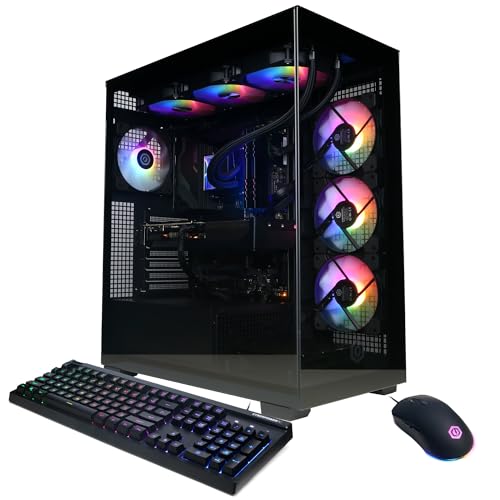
CyberPowerPC GXiVR8080A39 · 32 GB RAM · 2 TB SSD
CyberPowerPC Gamer Xtreme VR Gaming PC, Intel Core i9-14900KF 3.2GHz, GeForce RTX 5070 12GB, 32GB DDR5, 2TB PCIe 4.0 SSD, WiFi Ready & Windows 11 Home (GXiVR8080A39)
Core i9-14900KF · RTX 5070 12 GB · Windows 11 Home · No Intel iGPU / Quick Sync.
CA$2,954.05Price observed 02.11.2026 06:27 UTCBuy on Amazon ↗
Zonic 9700X / RTX 5070 Ti · 64 GB RAM · 2 TB SSD
Zonic Gaming PC (AMD Ryzen 7 9700X, RTX 5070 Ti, 64GB DDR5 RAM, 2TB M.2 SSD, Windows 11, AI Ready)
Ryzen 7 9700X · RTX 5070 Ti 16 GB · Windows 11
CA$4,815.97Price observed 02.11.2026 22:27 UTCBuy on Amazon ↗
Skytech Azure 14700F / RTX 5070 Ti · 32 GB RAM · 1 TB SSD
Skytech Azure Gaming PC Desktop, Intel i7 14700F 2.1 GHz (5.3GHz Turbo), NVIDIA RTX 5070 Ti 16GB, 1TB Gen4 NVMe SSD, 32GB DDR5 RAM 6000 RGB, 850W Gold ATX 3 PSU, 360mm ARGB AIO, Wi-Fi, Win 11
Core i7-14700F · RTX 5070 Ti 16 GB · Windows 11 · No Intel iGPU / Quick Sync.
CA$3,474.04Price observed 02.11.2026 14:27 UTCBuy on Amazon ↗
Zonic 14900K / RTX 5070 Ti · 64 GB RAM · 2 TB SSD
Zonic Gaming PC (Intel i9 14900K, RTX 5070 Ti, 64GB DDR5 RAM, 2TB M.2 SSD, Windows 11, AI Ready)
Core i9-14900K · RTX 5070 Ti 16 GB · Windows 11
CA$5,395.97Price observed 02.11.2026 22:27 UTCBuy on Amazon ↗As an Amazon Associate, Cloudzat earns from qualifying purchases. Prices are dated observations and can change. Check the exact variant and delivery to your address before ordering.
Buying guide
Which of these exact configurations should you choose?
First option: CyberPowerPC GXiVR8080A39. The installed specification is Core i9-14900KF, 32 GB RAM, 2 TB SSD, RTX 5070 12 GB VRAM. For general RAW editing and a lower starting cost. Leave money for a suitable monitor and independent backup before paying for unused CPU or GPU capacity.
Second option: Zonic 9700X / RTX 5070 Ti. The installed specification is Ryzen 7 9700X, 64 GB RAM, 2 TB SSD, RTX 5070 Ti 16 GB VRAM. For larger merges, Photoshop multitasking or a GPU feature that needs this configuration. It is not automatically better value for ordinary photo adjustments.
The memory difference is 32 GB. Choose the larger capacity when the workload tier in this guide needs it; otherwise keep that part of the budget for useful storage or peripherals. A higher RAM number is not a measured speed ranking.
| Option | Installed specification | Best reason to compare |
|---|---|---|
| CyberPowerPC GXiVR8080A39 · 32 GB RAM · 2 TB SSD | Core i9-14900KF · RTX 5070 12 GB · Windows 11 Home · No Intel iGPU / Quick Sync. | For general RAW editing and a lower starting cost. Leave money for a suitable monitor and independent backup before paying for unused CPU or GPU capacity. |
| Zonic 9700X / RTX 5070 Ti · 64 GB RAM · 2 TB SSD | Ryzen 7 9700X · RTX 5070 Ti 16 GB · Windows 11 | For larger merges, Photoshop multitasking or a GPU feature that needs this configuration. It is not automatically better value for ordinary photo adjustments. |
When paying more makes sense
For everyday RAW editing, prioritise a responsive PC, enough SSD space and a good monitor. Choose 64 GB RAM for large panoramas, layered Photoshop files and heavy multitasking. A more expensive graphics card is worth paying for when the AI features you use can benefit from it; it is not the first reason to replace a PC that handles ordinary edits well.
A sensible Lightroom Classic desktop
For general RAW editing, our starting recommendation is 32 GB RAM, a modern processor and a fast SSD. Adobe recommends 16 GB RAM or more, so 32 GB provides room for the operating system, the catalogue and other applications. A 1 TB SSD can handle a modest active library; 2 TB is easier to manage if many original photos stay on the same internal drive.
Do not spend the entire budget on a top-end graphics card while leaving too little space for originals and backups. A balanced midrange PC can be the better photography purchase. If you regularly use Denoise, Lens Blur or other AI features, GPU support and memory deserve more attention. If you mainly organise images and make standard adjustments, storage, processor responsiveness and the display are central parts of the decision.
When 64 GB RAM is worth buying
Choose 32 GB for ordinary editing, exporting and a moderately sized multitasking workload. Choose 64 GB for large panoramas, large layered Photoshop documents opened from Lightroom, or several demanding applications used together. These are working-memory needs. The number of photographs stored in the catalogue does not translate directly into a fixed amount of RAM per photograph.
A photographer with many archived images may benefit more from larger storage and a good backup arrangement than from doubling unused RAM. Someone merging large files can have the opposite priority. If the PC already contains 32 GB and is comfortable to use, more memory is not an automatic speed upgrade. For a new fixed-memory machine, buy enough for the work you expect during its useful life.
8 GB and 16 GB GPUs serve different priorities
Adobe recommends 8 GB dedicated GPU memory, or 16 GB shared memory, for full acceleration and AI features. A supported 8 GB card is therefore a useful starting class for a new dedicated-GPU desktop. A 12 GB or 16 GB card offers more memory room. The dedicated memory on an RTX card is different from RAM shared with integrated graphics.
Lightroom Classic's automatic GPU preview generation has a separate 16 GB VRAM threshold and also requires full acceleration. A 16 GB card can therefore be relevant for that feature, while an 8 GB or 12 GB card is not automatically unsuitable for editing. Do not turn one feature's threshold into a claim that everyone needs 16 GB. The processor, software version and chosen preview workflow still affect the overall experience.
Put the catalogue and active photos on suitable storage
Keep the Lightroom catalogue and its previews on a fast SSD. Store current photo work on fast storage as well. A second drive can hold a larger original-photo library, while a separate backup protects it. The catalogue contains editing and organisation information; it is not a replacement for the original RAW files.
A simple capacity example is 20,000 RAW files averaging 50 MB each: the originals alone occupy about 1 TB in decimal units. Previews, exports, the operating system and free working space need extra capacity. A 1 TB drive would therefore be too small for that entire setup. This is why storage size can be more valuable than a small improvement in a headline SSD speed.
Choose a processor for everyday editing
A modern Ryzen 7 or Core Ultra 7 class desktop is a useful starting point. A higher-end CPU may be worthwhile for frequent large exports and other CPU-heavy creative work, but an older i9 badge is not proof of a better Lightroom PC. Look at the exact processor and the balance of the complete configuration.
For a photography-only system, a gaming-focused CPU or expensive workstation GPU may not be the best place for the extra budget. The desktop should also have the ports you need for a card reader, external backup drive and monitor. Fast card readers and a comfortable screen can affect the working day more directly than decorative case features.
Leave money for the screen and backup
A good photo-editing display is part of the workstation. For web and general photography, a display with documented full sRGB coverage is a useful starting point. A wide-gamut display can be valuable for appropriate print and colour-managed work, but its larger colour range does not mean it is automatically accurate. Calibration and the right colour settings remain separate issues.
Back up both the catalogue and original images. A second folder on the same drive is not protection from drive failure. An external drive or another independent destination is a practical part of the purchase budget. If choosing between a slightly faster GPU and a missing backup, the backup is the more important addition for irreplaceable photographs.
Which upgrade should come first?
On a supported existing machine with only 8 GB or 16 GB RAM, moving towards 32 GB is a sensible first comparison. If the catalogue is on a hard disk, moving it to an SSD can address a different limitation. If AI processing is the main delay and the GPU lacks the recommended capability, a GPU upgrade deserves attention. Do not replace all three parts without identifying which job you want to improve.
The optional storage tool estimates original-file space from file count and average size. It does not estimate export speed, AI processing time or colour accuracy. You can use the buying tiers without measured memory readings. The exact local offers below are starting configurations, and their dated prices should be compared with the cost of any immediately needed SSD or memory upgrade.
Optional: refine the choice with your own measurements
You can choose from the guide without using this tool. If you have a measured project, enter its values to compare capacity. Example inputs are not measurements or performance predictions.
Compare the two complete local baskets
Use current checkout amounts in CAD. Add only missing upgrades, accessories, delivery and tax.
Frequently asked questions
Do I need 64 GB RAM for Lightroom Classic?
Not for every workflow. We recommend 32 GB for a new general-purpose system and 64 GB for large merges, Photoshop multitasking or other memory-heavy work.
Is a 16 GB graphics card necessary?
Not for ordinary editing. It is relevant to Adobe's automatic GPU preview-generation threshold and provides more memory room. Adobe's full-acceleration recommendation also includes supported 8 GB dedicated GPUs.
Does a large catalogue require a huge amount of RAM?
Not in direct proportion to the number of stored photos. Storage holds the archive; RAM is used for the current workload, previews and open applications.
Should I buy a larger SSD or a faster GPU?
Buy enough SSD capacity for the active library first. Then spend more on the GPU if AI features are an important part of your work. Keep a separate backup budget.
Related buying guides
- Best PC for After Effects in Canada: RAM, GPU and Cache
- Best PC for Premiere Pro in Canada: Codecs, RAM and GPU
- Best PC for DaVinci Resolve in Canada: GPU, RAM and Cost
- Best Laptop for Photo Editing in Canada: Screen and RAM
- Best PC for Blender in Canada: RAM, GPU and Prices
- Best PC for Unreal Engine in Canada: Builds, RAM and GPU
- Best Workstation Gpu
- High End Pc Builder
- Best Mini Pc For Photo Editing