


Canada
Best PC for Unreal Engine in Canada: Builds, RAM and GPU
For learning Unreal Engine and smaller projects, start with 32 GB RAM, a modern desktop CPU, an 8 GB or larger GPU and a 1 TB SSD. For larger UE5 projects, we recommend 64 GB RAM, a 16 GB GPU and a 2 TB SSD. Choose more CPU power for frequent code and shader builds; choose more GPU capacity for demanding scenes.
Choose the right option
Zonic 9700X / RTX 5070 Ti · 64 GB RAM · 2 TB SSD
For the larger-project shortlist, with the listed installed RAM and SSD. CPU-heavy builds and GPU-heavy environments are different reasons to spend more.
Compare exact offers ↓Skytech Azure 14700F / RTX 5070 Ti · 32 GB RAM · 1 TB SSD
An alternative for a different CPU/GPU balance. If it has less RAM, include an upgrade before treating it as equivalent to the larger-memory option.
Compare exact offers ↓Amazon offers in Canada
Confirm the selected capacity, seller and delivered total.

Zonic 9700X / RTX 5070 Ti · 64 GB RAM · 2 TB SSD
Zonic Gaming PC (AMD Ryzen 7 9700X, RTX 5070 Ti, 64GB DDR5 RAM, 2TB M.2 SSD, Windows 11, AI Ready)
Ryzen 7 9700X · RTX 5070 Ti 16 GB · Windows 11
CA$4,815.97Price observed 02.11.2026 22:27 UTCBuy on Amazon ↗
Skytech Azure 14700F / RTX 5070 Ti · 32 GB RAM · 1 TB SSD
Skytech Azure Gaming PC Desktop, Intel i7 14700F 2.1 GHz (5.3GHz Turbo), NVIDIA RTX 5070 Ti 16GB, 1TB Gen4 NVMe SSD, 32GB DDR5 RAM 6000 RGB, 850W Gold ATX 3 PSU, 360mm ARGB AIO, Wi-Fi, Win 11
Core i7-14700F · RTX 5070 Ti 16 GB · Windows 11 · No Intel iGPU / Quick Sync.
CA$3,474.04Price observed 02.11.2026 14:27 UTCBuy on Amazon ↗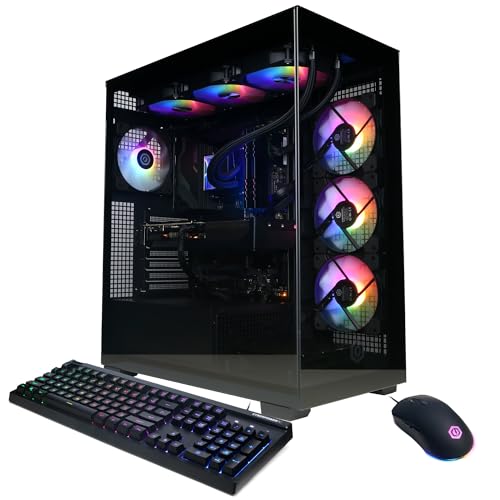
CyberPowerPC GXiVR8080A39 · 32 GB RAM · 2 TB SSD
CyberPowerPC Gamer Xtreme VR Gaming PC, Intel Core i9-14900KF 3.2GHz, GeForce RTX 5070 12GB, 32GB DDR5, 2TB PCIe 4.0 SSD, WiFi Ready & Windows 11 Home (GXiVR8080A39)
Core i9-14900KF · RTX 5070 12 GB · Windows 11 Home · No Intel iGPU / Quick Sync.
CA$2,954.05Price observed 02.11.2026 06:27 UTCBuy on Amazon ↗
Zonic 14900K / RTX 5070 Ti · 64 GB RAM · 2 TB SSD
Zonic Gaming PC (Intel i9 14900K, RTX 5070 Ti, 64GB DDR5 RAM, 2TB M.2 SSD, Windows 11, AI Ready)
Core i9-14900K · RTX 5070 Ti 16 GB · Windows 11
CA$5,395.97Price observed 02.11.2026 22:27 UTCBuy on Amazon ↗As an Amazon Associate, Cloudzat earns from qualifying purchases. Prices are dated observations and can change. Check the exact variant and delivery to your address before ordering.
Buying guide
Which of these exact configurations should you choose?
First option: Zonic 9700X / RTX 5070 Ti. The installed specification is Ryzen 7 9700X, 64 GB RAM, 2 TB SSD, RTX 5070 Ti 16 GB VRAM. For the larger-project shortlist, with the listed installed RAM and SSD. CPU-heavy builds and GPU-heavy environments are different reasons to spend more.
Second option: Skytech Azure 14700F / RTX 5070 Ti. The installed specification is Core i7-14700F, 32 GB RAM, 1 TB SSD, RTX 5070 Ti 16 GB VRAM. An alternative for a different CPU/GPU balance. If it has less RAM, include an upgrade before treating it as equivalent to the larger-memory option.
The memory difference is 32 GB. Choose the larger capacity when the workload tier in this guide needs it; otherwise keep that part of the budget for useful storage or peripherals. A higher RAM number is not a measured speed ranking.
| Option | Installed specification | Best reason to compare |
|---|---|---|
| Zonic 9700X / RTX 5070 Ti · 64 GB RAM · 2 TB SSD | Ryzen 7 9700X · RTX 5070 Ti 16 GB · Windows 11 | For the larger-project shortlist, with the listed installed RAM and SSD. CPU-heavy builds and GPU-heavy environments are different reasons to spend more. |
| Skytech Azure 14700F / RTX 5070 Ti · 32 GB RAM · 1 TB SSD | Core i7-14700F · RTX 5070 Ti 16 GB · Windows 11 · No Intel iGPU / Quick Sync. | An alternative for a different CPU/GPU balance. If it has less RAM, include an upgrade before treating it as equivalent to the larger-memory option. |
When paying more makes sense
Choose 32 GB RAM for learning and smaller projects, or 64 GB for larger environments and several development tools open together. More CPU power is useful for frequent code and shader compilation. For detailed scenes, check graphics memory as well: extra system RAM does not replace the memory on the graphics card.
The right starting point for Unreal Engine
Epic recommends 32 GB system memory and at least 8 GB graphics memory for Unreal Engine development. That is a useful starting point for learning the editor, smaller environments and simpler game projects. Our more comfortable target for a new PC intended for larger UE5 work is 64 GB RAM, a 16 GB GPU and a 2 TB SSD. This is a purchase recommendation, not an additional official minimum.
The editor has different needs from a finished game. You may have the project, asset tools, source control and an IDE open together. A PC advertised as running a game at high frame rates does not therefore prove it is ideal for developing a large project in that engine. Match the machine to the work you will do inside the editor.
32 GB for smaller projects, 64 GB for more room
Choose 32 GB when learning, prototyping or working on smaller projects. Choose 64 GB when large environments, high-resolution assets or several development tools will be open together. The benefit is room for the working data and applications. More RAM does not guarantee shorter shader compilation by itself.
If you expect to grow from small projects to a larger production, a desktop that can take a two-module 64 GB kit is useful. Confirm the installed amount rather than the advertised maximum. A 32 GB offer with an immediate memory upgrade can cost more than an otherwise comparable 64 GB system. Keep the cost of that upgrade visible in the comparison.
Choose the CPU around compile work
The processor matters for compiling code, building shaders and many editor tasks. A recent Ryzen 7 or Core Ultra 7 is a sensible general starting class. A Ryzen 9 or higher-end Core Ultra configuration becomes more attractive when you regularly wait for builds and compiles. You are paying for a workflow benefit, not simply a larger model number.
For an artist working mostly in the viewport, a balanced CPU and stronger GPU may be the better use of money. For a programmer building the engine from source, CPU capability and enough RAM deserve more of the budget. A gaming-focused X3D processor can be useful for playing and testing games, but its gaming strengths should not be mistaken for a guaranteed lead in compile times.
GPU memory and UE5 rendering features
An 8 GB card is the starting capacity in Epic's general recommendation. For a new machine used for detailed environments and demanding viewport work, 12–16 GB provides more room. We favour 16 GB for the larger-project tier. The reviewed RTX 5070 has 12 GB; the RTX 5070 Ti has 16 GB. Choose the latter capacity when asset and scene size are the concern, rather than assuming all RTX cards have the same memory.
Nanite, Lumen and hardware ray tracing have their own requirements. A card's memory size is only one part of compatibility. The engine version, operating system and rendering settings also matter. The listed hardware tiers are a starting shortlist, not a claim that every feature or plugin is enabled automatically. More GPU memory also cannot compensate for an unnecessarily heavy scene in every situation.
Why a 2 TB SSD is a useful upgrade
Unreal projects can include engine installations, downloaded assets, source files, derived data and packaged builds. A 1 TB SSD is usable for a smaller setup, while 2 TB leaves more room for several projects and engine versions. A larger SSD can be more useful than a small drive with a higher advertised transfer speed when the smaller drive is nearly full.
Keep active projects and the derived-data cache on fast storage. A separate backup or source-control service protects work; an extra copy on the same physical SSD does not protect against that drive failing. If the desktop includes both an SSD and a hard disk, use the SSD capacity when judging active-project space. The hard disk can serve a different role for less frequently used data.
Desktop or laptop for development?
A desktop generally gives more room for cooling, memory and storage upgrades. That makes it a practical choice for a workstation that stays at one desk. A laptop is worthwhile when portability is a real requirement, but a laptop GPU with a familiar model name is not the same product as the desktop version. Its power limits and cooling also vary between laptop designs.
For a desktop, accessible memory slots and spare SSD connections are useful. For a portable system, buy the RAM you will need if it is soldered and cannot be replaced. An external monitor can improve working space but does not add GPU memory. The choice should follow where you work, rather than treating portability as a free feature.
How to choose without an existing workstation
Use 32 GB RAM and a 1 TB SSD as the learning tier, and 64 GB RAM with a 2 TB SSD as the larger-project tier. Then decide whether CPU-heavy builds or GPU-heavy scene work is the bigger priority. This is enough to form a useful shortlist before you have a representative project to measure.
The advanced planner is for refining that choice later. Its build-time arithmetic uses a time you enter for your current machine; it does not forecast the compile speed of the offers. A system that meets capacity checks can still differ in cooling, noise and actual build performance. Compare complete specifications and the dated local prices rather than treating the calculator as a performance certification.
Optional: refine the choice with your own measurements
You can choose from the guide without using this tool. If you have a measured project, enter its values to compare capacity. Example inputs are not measurements or performance predictions.
Compare the two complete local baskets
Use current checkout amounts in CAD. Add only missing upgrades, accessories, delivery and tax.
Frequently asked questions
Is 32 GB RAM enough for Unreal Engine 5?
It is Epic's recommended memory level and a reasonable starting point for smaller projects. We suggest 64 GB for a new PC aimed at larger environments and heavier multitasking.
Should I prioritise CPU or GPU?
Prioritise the CPU for frequent code and shader builds. Prioritise the GPU and its memory for demanding viewport and rendering work, while keeping enough RAM for the project.
Is a 1 TB SSD enough?
It can be enough for learning and a small number of projects. A 2 TB SSD is more comfortable for multiple engine versions, large asset libraries and build output.
Does a fast gaming PC guarantee fast development?
No. Development adds compilation, editing and asset-processing work. A gaming PC can be suitable, but the installed CPU, RAM, GPU memory and storage need to suit those jobs.
Related buying guides
- Best PC for Blender in Canada: RAM, GPU and Prices
- Best PC for After Effects in Canada: RAM, GPU and Cache
- Best PC for Lightroom Classic in Canada: RAM and Prices
- Best PC for Premiere Pro in Canada: Codecs, RAM and GPU
- Best PC for DaVinci Resolve in Canada: GPU, RAM and Cost
- Best Laptop for Photo Editing in Canada: Screen and RAM
- Best Workstation Gpu
- High End Pc Builder