


Canada · CAD
Best Mini PCs for Linux Canada
Choose a System76 Meerkat when you want Ubuntu or Pop!_OS supplied by a Linux-focused vendor. Choose a TUXEDO Nano Pro Gen14 for a vendor-supported Linux desktop from TUXEDO. Choose an ASUS NUC 14 Pro when you prefer local hardware and will install and test Linux yourself. Check the exact configuration rather than relying on a CPU family name.
Which model to choose
System76 Meerkat with Linux
Best ready-to-use direction for buyers who want the supplier to provide the Linux installation and support. Compare the configured memory and delivery to your country.
See model and buying options ↗TUXEDO Nano Pro Gen14 with Linux
Best alternative for a Linux-focused supplier and a compact AMD desktop. Choose the operating system and support arrangement in the actual order.
See model and buying options ↗ASUS NUC 14 Pro for a Linux installation
Best hardware-first comparison for a self-installed system. Confirm the precise SKU, distribution and required devices before treating compatibility as settled.

32 GB RAM · 2000 GB SSD
CA$1,839.99Price checked 01.11.2026 06:27 UTCBuy on Amazon ↗Specifications and model details ↗Mini PC hardware for installing Linux yourself
Prefer to install Linux yourself? Compare the hardware below, then test your chosen distribution and peripherals before replacing the existing system.
Core Ultra H
Intel NUC 14 Pro,for ASUS NUC 14 Pro AI Mini Pc, Ultra 7 155H (16C/22T, Up to 4.8GHz) Mini Computer, 32GB Ram & 2TB PCIe 4.0 SSD, Intel Arc GPU/Type…
32 GB RAM · 2000 GB SSD
CA$1,839.99Price checked 01.11.2026 06:27 UTCBuy on Amazon ↗
Intel N150
Beelink Mini S13 Mini PC, Intel Twin Lake-N150 (4C/4T, up to 3.6GHz), 16GB DDR4 RAM 500GB M.2 SSD, Mini Computer Support 4K@60Hz Dual Screen Display/…
16 GB RAM · 500 GB SSD
CA$418.93Price checked 01.11.2026 09:55 UTCBuy on Amazon ↗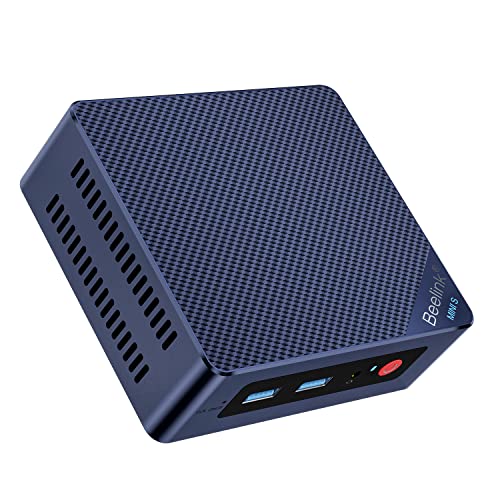
Intel N100
Beelink Mini S12 Pro Mini PC - 12th Gen Intel N100 (Up to 3.4GHz), 16GB DDR4, 500GB SSD, 4K Dual Display, WiFi 6, BT 5.2, 1000Mbps LAN - Low Power Mi…
16 GB RAM · 500 GB SSD
CA$421.04Price checked 01.11.2026 09:55 UTCBuy on Amazon ↗
AMD Ryzen
GMKtec G10 Mini PC, AMD Ryzen 5 3500U, 16GB DDR4 512GB SSD W11 Pro Silver | (Beats 3200U) 2.5GbE LAN Desktop Computer, Triple 4K Display, USB-C PD, D…
16 GB RAM · 512 GB SSD
CA$439.00Price checked 01.11.2026 06:27 UTCBuy on Amazon ↗
Ryzen 7 7735
GMKtec K16 Gaming Mini PC, AMD Ryzen 7 7735HS 32GB LPDDR5 512GB NVMe SSD | OCuLink eGPU Port, Dual 2.5GbE LAN, USB4 40Gbps, WiFi 6E, Triple Display, …
32 GB RAM · 512 GB SSD
CA$829.00Price checked 01.11.2026 10:59 UTCBuy on Amazon ↗
Ryzen 7 8745HS
Beelink SER8 Mini PC, AMD Ryzen 7 8745HS (8C/16T up to 4.9GHz), 16GB DDR5 512GB SSD, AMD Radeon 780M Graphics/Triple 4K Display (HDMI 2.1+DP+USB4)/2.…
16 GB RAM · 512 GB SSD
CA$896.04Price checked 01.11.2026 06:33 UTCBuy on Amazon ↗
Ryzen 7 8845HS
Beelink SER8 Mini PC AMD Ryzen 7 8845HS(Max 5.1GHz), 32GB DDR5 1TB PCIE4.0 SSD Mini Computer, AMD Radeon 780M Graphics 12 core 2700MHz Gaming PC,Trip…
32 GB RAM · 1000 GB SSD
CA$954.30Price checked 01.11.2026 06:33 UTCBuy on Amazon ↗
Intel Core
MINISFORUM NAB9S Mini PC, Intel Core i9-13900HK (14C/20T, Up to 5.4GHz), 16GB DDR4, 500GB PCIe 4.0 SSD, Quad 4K Display, Dual 2.5GbE LAN, Wi-Fi 6, BT…
16 GB RAM · 500 GB SSD
CA$1,019.99Price checked 01.11.2026 06:27 UTCBuy on Amazon ↗Buying guide
Choose the Linux buying route first
The Meerkat and Nano Pro are our first comparisons when you want a supplier that sells the operating system and hardware together. This is useful if predictable setup and a single support contact matter more than the lowest marketplace price. The NUC 14 Pro is the hardware-first option when you are comfortable installing Linux and testing the exact configuration yourself.
Those are different purchases. A Windows computer that can run Linux is not automatically delivered with Linux or supported for it by the seller. Decide who should own the installation and diagnosis before comparing prices. For work, a clear support arrangement can save more time than a small CPU advantage.
Choose Ubuntu, Mint or Debian around your applications
Begin with the applications you need and a maintained distribution release. Ubuntu, Mint and Debian have different release and support arrangements, and a recent Mini PC may need a newer kernel or graphics stack than an older installer supplies. Check your required software before choosing a distribution from familiarity alone.
For GPU compute, examine the application’s supported hardware separately from ordinary desktop graphics. A working browser and display do not establish a supported AI backend. For games, check the actual titles and compatibility path. Keep the installation simple enough that you can maintain it during the computer’s useful life.
Check the whole device, not only the CPU
Wireless hardware, Ethernet, suspend, audio and display outputs can determine the daily experience. The exact revision matters because a manufacturer may change a component without changing the broad family name. Use the vendor’s documents and, where relevant, Ubuntu’s certification information for the precise SKU. Do not turn a certification for one variant into a promise for the entire range.
Try a current live USB before replacing an existing system. Connect the displays, headset and peripherals you intend to keep, then test sleep and wake. If an essential device fails, find the supported solution before committing. A wired connection can make installation easier while you confirm wireless support.
Buy an alternative with the same support needs
If the chosen preinstalled model is unavailable, compare the other Linux-focused supplier with enough memory, the needed ports and a workable delivery route. A cheaper Windows-only package is a self-installation alternative, not the same support purchase. Check who will handle a fault when you are ordering across borders.
For a self-installed NUC alternative, preserve the required hardware and distribution compatibility rather than just processor speed. Keep recovery media and the original operating-system information if you may need to restore it. A small computer that works reliably with your chosen applications is more useful than a newer specification that needs permanent unsupported workarounds.
Compatibility belongs to the exact configuration
Linux compatibility is more specific than a processor brand or the word Ubuntu in a listing. The wireless card, Ethernet controller, audio device, graphics generation and firmware can differ between revisions of the same product family. Start with the manufacturer’s operating-system statement and the distribution’s hardware or certification information. A certification for one SKU is not a blanket promise for every machine sold under a similar name.
For recent hardware, choose a supported distribution release with a suitable kernel and graphics stack. Do not assume that an old installer contains drivers for a new wireless card or GPU. Keep a wired network path available during setup if possible. A current live USB is useful for testing before installation, but a successful desktop boot is only the beginning. Test the features that make the computer useful for your own work.
Run a practical hardware acceptance check
Connect every display at the resolution and refresh rate you intend to use. Check audio output and microphone input, Ethernet, Wi-Fi, Bluetooth and the USB devices you need. Try suspend and resume several times, then reboot with the peripherals connected. If you plan to use hardware video decoding, virtual machines or GPU compute, test those functions directly. Desktop graphics working correctly does not prove that every application can use the GPU for computation.
Record the model, BIOS version, distribution and kernel alongside any setup notes. This makes a support request more useful and helps you reproduce a working installation. Use firmware and drivers intended for the exact product. Avoid copying a BIOS image or a kernel workaround from a different Mini PC merely because the processors look similar. When a machine needs extensive unsupported workarounds for an essential feature, a vendor-supported Linux system can be the better purchase.
Choose the support arrangement you want to own
A Linux-preinstalled computer can put operating-system support and hardware support with the same supplier. A Windows Mini PC on which you install Linux yourself may offer better local buying options, but you take responsibility for the software installation and some compatibility diagnosis. Neither route is automatically right for everyone. Choose the first when predictable setup and support matter most, and the second when you are comfortable testing and maintaining the installation.
Back up personal files before changing partitions or operating systems. Keep recovery media and encryption recovery information where you can retrieve them without booting the computer. For an alternative purchase, preserve the required ports and tested hardware support, not just the CPU speed. A faster new wireless chipset with no suitable driver can be less useful than a modest system that works reliably with your supported distribution.
Buying and support in Canada
Use Canadian-dollar prices when comparing these systems. Include delivery and the applicable provincial or territorial taxes in your total, and check whether the seller ships from Canada or imports the machine. A cross-border offer can have a different return process, delivery schedule or additional charges. Do not compare an American promotional price with a Canadian delivered price as though the currency and purchase conditions were identical.
Confirm the included adapter, power lead and operating-system edition, then keep the invoice and serial number. For work or study, choose a support route you can use if the computer fails during a busy week. An alternative should preserve the required memory, graphics and connections, even when the brand changes. Add any missing display, keyboard, webcam or backup drive to the budget before deciding whether the compact system is good value.
Questions buyers ask
Which Mini PC should I choose for Linux without doing the installation?
Compare a System76 Meerkat or TUXEDO Nano Pro ordered with the Linux system you want. Confirm delivery, configuration and support for your country.
Is every NUC certified for Ubuntu?
No. Certification and support belong to an exact configuration. Check the SKU and distribution rather than relying on the NUC name.
Do the Amazon hardware options come with Linux?
Treat those as hardware for your own installation unless the individual product explicitly includes Linux. The preinstalled vendor choices are listed separately.
Specifications and software guidance
Ubuntu certified desktops ↗Ubuntu Desktop installation ↗System76 Meerkat ↗TUXEDO Nano Pro Gen14 ↗ASUS NUC 14 Pro ↗Related Mini PC guides
Mini PCs with Linux Preinstalled CanadaDual Boot Windows and Linux on a Mini PC CanadaCompare Mini PC pricesAs an Amazon Associate, Cloudzat earns from qualifying purchases. Prices and availability can change.