


the UK
Best SSD for Photoshop Scratch Disk: UK Buying Guide
For a desktop with a spare compatible M.2 slot, choose the Samsung 990 PRO 2 TB as an internal Photoshop scratch drive. Choose the Samsung T7 2 TB when you need an external drive or cannot add internal storage. If your existing scratch drive already has enough free space, keep it: a new SSD is not the first fix for every Photoshop slowdown.
Choose the right option
Samsung 990 PRO · 2 TB
Internal desktop choice when a compatible M.2 slot is free. Keep the 2 TB available for working space rather than filling it with archives.
Compare exact offers ↓Samsung T7 · 2 TB
External choice for a laptop or easy expansion. The same 2 TB capacity, with a USB connection and a cable to keep attached.
Compare exact offers ↓Amazon offers in the UK
Confirm the selected capacity, seller and delivered total.
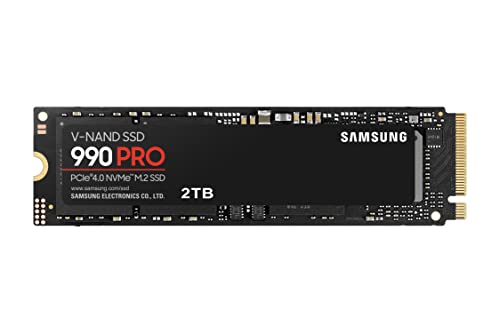
Samsung 990 PRO · 2 TB
Samsung 990 PRO NVMe M.2 SSD, 2 TB, PCIe 4.0, 7,450 MB/s read, 6,900 MB/s write, Internal SSD, For gaming and video editing, MZ-V9P2T0BW
M.2 2280 NVMe. Consumer SSD; no enterprise PLP claimed. Check slot and cooling.
£334.94£167.47 / TB
Price observed 02.11.2026 08:44 UTCBuy on Amazon ↗
Samsung T7 · 2 TB
Samsung T7 Portable SSD - 2 TB - USB 3.2 Gen.2 External SSD Titanium Grey (MU-PC2T0T/WW)
USB 10 Gb/s. Complete external SSD; check port and cable.
£312.91£156.46 / TB
Price observed 15.11.2026 15:01 UTCBuy on Amazon ↗
Samsung 990 PRO · 1 TB
Samsung 990 PRO 1TB PCIe 4.0 (up to 7450 MB/s) NVMe M.2 (2280) Internal Solid State Drive (SSD) (MZ-V9P1T0BW)
M.2 2280 NVMe. Consumer SSD; no enterprise PLP claimed. Check slot and cooling.
£208.98£208.98 / TB
Price observed 15.11.2026 14:41 UTCBuy on Amazon ↗
Samsung T7 Shield · 2 TB
Samsung T7 Shield Portable SSD 2 TB - USB 3.2 Gen.2 External SSD Black (MU-PE2T0S/EU)
USB 10 Gb/s. Complete external SSD; check port and cable.
£401.72£200.86 / TB
Price observed 15.11.2026 16:15 UTCBuy on Amazon ↗As an Amazon Associate, Cloudzat earns from qualifying purchases. Prices are dated observations and can change. Check the exact variant and delivery to your address before ordering.
Buying guide
Which exact option fits your work?
Samsung 990 PRO · 2 TB. Internal desktop choice when a compatible M.2 slot is free. Keep the 2 TB available for working space rather than filling it with archives. M.2 2280 NVMe
Samsung T7 · 2 TB. External choice for a laptop or easy expansion. The same 2 TB capacity, with a USB connection and a cable to keep attached. USB 10 Gb/s
| Exact option | Specification | Best reason to choose |
|---|---|---|
| Samsung 990 PRO · 2 TB | M.2 2280 NVMe. Consumer SSD; no enterprise PLP claimed. Check slot and cooling. | Internal desktop choice when a compatible M.2 slot is free. Keep the 2 TB available for working space rather than filling it with archives. |
| Samsung T7 · 2 TB | USB 10 Gb/s. Complete external SSD; check port and cable. | External choice for a laptop or easy expansion. The same 2 TB capacity, with a USB connection and a cable to keep attached. |
When paying more makes sense
Choose the internal Samsung 990 PRO for a desktop you can expand, or the external Samsung T7 for a laptop and easy connection. Both provide 2 TB, so the main buying decision is where the drive will connect. Paying a little less for the wrong connection is no saving if you then need an enclosure or cannot install the drive.
Which SSD is the sensible purchase?
The 990 PRO is the better starting choice for a fixed desktop because it connects directly to a compatible PCIe M.2 slot. There is no USB cable to disconnect, and the drive can stay dedicated to Photoshop's temporary files. The T7 makes more sense for a laptop with sealed or full internal storage, or when the same scratch device must travel with you. Its advantage is easy connection and portability; do not buy it expecting the same interface bandwidth as the internal drive.
Both options here have 2 TB. That is a useful amount of working room for larger layered images, panoramas and several open documents, but it is not a Photoshop requirement. A smaller existing SSD with ample free space can still be sufficient. Buy additional capacity when Photoshop regularly fills the selected scratch drive, or when keeping enough space free has become difficult. Do not replace a healthy SSD simply because another box advertises a larger sequential-speed number.
What a scratch disk actually does
Photoshop uses scratch storage for temporary working data when its operation needs more space than the memory allowance provides. Think of it as extra workbench space for the current editing session. It is not the place where your only finished photographs should live, and it does not turn SSD capacity into equivalent RAM. More RAM and more scratch space solve related but different problems: RAM helps keep active work in memory, while a larger scratch drive prevents temporary data from running out of room.
Large panoramas, many history states, smart objects and several documents open together can need much more working space than the saved PSD suggests. A 5 GB file does not imply a 5 GB scratch requirement. That is why there is no reliable file-size multiplier for every project. For buying purposes, favour a comfortable amount of free SSD space over filling a small premium drive almost completely.
How much capacity should you buy?
Adobe recommends freeing at least 100 GB on the primary scratch drive when troubleshooting a full-disk error. Treat that as a useful starting floor, not a promise that every large project will fit. A 1 TB SSD can be enough for ordinary photo work if other files leave plenty of room. A 2 TB dedicated drive is the more comfortable purchase for frequent large composites, panoramas or a shared OS-and-scratch setup. Choose 4 TB only when your active work or other stored files justify the extra capacity.
For a simple example, a nominal 2 TB drive containing 1.5 TB of photos is not a 2 TB scratch workspace: only the remaining space is available. Moving finished images to a separate backed-up archive may solve the problem without replacing the SSD. If you want a dedicated scratch drive, keep project archives elsewhere so they do not gradually consume the space bought for temporary work.
Internal NVMe: fit matters more than the label
The Samsung 990 PRO uses an M.2 PCIe NVMe connection. A 2.5-inch SATA bay cannot accept it, and an M.2 connector that only supports SATA is also unsuitable. The desktop or laptop needs the correct length, protocol and physical clearance. Use the motherboard's SSD heatsink where appropriate, or buy a compatible heatsink version when the installation has room. Do not stack a drive's factory heatsink underneath another heatsink.
A PCIe 4.0 drive can be limited by an older compatible slot; that does not automatically make it a poor scratch drive. For Photoshop, sufficient space, a dependable connection and sensible cooling are more useful buying priorities than paying for the newest interface generation. On a machine with no spare suitable slot, the T7 avoids a motherboard or computer replacement just to gain scratch capacity.
External SSD: buy the connection you can use
The T7 is a USB SSD. Use a data cable and port that support its connection speed; a USB-C-shaped socket alone does not establish that speed. A slow hub or charging-only cable can undermine the purchase. Connect the scratch drive directly where practical, and keep it connected while Photoshop is using it. For a travelling laptop, cable placement matters because an accidental unplug can interrupt the editing session.
An external SSD is also easier to move between computers, but each computer still needs a suitable format and Photoshop scratch setting. Keep scratch use separate from any expectation that plugging in the drive automatically changes Photoshop's settings. If the external drive mostly holds your photo archive, leave enough free space for temporary work instead of treating its entire advertised capacity as available scratch storage.
When to spend on RAM instead
If ordinary editing remains sluggish while the scratch drive has plenty of space, a larger SSD may add little. A computer with limited RAM can benefit more from a supported memory upgrade, especially with several Adobe applications open. Heavy filters can also be limited by the processor or graphics hardware. Buy the part that addresses the actual constraint: capacity for full-disk errors, RAM for an oversized active workload, or compute performance for slow processing.
A useful budget order is to keep adequate free space first, add RAM where the machine supports it and your work needs it, then consider a dedicated scratch SSD. For a laptop with soldered memory, external storage is still helpful for capacity, but it cannot correct the fixed RAM limit. That distinction can save you from buying two drives while the real restriction remains unchanged.
Keep temporary storage and backups separate
Scratch data can normally be regenerated by reopening and processing the project. Your source photographs and saved project cannot be treated the same way. Keep them on a separate backed-up storage plan, even when the working project and scratch currently share one SSD. A second partition on the same physical drive is not an independent backup and does not protect against that drive failing.
For most buyers, the final choice is straightforward: 990 PRO 2 TB for an internal desktop workspace; T7 2 TB for easy external expansion; no purchase when safe cleanup already leaves enough room. Compare the drive capacities and prices in the product cards. The optional calculator below is only useful if you already know how much temporary space your own project consumes.
Optional: refine capacity or compare your requirements
The guide above gives a starting choice without this tool. Use it only to refine your own capacity or configuration requirements. Its result is an estimate, not a performance test or certification.
Required free space = observed peak + your reserve. This is a capacity check, not a performance benchmark. Do not delete unfamiliar files simply to satisfy the estimate.
Compare the complete purchase cost
Check the checkout amounts. Unknown tax and delivery charges are not added automatically.
Frequently asked questions
Is 2 TB necessary for Photoshop scratch?
No. It is a comfortable capacity choice for larger projects, not a minimum. An existing SSD can be enough if Photoshop has ample free space. Start with Adobe's 100 GB troubleshooting guidance and allow more for demanding work.
Can I use the same SSD for Windows and scratch?
Yes, provided it has enough free space. A separate SSD is useful when the system drive is crowded or you want dedicated working space. A second partition does not add performance or protection by itself.
Will an external SSD make Photoshop as fast as more RAM?
No. It adds storage capacity through USB. It can solve a shortage of scratch space, but RAM remains the faster working memory and may be the more useful upgrade for heavy multitasking.
Related buying guides
- Best SSD for Sample Libraries: UK Capacity and Prices
- Best CAD Laptops UK: RAM, Graphics and Buying Guide
- PC for Fusion 360 UK: Workstation Specs and Prices Guide
- PC for Revit UK: Workstation Specs, RAM and Prices Guide
- PC for SOLIDWORKS UK: Workstation Specs and Prices Guide
- Kingston FURY Renegade G5 Prices UK: Which Capacity Should You Buy?
- Nvme Ssd Endurance For Workstations
- Best Portable Ssd For Photo Backup