


the UK
Best PC for DaVinci Resolve in the UK: GPU, RAM and Cost
For a new DaVinci Resolve desktop, use 32 GB RAM, an 8 GB GPU and a 1 TB SSD as a basic HD starting point. For a more comfortable 4K purchase, favour 64 GB RAM, a 12–16 GB GPU and a 2 TB SSD. Fusion, noise reduction and demanding AI effects can justify more; the Free and Studio editions also differ in supported features.
Choose the right option
CyberPowerPC Luxe 9800X3D / RTX 5070 Ti · 32 GB RAM · 1 TB SSD
For editing and colour work at the listed GPU-memory tier. The project and Resolve edition determine which acceleration features are available.
Compare exact offers ↓G6 Computers 7900X / RTX 5070 Ti · 64 GB RAM · 2 TB SSD
For heavier working data or a different GPU tier. Compare the actual VRAM as well as RAM; the workstation or gaming label is not a performance guarantee.
Compare exact offers ↓Amazon offers in the UK
Confirm the selected capacity, seller and delivered total.

CyberPowerPC Luxe 9800X3D / RTX 5070 Ti · 32 GB RAM · 1 TB SSD
CyberPowerPC Luxe Gaming PC - AMD Ryzen 7 9800X3D, Nvidia RTX 5070 Ti, 32GB RAM, 1TB NVMe SSD, 750W PSU, Windows 11, Liquid Cooling, Ark Curve Black
Ryzen 7 9800X3D · RTX 5070 Ti 16 GB · Windows 11
£2,369.00Price observed 02.11.2026 14:25 UTCBuy on Amazon ↗
G6 Computers 7900X / RTX 5070 Ti · 64 GB RAM · 2 TB SSD
Gaming PC Ryzen 9 7900X RTX 5070 Ti 16GB 64GB RAM 2TB SSD Windows 11 Home
Ryzen 9 7900X · RTX 5070 Ti 16 GB · Windows 11 Home
£3,614.99Price observed 02.11.2026 22:20 UTCBuy on Amazon ↗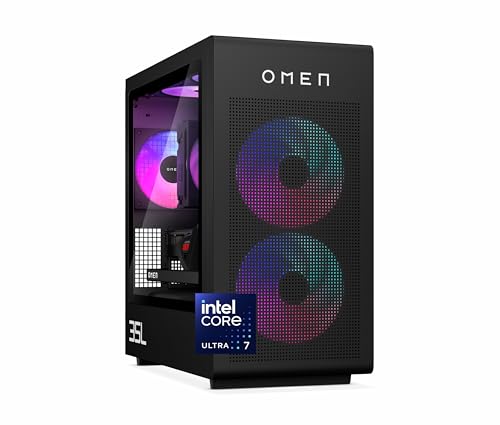
HP OMEN 35L GT16-0036sa · 32 GB RAM · 1 TB SSD
HP OMEN 35L Gaming Desktop PC | Intel Core Ultra 7 265K | 32GB DDR5 RAM | 1TB SSD + 1TB HDD | NVIDIA GeForce RTX 5070 (12 GB dedicated) | Windows 11 | RGB liquid cooler | GT16-0036sa
Core Ultra 7 265K · RTX 5070 12 GB · Windows 11 · + 1 TB HDD
£2,199.99Price observed 02.11.2026 06:22 UTCBuy on Amazon ↗
ThinkStation P3 Tower 285 / RTX 2000 Ada · 64 GB RAM · 1 TB SSD
Lenovo ThinkStation P3 Tower with Ultra 9 285, 64GB DDR5, NVIDIA RTX 2000 | Ada Generation 16GB GDDR6, 1TB SSD, Gen 2 Workstation, Intel Core vPro Processor, Wi-Fi 7, Win11 Pro, 1 YR Warranty
Core Ultra 9 285 · RTX 2000 Ada 16 GB · Windows 11 Pro
£4,485.54Price observed 02.11.2026 20:15 UTCBuy on Amazon ↗As an Amazon Associate, Cloudzat earns from qualifying purchases. Prices are dated observations and can change. Check the exact variant and delivery to your address before ordering.
Buying guide
Which of these exact configurations should you choose?
First option: CyberPowerPC Luxe 9800X3D / RTX 5070 Ti. The installed specification is Ryzen 7 9800X3D, 32 GB RAM, 1 TB SSD, RTX 5070 Ti 16 GB VRAM. For editing and colour work at the listed GPU-memory tier. The project and Resolve edition determine which acceleration features are available.
Second option: G6 Computers 7900X / RTX 5070 Ti. The installed specification is Ryzen 9 7900X, 64 GB RAM, 2 TB SSD, RTX 5070 Ti 16 GB VRAM. For heavier working data or a different GPU tier. Compare the actual VRAM as well as RAM; the workstation or gaming label is not a performance guarantee.
The memory difference is 32 GB. Choose the larger capacity when the workload tier in this guide needs it; otherwise keep that part of the budget for useful storage or peripherals. A higher RAM number is not a measured speed ranking.
| Option | Installed specification | Best reason to compare |
|---|---|---|
| CyberPowerPC Luxe 9800X3D / RTX 5070 Ti · 32 GB RAM · 1 TB SSD | Ryzen 7 9800X3D · RTX 5070 Ti 16 GB · Windows 11 | For editing and colour work at the listed GPU-memory tier. The project and Resolve edition determine which acceleration features are available. |
| G6 Computers 7900X / RTX 5070 Ti · 64 GB RAM · 2 TB SSD | Ryzen 9 7900X · RTX 5070 Ti 16 GB · Windows 11 Home | For heavier working data or a different GPU tier. Compare the actual VRAM as well as RAM; the workstation or gaming label is not a performance guarantee. |
When paying more makes sense
For straightforward editing, keep the system balanced rather than spending the whole budget on the GPU. Demanding effects, noise reduction and Fusion can justify stronger graphics and more memory. Compare the actual GPU and its memory in the two PCs: when both have the same card, a higher PC price is buying other differences.
A practical starting point for Resolve
For a new HD editing PC, we suggest 32 GB RAM, a supported graphics card with at least 8 GB VRAM and a fast SSD. For regular 4K work, a 12–16 GB GPU, 64 GB RAM and a 2 TB SSD form a more comfortable purchase tier. These are Cloudzat planning recommendations, not a statement that every 4K timeline requires 64 GB RAM.
Resolve combines editing, colour, effects and audio in one application. A simple timeline and a timeline with heavy noise reduction or Fusion compositions can place very different demands on the same PC. Choose the tier that matches the effects and working style, as well as the output resolution. A system's large RAM figure alone does not tell you how capable its graphics card is.
GPU memory deserves attention for 4K
The GPU does important work in colour processing and many effects. A 12 GB RTX 5070 is a useful midrange option; a 16 GB RTX 5070 Ti provides more memory room and belongs to a higher processing tier. For a new PC aimed at more demanding 4K work, we favour the 16 GB option where the price difference is reasonable.
For 6K, 8K or very heavy effects, the 16 GB catalogue on this page may not be the right stopping point. A larger-memory GPU can be appropriate. Do not interpret a capacity match in the selector as a guarantee that any combination of resolution, nodes and effects will run smoothly. A faster GPU with too little memory can still be a poor choice for a memory-heavy workload.
32 GB, 64 GB and heavier Fusion work
Choose 32 GB for a simpler editing setup and 64 GB when working with larger projects, multiple creative applications or more substantial Fusion compositions. Fusion is Resolve's compositing environment; its working data can make memory requirements grow. A heavy composition can justify 96 GB or 128 GB, but those capacities are not a general requirement for ordinary editing.
The shared Resolve sizing tool can produce higher targets for heavy Fusion and other demanding combinations. It is a planning aid, not an official Blackmagic minimum. If its target exceeds the memory installed in the offers, the honest answer is that none of those configurations meets that target. It should not force a recommendation merely because products are available.
Free and Studio are part of the decision
Resolve Free and Resolve Studio do not offer identical features and acceleration in every operating-system and codec combination. Some advanced effects, AI features and workflows require Studio. Buying a stronger PC does not unlock a software feature that belongs to a different edition. Check the edition for the work you actually intend to do before including an expensive GPU in the budget.
For straightforward learning and editing, the Free edition can be a useful place to begin. For a paid workflow that depends on Studio-only features, include the licence in the finished-system cost. Keep hardware capability, software support and licence entitlement separate in the comparison. A PC advertised for Resolve does not by itself include a Studio licence.
The CPU and footage format still matter
A modern desktop processor remains important for decoding, editing operations, audio and tasks that do not run entirely on the GPU. A recent Ryzen 7 or Core Ultra 7 class system is a reasonable general starting point. A stronger CPU can be worthwhile for a broader production workload, but buying the highest core count is not a substitute for suitable GPU memory.
Compressed H.264 and HEVC footage, RAW formats and intermediate editing formats have different requirements. Hardware acceleration depends on the exact format, operating system, Resolve edition and supported device. If a particular camera format is difficult to edit, optimised media or proxies can make the workflow easier without replacing every component. A GPU model name does not establish support for every format.
SSD capacity and backup for video work
A 1 TB SSD is a workable starting point for smaller projects. A 2 TB SSD gives more space for media, render cache and working files. High-resolution RAW footage and multicamera jobs can need much more. A second fast drive for active media is useful when available, while a separate archive and backup serve different purposes.
Render cache is reusable working data that can often be rebuilt. Original footage, project databases and exported masters deserve independent backup. Do not treat a second folder on the same SSD as protection from a failed drive. If the choice is between a small GPU upgrade and having no backup for paid work, protect the media first.
How to use the recommendations and tool together
Start with the HD or 4K tier above, then adjust for Fusion, effects and media. A beginner can form a useful shortlist from those descriptions alone. The calculator refines the capacity target from selected workload settings. It uses the existing Resolve sizing engine so this guide and the related tools do not produce conflicting rules.
Compare the exact installed RAM, SSD and GPU memory of the local offers. A 32 GB system that needs an immediate upgrade should include that upgrade in its price comparison. A workstation label or professional GPU does not automatically make a machine better value than a well-configured consumer desktop for Resolve. The recommendation should follow the workload and complete cost, not the category printed on the case.
Compare the two complete local baskets
Use current checkout amounts in GBP. Add only missing upgrades, accessories, delivery and tax.
Frequently asked questions
Is 8 GB VRAM enough for Resolve?
It is a useful starting point for a basic HD purchase. For a new 4K system we favour 12–16 GB, with more for demanding high-resolution and effects work.
Do I need 64 GB RAM for every 4K project?
No. It is our more comfortable purchase tier for heavier work and multitasking. Simpler projects can use less; Fusion compositions can need substantially more.
Does a powerful PC include Resolve Studio?
No. Hardware and the software licence are separate. Include Studio in the budget only when the required features or workflow need that edition.
Why can the calculator find no suitable offer?
The selected workload can exceed the installed RAM, VRAM or other limits of the listed machines. That is a useful result: change the specification or look for a configuration that actually meets it.
Related buying guides
- Best PC for After Effects in the UK: RAM, GPU and Cache
- Best PC for Lightroom Classic in the UK: RAM and Prices
- Best PC for Premiere Pro in the UK: Codecs, RAM and GPU
- Best Laptop for Photo Editing in the UK: Screen and RAM
- Best PC for Blender in the UK: RAM, GPU and Prices
- Best PC for Unreal Engine in the UK: Builds, RAM and GPU
- Best Pc For Davinci Resolve 21 1
- Davinci Resolve 21 1 Workstation Builder