


the UK
Best PC for Blender in the UK: RAM, GPU and Prices
For a new Blender desktop, start with 32 GB RAM, a 1–2 TB SSD and a supported graphics card. For regular Cycles rendering, favour an RTX 5060 Ti 16 GB or RTX 5070 Ti 16 GB. Choose 64 GB RAM for larger scenes and simulations; choose a stronger CPU when simulation or CPU rendering is the main job.
Choose the right option
CyberPowerPC Luxe 9800X3D / RTX 5070 Ti · 32 GB RAM · 1 TB SSD
For Cycles work, prioritising the listed GPU and its memory. The installed system RAM still needs to hold the scene and any simulations.
Compare exact offers ↓G6 Computers 7900X / RTX 5070 Ti · 64 GB RAM · 2 TB SSD
For an alternative balance of CPU, RAM and graphics. More system RAM helps larger working data but does not add to the GPU memory.
Compare exact offers ↓Amazon offers in the UK
Confirm the selected capacity, seller and delivered total.

CyberPowerPC Luxe 9800X3D / RTX 5070 Ti · 32 GB RAM · 1 TB SSD
CyberPowerPC Luxe Gaming PC - AMD Ryzen 7 9800X3D, Nvidia RTX 5070 Ti, 32GB RAM, 1TB NVMe SSD, 750W PSU, Windows 11, Liquid Cooling, Ark Curve Black
Ryzen 7 9800X3D · RTX 5070 Ti 16 GB · Windows 11
£2,369.00Price observed 02.11.2026 14:25 UTCBuy on Amazon ↗
G6 Computers 7900X / RTX 5070 Ti · 64 GB RAM · 2 TB SSD
Gaming PC Ryzen 9 7900X RTX 5070 Ti 16GB 64GB RAM 2TB SSD Windows 11 Home
Ryzen 9 7900X · RTX 5070 Ti 16 GB · Windows 11 Home
£3,614.99Price observed 02.11.2026 22:20 UTCBuy on Amazon ↗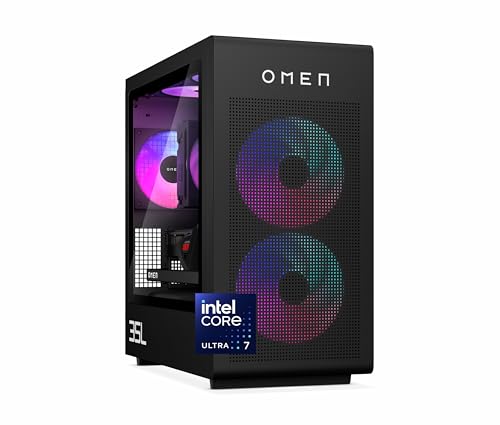
HP OMEN 35L GT16-0036sa · 32 GB RAM · 1 TB SSD
HP OMEN 35L Gaming Desktop PC | Intel Core Ultra 7 265K | 32GB DDR5 RAM | 1TB SSD + 1TB HDD | NVIDIA GeForce RTX 5070 (12 GB dedicated) | Windows 11 | RGB liquid cooler | GT16-0036sa
Core Ultra 7 265K · RTX 5070 12 GB · Windows 11 · + 1 TB HDD
£2,199.99Price observed 02.11.2026 06:22 UTCBuy on Amazon ↗
ThinkStation P3 Tower 285 / RTX 2000 Ada · 64 GB RAM · 1 TB SSD
Lenovo ThinkStation P3 Tower with Ultra 9 285, 64GB DDR5, NVIDIA RTX 2000 | Ada Generation 16GB GDDR6, 1TB SSD, Gen 2 Workstation, Intel Core vPro Processor, Wi-Fi 7, Win11 Pro, 1 YR Warranty
Core Ultra 9 285 · RTX 2000 Ada 16 GB · Windows 11 Pro
£4,485.54Price observed 02.11.2026 20:15 UTCBuy on Amazon ↗As an Amazon Associate, Cloudzat earns from qualifying purchases. Prices are dated observations and can change. Check the exact variant and delivery to your address before ordering.
Buying guide
Which of these exact configurations should you choose?
First option: CyberPowerPC Luxe 9800X3D / RTX 5070 Ti. The installed specification is Ryzen 7 9800X3D, 32 GB RAM, 1 TB SSD, RTX 5070 Ti 16 GB VRAM. For Cycles work, prioritising the listed GPU and its memory. The installed system RAM still needs to hold the scene and any simulations.
Second option: G6 Computers 7900X / RTX 5070 Ti. The installed specification is Ryzen 9 7900X, 64 GB RAM, 2 TB SSD, RTX 5070 Ti 16 GB VRAM. For an alternative balance of CPU, RAM and graphics. More system RAM helps larger working data but does not add to the GPU memory.
The memory difference is 32 GB. Choose the larger capacity when the workload tier in this guide needs it; otherwise keep that part of the budget for useful storage or peripherals. A higher RAM number is not a measured speed ranking.
| Option | Installed specification | Best reason to compare |
|---|---|---|
| CyberPowerPC Luxe 9800X3D / RTX 5070 Ti · 32 GB RAM · 1 TB SSD | Ryzen 7 9800X3D · RTX 5070 Ti 16 GB · Windows 11 | For Cycles work, prioritising the listed GPU and its memory. The installed system RAM still needs to hold the scene and any simulations. |
| G6 Computers 7900X / RTX 5070 Ti · 64 GB RAM · 2 TB SSD | Ryzen 9 7900X · RTX 5070 Ti 16 GB · Windows 11 Home | For an alternative balance of CPU, RAM and graphics. More system RAM helps larger working data but does not add to the GPU memory. |
When paying more makes sense
For Blender, pay for the component that does your heaviest work. More graphics processing helps supported GPU rendering; more CPU power matters for CPU rendering and some simulations. Choose 64 GB RAM when scenes and simulations are too large for a comfortable 32 GB setup. Extra SSD space holds more projects, but does not turn the same graphics card into a faster renderer.
A balanced Blender PC for learning and paid work
A modern eight-core desktop processor, 32 GB RAM and a supported GPU form a sensible starting point for modelling, learning and smaller production jobs. Blender's published recommended specification includes 32 GB RAM and 8 GB VRAM. Our preference for a new Cycles-focused purchase is a 16 GB GPU where affordable, because scene capacity is difficult to add later without changing the card.
For more demanding work, move to 64 GB RAM and a 2 TB SSD before spending the whole budget on the graphics card. Large textures, geometry, simulations and other open applications all need room. A 64 GB machine with a 16 GB GPU is a useful step-up configuration, but it is not a universal minimum. Smaller projects can run comfortably on less.
Choose the GPU for rendering, the CPU for the rest
For Cycles GPU rendering, a compatible graphics card is a major part of the purchase. The RTX 5060 Ti 16 GB is the capacity-focused option; the RTX 5070 Ti 16 GB belongs to a higher processing tier with the same memory size. An RTX 5070 has 12 GB, so a larger model number does not always mean more VRAM than the 5060 Ti 16 GB.
The processor remains important for modelling, scene preparation, some modifiers and simulation. If you render on the CPU, more capable CPU hardware becomes a larger priority. A gaming processor with extra cache is not automatically the best workstation value. For a mixed Blender workload, a recent Ryzen 7, Ryzen 9 or Core Ultra processor paired with enough RAM is a more useful starting comparison than the word 'gaming' on the case.
32 GB versus 64 GB RAM
Choose 32 GB for learning, product models and scenes that are not especially large. Choose 64 GB for bigger environments, high-resolution assets, simulations or frequent use with other creative software. RAM holds working data for the application; VRAM holds data on the graphics card. A PC with 64 GB RAM and an 8 GB GPU can still run short of graphics memory.
For a future upgrade, a two-module memory kit is usually a simpler starting arrangement than filling every slot. The motherboard and processor must support the chosen capacity. The important number in a prebuilt offer is the RAM installed when it arrives. 'Supports 128 GB' describes a possible maximum and does not mean that the system contains 128 GB.
How much storage is useful?
A 1 TB SSD can cover Windows, Blender and a modest set of active projects. A 2 TB SSD is a more comfortable choice for asset libraries, textures and caches. Simulations and animation output can grow quickly: an image sequence stores a separate file for every frame. Keep space for both the working project and its output rather than sizing the SSD only around Blender's installer.
Use an SSD for current projects and caches. A hard disk can be useful for less frequently accessed files and a separate backup, but a 1 TB SSD plus a 1 TB hard disk is not the same as a 2 TB SSD. The distinction matters when an offer adds both drives together in its headline capacity. A second drive can be added later if the case and motherboard provide the right connection.
Which configuration deserves the higher price?
Spend more on the GPU when final Cycles rendering is the work you want to speed up. Spend more on RAM when large scenes or simulations need room. Spend more on the CPU when modelling operations, simulations or CPU rendering dominate. This gives a beginner a usable decision without requiring a previous workstation or a collection of benchmark results.
For example, a 32 GB desktop with an RTX 5070 Ti can be the better starting point for frequent GPU renders than a 64 GB desktop with a weaker GPU, provided the scene fits 32 GB RAM. A 64 GB desktop may be the better choice for a large simulation even with a lower GPU tier. The exact offers below make these trade-offs visible instead of treating every large specification as equally valuable.
Cooling and upgrade space are part of the purchase
Long renders keep the CPU or GPU busy for extended periods. A ventilated case and a suitable CPU cooler therefore matter more than decorative lighting. A seller should identify the power supply and the installed components. When those details are absent, the offer may still be usable, but there is less evidence to judge its upgrade potential.
Prefer a system with room for the GPU you plan to keep and a clear path to more RAM or storage. Compact workstations can be useful where desk space matters, but their power and cooling limits differ from full-size towers. Do not pay a professional-workstation premium just for the label if your main need is a single consumer GPU for Cycles.
A practical route for an existing PC
Keep an existing machine that handles modelling and scenes well. A GPU upgrade may be enough for a Cycles-focused workflow; a memory upgrade may be enough for larger working projects. If both the CPU platform and power supply need replacement, a complete new machine becomes more reasonable. Compare the total upgrade cost with the complete desktop, including any required RAM and SSD.
The optional planner can use actual memory readings to narrow the capacity choices. Its animation-time calculation multiplies a render time you supply by the frame count. It does not predict how fast the listed PCs will render. Without measurements, use the 32 GB and 64 GB workload tiers above, and choose the GPU memory size that suits the scenes you expect to make.
Optional: refine the choice with your own measurements
You can choose from the guide without using this tool. If you have a measured project, enter its values to compare capacity. Example inputs are not measurements or performance predictions.
Compare the two complete local baskets
Use current checkout amounts in GBP. Add only missing upgrades, accessories, delivery and tax.
Frequently asked questions
What should a beginner buy for Blender?
Start with 32 GB RAM, a modern desktop CPU and a supported GPU. For a new PC focused on Cycles, a 16 GB RTX card is a useful target if the budget allows.
Is a gaming PC suitable for Blender?
Yes, the right gaming PC can be a capable Blender workstation. Judge its actual CPU, RAM, GPU memory, SSD and cooling, rather than the gaming label.
Is 64 GB RAM always faster than 32 GB?
No. It helps when a project or multitasking needs the additional capacity. A project that already fits comfortably does not automatically render faster with twice the RAM.
Should I buy an RTX 5070 or RTX 5060 Ti 16 GB?
The RTX 5070 has 12 GB, while the specified 5060 Ti has 16 GB. For a scene that needs more than 12 GB, capacity can matter more than the processing tier. For smaller scenes, compare rendering performance and local price.
Related buying guides
- Best PC for Unreal Engine in the UK: Builds, RAM and GPU
- Best GPU for Blender in the UK: VRAM and Upgrade Cost
- Best PC for After Effects in the UK: RAM, GPU and Cache
- Best PC for Lightroom Classic in the UK: RAM and Prices
- Best PC for Premiere Pro in the UK: Codecs, RAM and GPU
- Best PC for DaVinci Resolve in the UK: GPU, RAM and Cost
- Best Workstation Gpu
- High End Pc Builder