


the US
PC for SOLIDWORKS US: Workstation Specs and Prices Guide
For SOLIDWORKS, start with 32 GB RAM, a modern responsive processor, a 1 TB SSD and a supported professional graphics configuration. Choose 64 GB for larger assemblies or memory-heavy work. Treat the listed PCs as conditional options until the exact system, GPU and driver are matched to the SOLIDWORKS certification record; the workstation badge alone is not enough.
Choose the right option
Lenovo ThinkStation P3 Tiny Gen 2 · 32 GB RAM · 1 TB SSD
32 GB installed RAM, RTX A1000 and Windows 11 Pro. For ordinary modelling at the memory tier shown. Exact certification remains unverified.
Compare exact offers ↓Lenovo ThinkStation P3 Tiny Gen 2 · 64 GB RAM · 1 TB SSD
64 GB installed RAM, RTX A1000 and Windows 11 Pro. For the larger-memory workload tier. Exact certification remains unverified.
Compare exact offers ↓Amazon offers in the US
Confirm the selected capacity, seller and delivered total.

Lenovo ThinkStation P3 Tiny Gen 2 · 32 GB RAM · 1 TB SSD
Lenovo ThinkStation P3 Tiny Gen 2 w/Ultra 7, NVIDIA RTX A1000, 32GB, 1TB | Workstation with Intel Core Ultra 7 265 vPro Processor, NVIDIA RTX A1000 8GB GDDR6 Graphics, 32GB RAM, 1TB SSD, Win 11 Pro
Core Ultra 7 265 · RTX A1000 · Windows 11 Pro. Certification not verified.
US$1,984.99Price observed 02.11.2026 20:05 UTCBuy on Amazon ↗
Lenovo ThinkStation P3 Tiny Gen 2 · 64 GB RAM · 1 TB SSD
Lenovo ThinkStation P3 Tiny Gen 2 Workstation with Intel Core Ultra 7 265 vPro Processor, NVIDIA RTX A1000 8GB GDDR6, 64GB DDR5-5600MT Memory, 1TB SSD, DisplayPort, RJ-45, WiFi 7, and Windows 11 Pro
Core Ultra 7 265 · RTX A1000 · Windows 11 Pro. Certification not verified.
US$2,449.00Price observed 02.11.2026 20:05 UTCBuy on Amazon ↗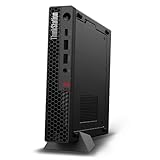
Lenovo ThinkStation P3 Tiny Gen 2 · 64 GB RAM · 1 TB SSD
Lenovo 2026 ThinkStation P3 Tiny Gen 2 with Ultra 9, NVIDIA RTX A1000 8GB | Workstation - Intel Ultra 9 285 24-Core, 64GB RAM, 1TB Gen5 NVMe SSD, Integrated Ethernet, Wi-Fi 7, Windows 11 Pro
Core Ultra 9 285 · RTX A1000 · Windows 11 Pro. Certification not verified.
US$2,619.99Price observed 02.11.2026 20:05 UTCBuy on Amazon ↗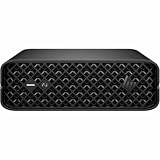
HP Z2 Mini G1i · 32 GB RAM · 512 GB SSD
HP Z2 Mini G1i Workstation - Mini PC - Intel Core Ultra 7 265-32 GB RAM - 512 GB SSD - Windows 11 Pro - NVIDIA RTX A1000 8 GB Graphics - Black
Core Ultra 7 265 · RTX A1000 · Windows 11 Pro. Certification not verified.
US$3,245.56Price observed 02.11.2026 19:54 UTCBuy on Amazon ↗As an Amazon Associate, Cloudzat earns from qualifying purchases. Prices are dated observations and can change. Check the exact variant and delivery to your address before ordering.
Buying guide
Which exact option fits your work?
Lenovo ThinkStation P3 Tiny Gen 2 · 32 GB RAM · 1 TB SSD: Core Ultra 7 265, RTX A1000, Windows 11 Pro. This is the installed configuration, not the maximum that the family can support. 32 GB installed RAM, RTX A1000 and Windows 11 Pro. For ordinary modelling at the memory tier shown. Exact certification remains unverified.
Lenovo ThinkStation P3 Tiny Gen 2 · 64 GB RAM · 1 TB SSD: Core Ultra 7 265, RTX A1000, Windows 11 Pro. This is the installed configuration, not the maximum that the family can support. 64 GB installed RAM, RTX A1000 and Windows 11 Pro. For the larger-memory workload tier. Exact certification remains unverified.
The memory difference is 32 GB. Choose the larger capacity for the larger-project tier described in this guide. If ordinary work fits in the smaller capacity, the price premium needs another useful benefit. More RAM is capacity, not a measured speed ranking.
The two selected P3 Tiny Gen 2 configurations use the same Core Ultra 7 265 and RTX A1000, with the same nominal 1 TB SSD. The main listed capacity difference is 32 GB versus 64 GB RAM. That makes the premium easier to judge: pay for the extra working room when needed, or compare a supported memory upgrade rather than expecting a different graphics class.
| Exact option | Specification | Best reason to choose |
|---|---|---|
| Lenovo ThinkStation P3 Tiny Gen 2 · 32 GB RAM · 1 TB SSD | Core Ultra 7 265 · RTX A1000 · Windows 11 Pro. Certification not verified. | 32 GB installed RAM, RTX A1000 and Windows 11 Pro. For ordinary modelling at the memory tier shown. Exact certification remains unverified. |
| Lenovo ThinkStation P3 Tiny Gen 2 · 64 GB RAM · 1 TB SSD | Core Ultra 7 265 · RTX A1000 · Windows 11 Pro. Certification not verified. | 64 GB installed RAM, RTX A1000 and Windows 11 Pro. For the larger-memory workload tier. Exact certification remains unverified. |
When paying more makes sense
Start with 32 GB for ordinary modelling, or 64 GB for large assemblies and memory-heavy calculations. For paid production work, confirm support for the exact graphics card and driver before paying for the machine. A faster gaming GPU is not a substitute for a supported setup when certification is part of the requirement.
What a useful SOLIDWORKS workstation needs
For regular parts and assemblies, 32 GB RAM is the sensible starting point for a new purchase and aligns with SOLIDWORKS' recommended memory. Pair it with a modern capable processor and a 1 TB SSD. The goal is a balanced working machine that can rebuild models, navigate assemblies and keep the usual supporting applications open without sacrificing basic capacity to buy a flagship component.
16 GB remains a minimum-level option for smaller supported work, but it is a tight target for a new professional workstation. 64 GB becomes worthwhile for larger assemblies, demanding simulation work or several design applications used together. These are practical buying tiers rather than a universal part-count rule. Complex geometry and feature history can matter more than the number of components shown in an advertisement.
Professional graphics: buy the supported combination
SOLIDWORKS lists certified graphics cards and drivers in its hardware guidance. The important purchase is the exact supported combination, not any product that happens to use the words RTX, workstation or professional. The operating system, application release and driver can all matter. A different GPU inside the same case does not inherit another configuration's certification.
The offers in this guide are marked as unverified where that exact match has not been established. If certification is mandatory for your work, obtain the matching record before ordering; none of these conditional entries should be presented as an already certified purchase. This is a concrete reason to favour an identifiable configuration and a useful support route over a vague marketplace description with an attractive headline price.
Why a gaming GPU is not the default shortcut
A gaming card can have impressive rendering or game specifications without being the supported choice for your SOLIDWORKS setup. For a professional modelling desk, consistent display behaviour, driver support and the required application features are legitimate buying priorities. A large VRAM number alone does not establish those qualities, just as a high gaming frame rate does not measure model rebuilds.
That does not mean every user needs the most expensive professional GPU. A smaller appropriate card may be sufficient for ordinary parts and moderate assemblies. Pay for a larger graphics tier when model complexity, displays or another supported application justifies it. For rendering in a separate tool, check that tool's GPU requirements as well instead of assuming one card label answers both questions.
Processor, RAM and simulation are different decisions
Interactive modelling and rebuilding can benefit from a strong individual CPU core. Some analysis and rendering tasks can use more cores, depending on the feature and software involved. Buying the largest core count is therefore not a universal answer. A balanced modern CPU is usually a better first step than an old many-core platform chosen because its specification sheet looks long.
Memory capacity should match the working set of assemblies and analysis data. If a large simulation exceeds available RAM, a stronger graphics card will not solve that shortage. Conversely, adding RAM beyond what the work uses does not guarantee faster solving. For a new all-purpose modelling workstation, choose 32 GB; move to 64 GB when the work demands it, then choose the processor and any specialised acceleration for the operations you actually run.
Use a supported Windows configuration
A workstation must run a Windows edition and release supported by the SOLIDWORKS version you use. For a new purchase, an identifiable supported Windows 11 Pro configuration is the straightforward business shortlist. An offer that only says Windows or does not specify the edition needs clarification before it becomes a dependable choice. The supplied licence and support status are part of the configuration, not incidental accessories.
Do not treat a low-priced Home or unspecified system as equivalent when your required SOLIDWORKS setup excludes it. The cost of a legitimate supported upgrade belongs in the comparison. The same principle applies to an unusually old workstation: compatible hardware alone does not establish a supported software environment for the release your team needs.
SSD capacity and a workable office setup
A 1 TB SSD is a useful starting size for Windows, SOLIDWORKS, active projects and supporting software. More storage is worthwhile when local project data and libraries would crowd that drive. A fast SSD helps avoid the limitations of a mechanical system disk, but its peak read rate does not predict every assembly-opening or rebuild time. Enough free working space matters more than a small specification-sheet advantage.
For team data, the network and PDM arrangement also affect everyday access. A local storage upgrade cannot fix every delay from a remote server. Include monitor connections, backup and the support package in the workstation budget. A compact model may suit a stable desk; a tower is the better choice if larger graphics cards or extra drives are likely later additions.
Which option is worth paying for?
Choose the lower-cost suitable 32 GB configuration for ordinary modelling once the required certification match is confirmed. Choose 64 GB when the active assemblies and other applications need more memory. Pay for a larger professional GPU only when the supported workload or display setup benefits from it. If two offers have the same RAM and SSD, the price difference must be justified by their CPU, GPU, expansion or support.
When an exact certification record cannot be established, the answer is not to pretend the workstation badge settles the issue. Keep the offer conditional and obtain a configuration that satisfies the requirement. The optional selector below deliberately retains that condition. It can compare memory and price, but it does not test SOLIDWORKS or turn an unverified system into a certified one.
Optional: refine capacity or compare your requirements
The guide above gives a starting choice without this tool. Use it only to refine your own capacity or configuration requirements. Its result is an estimate, not a performance test or certification.
SOLIDWORKS always triggers the certification check and excludes an unknown or Home edition. Prices are stored observations; add missing costs below.
Compare the complete purchase cost
Check the checkout amounts. Unknown tax and delivery charges are not added automatically.
Frequently asked questions
Is 32 GB enough for SOLIDWORKS?
It is the recommended memory level in the official hardware guidance and a sensible starting point for ordinary work. Larger assemblies, analysis and multitasking can justify 64 GB or more.
Are all RTX workstation PCs certified?
No. Certification concerns the relevant application, hardware and driver combination. A professional model name is not proof of that match.
Can I choose a cheaper system with unspecified Windows?
Only after confirming a supported edition and release for your SOLIDWORKS version. Any necessary licence or upgrade cost must be included before comparing it with a complete supported configuration.
Related buying guides
- PC for Fusion 360 US: Workstation Specs and Prices Guide
- PC for Revit US: Workstation Specs, RAM and Prices Guide
- Best CAD Laptops US: RAM, Graphics and Buying Guide
- Best SSD for Photoshop Scratch Disk: US Buying Guide
- Best SSD for Sample Libraries: US Capacity and Prices
- OWC Envoy Ultra Buying Guide: Capacity, Ports and US Prices
- Best Workstation Gpu
- High End Pc Builder