


Canada · CAD
Mini PC RAM Upgrade Guide Canada
First check whether your Mini PC has replaceable SO-DIMM memory. For DDR5 slots, compare Crucial DDR5 and Kingston FURY Impact DDR5; for DDR4 slots, compare Crucial DDR4 and Kingston FURY Impact DDR4. Choose the supported module capacity and slot count. Soldered LPDDR memory, including the EVO-X2’s onboard RAM, cannot be expanded with a SO-DIMM kit.
- Soldered memory? A SO-DIMM kit cannot expand onboard RAM.
- Find the generation. Use DDR4 or DDR5 exactly as the service manual specifies.
- Count the modules. Match the kit arrangement to the available slots.
Choose RAM for your memory slots
Crucial DDR5 SO-DIMM, 32GB total
First comparison for a compatible DDR5 SO-DIMM system. A 32GB two-module kit needs two supported slots; one-slot machines need the appropriate single module.

32 GB total (2 × 16 GB) · DDR5 SO-DIMM
CA$790.19Price checked 01.11.2026 07:55 UTCBuy on Amazon ↗Specifications and model details ↗Kingston FURY Impact DDR5, 32GB total
DDR5 alternative when its module capacity and supported operating profile match the service manual. Do not pay for an overclocking profile the computer cannot use.

32 GB total (2 × 16 GB) · DDR5 SO-DIMM
CA$1,055.16Price checked 01.11.2026 09:55 UTCBuy on Amazon ↗Specifications and model details ↗Crucial DDR4 SO-DIMM, 32GB total
First DDR4 comparison for a supported older platform. DDR4 and DDR5 modules are physically different and cannot replace each other.

32 GB total (2 × 16 GB) · DDR4 SO-DIMM
CA$375.91Price checked 01.11.2026 09:55 UTCBuy on Amazon ↗Specifications and model details ↗Kingston FURY Impact DDR4, 32GB total
Alternative DDR4 SO-DIMM family. Match the exact part number, module arrangement and supported speed to the computer.
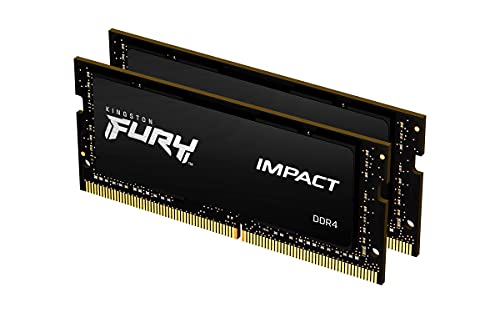
32 GB total (2 × 16 GB) · DDR4 SO-DIMM
CA$915.63Price checked 01.11.2026 07:56 UTCBuy on Amazon ↗Specifications and model details ↗SO-DIMM kits and single modules
DDR5
Crucial 32GB DDR5 RAM Kit (2x16GB), 5600MHz (or 5200MHz or 4800MHz) Laptop Memory 262-Pin SODIMM, Compatible with Intel Core and AMD Ryzen 7000, Blac…
32 GB total (2 × 16 GB) · DDR5 SO-DIMM
CA$790.19Price checked 01.11.2026 07:55 UTCBuy on Amazon ↗DDR5
Kingston Fury Impact 32GB (2x16GB) 6000MT/s CL38 DDR5 SODIMM | Intel XMP 3.0 | Plug N Play | Laptop Memory | Kit of 2 | KF560S38IBK2-32
32 GB total (2 × 16 GB) · DDR5 SO-DIMM
CA$1,004.80Price checked 01.11.2026 07:55 UTCBuy on Amazon ↗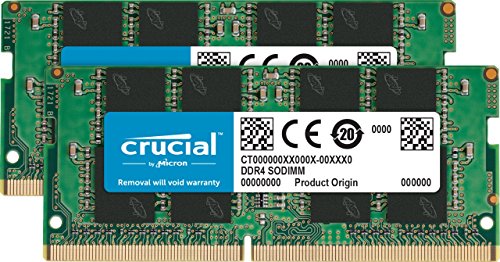
DDR4
Crucial 32GB Kit (16GBx2) DDR4 2133 MT/s (PC4-17000) SODIMM 260-Pin Memory - CT2K16G4SFD8213
32 GB total (2 × 16 GB) · DDR4 SO-DIMM
CA$316.20Price checked 01.11.2026 07:55 UTCBuy on Amazon ↗DDR4
32GB Kingston Technology Fury Impact K2 2933MHz DDR4 SO-DIMM Dual Memory Kit (2 x 16GB)
32 GB total (2 × 16 GB) · DDR4 SO-DIMM
CA$915.63Price checked 01.11.2026 07:56 UTCBuy on Amazon ↗
DDR4
Timetec 32GB KIT (2x16GB) DDR4 2666MHz (PC4-2666V) PC4-21300 SODIMM Laptop RAM – 260-Pin 1.2V CL19 Non-ECC Unbuffered Memory Module for Laptop, Noteb…
32 GB total (2 × 16 GB) · DDR4 SO-DIMM
CA$267.99Price checked 01.11.2026 07:55 UTCBuy on Amazon ↗
DDR5
Kingston Fury Impact 16GB 6400MT/s CL38 DDR5 SODIMM | Intel XMP 3.0 | Plug N Play | Laptop Memory | Single Module | KF564S38IB-16
16 GB total (1 × 16 GB) · DDR5 SO-DIMM
CA$526.45Price checked 01.11.2026 07:55 UTCBuy on Amazon ↗DDR5
Crucial 64GB DDR5 RAM Kit (2x32GB), 4800MHz CL40 Laptop Memory - SODIMM 262-Pin - Compatible with 12th Intel Core - CT2K32G48C40S5
64 GB total (2 × 32 GB) · DDR5 SO-DIMM
CA$1,312.92Price checked 01.11.2026 07:55 UTCBuy on Amazon ↗
DDR4
16GB Kingston Technology Fury Impact K2 3200MHz DDR4 SO-DIMM Dual Memory Kit (2 x 8GB)
16 GB total (2 × 8 GB) · DDR4 SO-DIMM
CA$299.69Price checked 01.11.2026 07:56 UTCBuy on Amazon ↗RAM compatibility and installation
Can your Mini PC’s RAM actually be upgraded?
Look for a service manual that names removable SO-DIMM slots. The AI X1 Pro-370 has replaceable memory, while an EVO-X2 uses onboard memory that you choose when buying the computer. A specification mentioning LPDDR is a reason to investigate the actual layout, not an invitation to order laptop modules. USB storage and an external SSD cannot add physical RAM.
If memory is soldered, reduce unnecessary background applications or move the workload to a computer with enough installed capacity. Replacing the whole machine can be sensible for a larger workload, but a memory kit will not solve that limitation. Confirm the exact hardware revision before taking the cover off.
Choose DDR4 or DDR5 and count the slots
Use the memory generation in the service documentation. DDR4 SO-DIMMs use a different pin layout from DDR5 SO-DIMMs; neither should be forced into the other socket. Full-size desktop DIMMs are also the wrong form factor for a SO-DIMM slot. The same capacity and brand name do not make these products interchangeable.
A 32GB kit containing two 16GB modules is useful only when the computer has two suitable slots. For a one-slot system, choose a supported single module instead. Check both the per-slot limit and total supported capacity. Prefer a matched arrangement for a two-slot upgrade rather than assuming a new module will operate identically beside an unrelated old one.
How much memory should you buy?
16GB remains a practical comparison for ordinary documents and browsing. Choose 32GB when your real multitasking, development tools or photo work regularly exhaust 16GB. Move to 64GB only when the machine supports it and virtual machines, large projects or local models justify the capacity. Check memory use while running the work that matters.
Capacity comes before a headline speed the firmware cannot use. Match the supported voltage and standard operating profile, and expect the platform to determine the final speed. A larger kit does not guarantee faster exports or gaming when the bottleneck is the processor or graphics. Keep enough budget for a backup rather than buying unused memory.
Install and test the replacement memory
Follow the manufacturer’s sequence for opening the machine, disconnecting power and seating the module. The notch must align and the retaining clips should engage without force. Keep the original module so you can restore a known working configuration if the new memory is not recognized. The first start after a change can differ from an ordinary restart; follow the model’s guidance.
Confirm the detected total in firmware and the operating system. Run a memory diagnostic such as MemTest86, then your normal sustained workload. If errors appear, return to supported settings and check seating or compatibility before trusting important work to the machine. A successful boot alone is not a useful stability test.
Identify the exact machine before changing it
Find the model code and hardware revision on the case or purchase record, then use the matching service information. Mini PCs with similar names can have different memory, storage and cooling layouts. Record the current RAM and SSD configuration before ordering parts. A supported maximum capacity is not a statement of what is installed, and an upgrade shown for another revision is not proof that it fits your machine.
Start with a problem you want to solve. More RAM helps when memory pressure is the limit; a larger SSD helps when storage capacity is the limit. Neither automatically fixes a failing fan, a bad cable or a software problem. Check system monitoring and repeat the task that causes trouble before spending money. A small, well-targeted change is often better value than replacing the whole computer without finding the cause.
Protect your work and keep a recovery route
Make an independent backup of important files before opening the case or changing the boot drive. Confirm that the backup can be read from another device. Keep any drive-encryption recovery key somewhere secure and accessible without the Mini PC. Save operating-system recovery media, application licence details and the correct network driver where needed. These preparations turn an interrupted upgrade into a recoverable task rather than a lost working day.
Shut the system down, disconnect external power and follow the manufacturer’s disassembly instructions. Use appropriate electrostatic precautions and keep track of screw locations and thermal materials. Do not force a connector, bend a module or improvise a heatsink that prevents the case from closing. A compact computer can place antennas, fan leads and ribbon cables close to the cover. Stop when the documented procedure does not match what is in front of you.
Verify the result before relying on it
After the change, confirm the detected capacity and run the workload that prompted the upgrade. Test sleep, wake and a full restart as well as a short benchmark. A system that boots is not necessarily stable under sustained memory or storage use. Keep the original parts until the replacement has passed useful checks and you have confirmed that your files and applications work. Change one thing at a time so a new problem has an identifiable cause.
If a machine is still covered by support, contact the seller or manufacturer before taking on undocumented repairs. Warranty terms and service routes depend on the supplier and country; keep the invoice and serial number. When replacement becomes sensible, choose a model with the service access, memory capacity and support you actually need. A lower sticker price is poor value if it repeats the limitation you are trying to escape.
Buying and support in Canada
Use Canadian-dollar prices when comparing these systems. Include delivery and the applicable provincial or territorial taxes in your total, and check whether the seller ships from Canada or imports the machine. A cross-border offer can have a different return process, delivery schedule or additional charges. Do not compare an American promotional price with a Canadian delivered price as though the currency and purchase conditions were identical.
Confirm the included adapter, power lead and operating-system edition, then keep the invoice and serial number. For work or study, choose a support route you can use if the computer fails during a busy week. An alternative should preserve the required memory, graphics and connections, even when the brand changes. Add any missing display, keyboard, webcam or backup drive to the budget before deciding whether the compact system is good value.
Questions buyers ask
Can I upgrade soldered RAM?
Not with a SO-DIMM kit. Choose enough onboard memory when buying, or move the workload to a machine with sufficient capacity.
Does a 32GB kit always fit a 32GB-capable Mini PC?
No. A kit may contain two modules, while the machine may have one slot or a lower per-slot limit. Check generation, slot count and supported module capacity.
Should I choose Crucial or Kingston?
Choose a compatible part first. Crucial and Kingston FURY Impact provide DDR4 and DDR5 SO-DIMM options, but the correct generation, capacity and operating profile decide the fit.
Specifications and software guidance
Memory compatibility for Intel NUC ↗MemTest86 memory diagnostics ↗Crucial DDR5 SO-DIMM ↗Kingston FURY Impact DDR5 ↗Crucial DDR4 SO-DIMM ↗Kingston FURY Impact DDR4 ↗Related Mini PC guides
Best NVMe SSDs for Mini PC Upgrades CanadaMini PC Overheating: Causes and Fixes CanadaAre Mini PCs Reliable? Warranty and Buying Advice CanadaCompare Mini PC pricesAs an Amazon Associate, Cloudzat earns from qualifying purchases. Prices and availability can change.