


the US
Best PC for After Effects in the US: RAM, GPU and Cache
For a new After Effects PC, start with 32 GB RAM, an 8 GB or larger graphics card and a 1 TB SSD. Choose 64 GB RAM and a 2 TB SSD for complex 4K compositions or regular use alongside Premiere and Photoshop. A fast cache SSD matters for modern preview playback; the most expensive gaming GPU is not the first upgrade for every project.
Choose the right option
Skytech Crystal 5700 / RTX 5060 · 32 GB RAM · 1 TB SSD
For titles, motion graphics and a smaller working setup. Keep budget for cache storage; a stronger gaming GPU is not automatically the first useful upgrade.
Compare exact offers ↓Velztorm Altix 9700X / RTX 5070 Ti · 64 GB RAM · 2 TB SSD
For heavier compositions and creative multitasking. The extra price needs to be justified by the actual memory and storage difference, not the graphics-card name alone.
Compare exact offers ↓Amazon offers in the US
Confirm the selected capacity, seller and delivered total.

Skytech Crystal 5700 / RTX 5060 · 32 GB RAM · 1 TB SSD
Skytech Gaming PC Desktop, Ryzen 7 5700, RTX 5060, 32GB RAM, 1TB SSD | Windows 11, NVMe SSD, DDR4 3200, 650W GOLD PSU, Wi-Fi 5, Crystal Series
Ryzen 7 5700 · RTX 5060 8 GB · Windows 11
US$1,199.99Price observed 02.11.2026 14:53 UTCBuy on Amazon ↗
Velztorm Altix 9700X / RTX 5070 Ti · 64 GB RAM · 2 TB SSD
Velztorm Altix Custom Built Gaming Desktop PC (AMD Ryzen 7 9700X, GeForce RTX 5070 Ti, 64GB DDR5, 2TB PCIe SSD, RGB Fans, 240mm AIO, 1000W PSU, WiFi 6E, Bluetooth 5.2, RJ-45, Win 11 Home)
Ryzen 7 9700X · RTX 5070 Ti 16 GB · Windows 11 Home
US$2,989.99Price observed 02.11.2026 22:24 UTCBuy on Amazon ↗
iBUYPOWER Element 9800X3D / RTX 5070 · 32 GB RAM · 2 TB SSD
iBUYPOWER Element Gaming PC Desktop, AMD Ryzen 7 9800X3D, NVIDIA GeForce RTX 5070 12GB, 32GB DDR5 RAM, 2TB SSD, RGB Wired Keyboard and Mouse, WiFi, Windows 11 Home
Ryzen 7 9800X3D · RTX 5070 12 GB · Windows 11 Home
US$2,399.99Price observed 02.11.2026 14:56 UTCBuy on Amazon ↗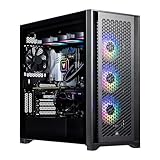
Velztorm Aciex 14900K / RTX 5070 Ti · 64 GB RAM · 2 TB SSD
Velztorm Aciex 14th Gen Gaming Desktop PC (Intel i9-14900K, GeForce RTX 5070 Ti, 64GB DDR5, 2TB PCIe SSD, 360mm AIO, 1000W PSU, WiFi 6, Bluetooth 5.2, RJ-45, 1 Display Port, Win 11 Pro)
Core i9-14900K · RTX 5070 Ti 16 GB · Windows 11 Pro
US$3,999.99Price observed 02.11.2026 22:24 UTCBuy on Amazon ↗As an Amazon Associate, Cloudzat earns from qualifying purchases. Prices are dated observations and can change. Check the exact variant and delivery to your address before ordering.
Buying guide
Which of these exact configurations should you choose?
First option: Skytech Crystal 5700 / RTX 5060. The installed specification is Ryzen 7 5700, 32 GB RAM, 1 TB SSD, RTX 5060 8 GB VRAM. For titles, motion graphics and a smaller working setup. Keep budget for cache storage; a stronger gaming GPU is not automatically the first useful upgrade.
Second option: Velztorm Altix 9700X / RTX 5070 Ti. The installed specification is Ryzen 7 9700X, 64 GB RAM, 2 TB SSD, RTX 5070 Ti 16 GB VRAM. For heavier compositions and creative multitasking. The extra price needs to be justified by the actual memory and storage difference, not the graphics-card name alone.
The memory difference is 32 GB. Choose the larger capacity when the workload tier in this guide needs it; otherwise keep that part of the budget for useful storage or peripherals. A higher RAM number is not a measured speed ranking.
| Option | Installed specification | Best reason to compare |
|---|---|---|
| Skytech Crystal 5700 / RTX 5060 · 32 GB RAM · 1 TB SSD | Ryzen 7 5700 · RTX 5060 8 GB · Windows 11 | For titles, motion graphics and a smaller working setup. Keep budget for cache storage; a stronger gaming GPU is not automatically the first useful upgrade. |
| Velztorm Altix 9700X / RTX 5070 Ti · 64 GB RAM · 2 TB SSD | Ryzen 7 9700X · RTX 5070 Ti 16 GB · Windows 11 Home | For heavier compositions and creative multitasking. The extra price needs to be justified by the actual memory and storage difference, not the graphics-card name alone. |
When paying more makes sense
For titles and ordinary motion graphics, start with a well-balanced 32 GB machine. Choose 64 GB for complex compositions or regular work with Premiere and Photoshop open alongside After Effects. If RAM and storage are the only things missing from a suitable PC, compare the cost of adding them before buying a complete replacement.
Which specification should you buy?
Our starting point is a modern desktop processor, 32 GB RAM and a dedicated GPU with at least 8 GB of video memory. This is a sensible purchase target for learning, HD motion graphics and modest 4K work. For a PC used every day on layered 4K compositions, choose 64 GB if the price allows. The extra memory leaves more room for effects and other open applications. These are Cloudzat buying recommendations, not a claim that every composition needs the same amount of memory.
Adobe lists 16 GB as the Windows minimum and recommends 32 GB or more for 4K and higher resolutions. Meeting a minimum means the application can run; it does not describe how comfortable a complicated project will feel. You do not need to own a workstation or measure a project before using the recommendations here. Start with the type of work you expect to do, then use the advanced calculator only if you have more precise information.
32 GB or 64 GB: where the extra money helps
Choose 32 GB for shorter motion graphics, titles, social videos and projects that do not keep several large creative applications open together. Choose 64 GB for heavier compositions, high-resolution source images, more demanding effects and simultaneous After Effects, Premiere and Photoshop work. More RAM reduces the chance that these applications compete for a small memory pool. It does not automatically double rendering speed.
If two PCs cost about the same and your work is mainly 2D, a balanced 64 GB machine can be more useful than a machine with 32 GB and a much more expensive graphics card. For a mixed 3D workflow, the GPU deserves more weight. Buying 128 GB simply because it is available is unnecessary for most beginners. Reserve that level for projects that have outgrown 64 GB or a specific production requirement.
A fast processor still matters for motion graphics
The processor handles much of the work involved in building a composition. Multi-Frame Rendering can use several CPU cores, but effects and plugins do not all scale in the same way. A recent Core Ultra 7 or 9, or Ryzen 7 or 9, is a practical desktop class to consider. The exact model matters more than an i7, i9 or Ryzen badge by itself.
For example, a Core Ultra 7 265K system is a credible general-purpose option; paying extra for an older Core i9 is not automatically a better decision. A Ryzen 9 can be attractive when the same PC also renders 3D scenes. The configuration comparisons on this page explain the memory and GPU trade-offs of the actual machines. They are recommendations from their specifications, not measured render-time rankings.
An 8–16 GB GPU is enough to start comparing
An 8 GB graphics card meets Adobe's recommended memory level. The RTX 5070 configurations on this page have 12 GB, while the RTX 5070 Ti configurations have 16 GB. That extra memory is useful for supported 3D work and other GPU-heavy applications, but a simple title animation will not use a high-end card in the same way as a large 3D scene.
Choose a stronger GPU when Advanced 3D, a GPU-based plugin or another program in your workflow needs it. For primarily 2D work, put memory, CPU and storage ahead of a costly GPU upgrade. A plugin has its own compatibility requirements, so an NVIDIA or AMD badge alone is not a promise that every plugin feature works. Video memory is separate from system RAM: 32 GB RAM plus 16 GB VRAM is not 48 GB available to After Effects.
Buy enough SSD space for the cache and your files
A 1 TB SSD is a reasonable starting size for the operating system, applications and a smaller active workload. A 2 TB SSD is easier to live with when media and cache share the same drive. If you regularly work with substantial footage, a separate SSD for cache or active media is a useful upgrade. Keep finished work and original footage backed up separately.
Modern After Effects can play previews from disk cache through High Performance Preview Playback. This makes a fast SSD and free cache space important; a preview no longer has to fit entirely in RAM. More RAM still helps the working composition, while the SSD stores cached frames. The two parts serve different purposes. An expensive processor paired with an almost-full small SSD is an unbalanced purchase for this workflow.
What to upgrade first on an existing PC
If you already have a compatible PC with 16 GB RAM, moving to 32 GB is the first sensible memory step. If memory fills while several creative applications are open, 64 GB is the next option. If the cache drive is almost full or is a hard disk, a larger SSD may solve a different source of delay. A GPU upgrade makes more sense when your actual effects or 3D work use the GPU heavily.
Keep a working machine if it already handles your projects comfortably. Do not replace the whole PC merely to move from a supported 12 GB GPU to a 16 GB GPU when your work fits. Conversely, adding a new graphics card will not solve an unsupported plugin or a processor that is struggling with CPU-heavy effects. Choose the upgrade that addresses the part of the workflow that is slow.
What the optional calculator tells you
The memory planner compares capacities with the values you enter. Its frame-data illustration shows how resolution, colour depth, frame rate and preview length affect raw image size. It is not an estimate of the actual After Effects cache or a prediction of preview speed. Effects, intermediate frames and cache behaviour change the real requirement.
This page's After Effects calculator does not calculate render time. Use the guide's 32 GB and 64 GB starting points if you have no measurements. If a quoted computer needs an immediate RAM or SSD upgrade, add that cost when comparing it with a complete configuration. A machine that already includes the required memory can be better value even when its advertised starting price is higher.
Optional: refine the choice with your own measurements
You can choose from the guide without using this tool. If you have a measured project, enter its values to compare capacity. Example inputs are not measurements or performance predictions.
Compare the two complete local baskets
Use current checkout amounts in USD. Add only missing upgrades, accessories, delivery and tax.
Frequently asked questions
Is 32 GB RAM enough for After Effects?
Yes, it is a sensible starting point for HD and modest 4K work. Choose 64 GB for more demanding compositions or regular use with other large creative applications. The complexity of the project matters as well as its resolution.
Should I buy more RAM or a better graphics card?
For mainly 2D work on a 16 GB or memory-limited PC, prioritise RAM. For Advanced 3D or GPU-heavy plugins, the graphics card can matter more. A balanced 32–64 GB system with an 8–16 GB GPU is a useful starting range.
Does a faster SSD replace the need for RAM?
No. Disk cache helps preview playback, while RAM holds the active working data. A fast, spacious SSD and enough RAM complement one another.
Can this guide promise a preview or export time?
No. The recommendations explain suitable specifications and purchase trade-offs. They do not present measured performance for these complete PCs, and the After Effects tool has no render-time prediction.
Related buying guides
- Best PC for Lightroom Classic in the US: RAM and Prices
- Best PC for Premiere Pro in the US: Codecs, RAM and GPU
- Best PC for Blender in the US: RAM, GPU and Prices
- Best PC for Unreal Engine in the US: Builds, RAM and GPU
- Best GPU for Blender in the US: VRAM and Upgrade Cost
- PC for Fusion 360 US: Workstation Specs and Prices Guide
- Best Workstation Gpu
- High End Pc Builder