


Canada · CAD · Deal Watch
Anker Docks Black Friday Deals 2026: What to Buy in Canada
A Canadian Black Friday Anker dock purchase should start with the computer and finish with a complete delivered price. This guide looks at the 568 and 778 families as distinct choices, with attention to the monitor arrangement, supplied power equipment and the connections that will actually be used.
Compare the exact Anker model, host protocol and included adapter. A small unpowered hub is not an equivalent price reference for a full powered dock. Check the manufacturer’s display table for your operating system and recent prices for the same package. A meaningful saving should not require buying a second charger or adapters that the more complete bundle already includes.
Choose Anker 568 as a Windows-focused USB4 candidate when its port layout suits the desk. Compare Anker 778 when its Thunderbolt 4 upstream and downstream arrangement is useful for the intended computer and peripherals. Anker advises against using the 568 with MacBooks; do not assume the USB4 label overrides that guidance. The 778 also needs an exact host and display compatibility check. A newer or more expensive Anker dock is worth paying for only when its additional capabilities solve a specific limitation.
Which Anker Docks option should you choose?
Start here
Anker 568 USB4 Docking Station
Choose it for a supported Windows host needing the 568 port layout; not a general Mac recommendation.
Find this configurationChoose this alternative
Anker 778 Thunderbolt 4 Docking Station
Choose it for a supported Thunderbolt 4 arrangement after checking the exact display table.
Find this configurationCurrent Anker Docks Listings on Amazon
Black Friday sale dates and offer timing
Dates for 2026: Black Friday — November 27; Amazon.ca — November 19–30. Individual offer periods and eligibility vary.

Anker Prime TB5 Docking Station, 14-in-1 Thunderbolt 5 Dock | 120 Gbps Max Transfer, 140W Max Charging, LED Lighting, Cooling System, Up to 8K Display, for Thunderbolt 5 / 4 Laptops
Last verified 2026-11-14 12:01:55 UTC

Anker Prime Docking Station, 14-Port, 160W Max, Dual 4K Displays | 10 Gbps Fast Data Transfer, Real-Time Smart Display, Audio and Ethernet Ports, for Dell, HP, Lenovo, and More
Last verified 2026-11-14 12:00:41 UTC

Anker USB C Hub, Smart Display Hub, Docking Station Dual Monitor,No Charger | Desktop USBC Hub,Dual displays for Windows/Single display for Mac, Dual 2K@240Hz, HDMI+DP,Ethernet,2.3ft Built-in Cable,Grey
Last verified 2026-11-14 11:57:54 UTC

Anker USB C Hub, Smart Display Hub, Docking Station Dual Monitor,No Charger | Desktop USBC Hub,Dual displays for Windows/Single display for Mac,Dual 2K@240Hz, HDMI+DP,Ethernet,2.3ft Built-in Cable,Silver
Last verified 2026-11-14 11:57:54 UTC

Anker Nano 13-in-1 USB-C Laptop Docking Station, Triple Display, 2 HDMI | 1 DisplayPort, 10 Gbps USB-C and 3 USB-A Ports, Audio, SD / TF Cards, Ethernet, 100W Max PD, for Dell, Lenovo, HP, and More
Last verified 2026-11-14 11:55:14 UTC
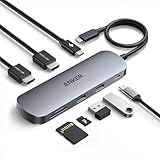
Anker Nano 8-in-1 USB C Hub Docking Station, Dual Monitor Laptop Dock | 4K@60 Hz HDMI, 10 Gbps USB-C, 2 USB-A 3.0, 85W PD, SD/TF, for Dell, Lenovo, HP, Windows Laptops
Last verified 2026-11-14 11:54:29 UTC

Anker 7-in-1 Hub, 4K@60 Hz USB-C to HDMI Splitter, 85W Power Delivery | 3 USB-C and 3 USB-A 3.0 Data Ports, SD / TF Cards, for Compatible Laptops and Devices (Charger Not Included)
Last verified 2026-11-14 11:52:58 UTC

Anker PowerExpand Laptop Docking Station, 8-in-1 USB-C PD Media Hub | 4K Dual Monitor, 2 HDMI, 1 Gbps Ethernet, 85W Power Delivery, SD Card Reader, for Dell XPS, and More (Charger Not Included)
Last verified 2026-11-13 09:06:48 UTC
As an Amazon Associate, Cloudzat earns from qualifying purchases. Prices and availability can change; Amazon shows the final price for your chosen item.
Anker Docks buying guide
| Model | Best for |
|---|---|
| Anker 568 USB4 Docking Station | a supported Windows host needing the 568 port layout; not a general Mac recommendation |
| Anker 778 Thunderbolt 4 Docking Station | a supported Thunderbolt 4 arrangement after checking the exact display table |
Should you compare Anker 568 or 778?
Separate charging ports from display ports
The presence of USB-C sockets does not mean each one can drive a monitor. On the 568, the front USB-C data and charging connections are not display outputs. The host port has a different role, and the video connectors follow their own limits. Check where each cable belongs before deciding that a dock can run an existing USB-C monitor. A connector diagram is more useful than a headline saying eleven or twelve ports. It also helps avoid buying an adapter for a function the socket never supported.
Compare the complete desk package
A powered dock usually arrives with its own adapter and a specified host cable. Confirm both on the exact seller listing, particularly for open-box or incomplete packages that may appear beside new stock. Check local plug type, adapter dimensions and cable reach. If you already use a high-power laptop charger, compare whether the dock can deliver enough power during the workloads you run. A lower charging rate may be acceptable at an office desk but disappointing during sustained heavy work. Keep the original charger available where the computer’s requirements exceed the dock’s output.
Check the host port before choosing the dock
USB-C describes a connector shape used for several capabilities. The computer’s manual must confirm the data protocol, any display support and the charging role required by the dock. A port can transfer files without providing DisplayPort Alt Mode, while a Thunderbolt or USB4 connection can have additional capabilities that depend on the host implementation. The dock cannot create a missing native video signal simply because its cable plugs in.
Use the supplied host cable for the initial setup and connect it to the marked host port. A charging-only cable, an older extension or the wrong socket can prevent the intended connection. Check whether the manufacturer supports the computer’s operating system and exact model. If the dock falls back to ordinary USB, read what functions remain available rather than assuming the full monitor and storage specifications still apply.
Compare one complete monitor arrangement
Write down the intended resolution, refresh rate and number of independent screens, then check that combination in the dock maker’s table. A maximum stated for one screen may not apply to two or three at once. Some HDMI and DisplayPort sockets are alternatives for one channel. Other products use MST, DisplayLink or a mix of native and USB graphics, each with different operating-system requirements.
For a Mac, the exact chip and the dock’s display path both matter. For a Windows laptop, the host port and graphics implementation still set limits. High-refresh gaming, protected video and colour-sensitive work deserve checks beyond ordinary office compatibility. Keep the monitor cables within the supported specification and test the intended arrangement directly. Do not assume that an adapter advertised for an extreme resolution supports every lower resolution at every refresh rate.
Remember that the host connection is shared
The dock’s upstream connection carries traffic for several devices. A fast external SSD, network transfer, camera and display can compete for resources, so adding every port’s maximum speed does not produce a realistic simultaneous total. The exact allocation depends on the dock and host. Compare the intended workload rather than treating a 40Gbps label as a dedicated 40Gbps link for each connected peripheral.
For a desk used mainly for documents and ordinary networking, a less expensive compatible dock may be enough. For frequent large file transfers, check storage performance with the displays and other devices attached. Connect a particularly demanding SSD directly to another suitable host port if that provides a better arrangement. Also distinguish gigabit Ethernet from 2.5GbE or faster networking: a USB4 host connection does not make the dock’s Ethernet controller faster than its own rating.
Compare the dock, power supply and cables together
Confirm whether the listing includes the manufacturer’s power adapter, a suitable host cable and any required regional mains lead. A lower box price can be misleading when essential parts are missing. The adapter’s total wattage is not necessarily the power delivered to the laptop; the dock and connected devices use some of that budget. Read the documented host charging output for the exact revision.
A desktop Mac mini uses its own power supply, whereas a laptop may need the dock to charge while working. Check that the available charging rate suits the laptop’s workload, and keep its original charger where necessary. Compare local warranty and return arrangements as well as delivery. Cable reach, adapter size and ventilation can affect the final desk layout, so include them in the purchase before paying extra for a clean-looking product photograph.
Check the whole desk after installation
Test the dock with its supplied cable and power adapter before adding extensions or third-party replacements. Confirm each screen’s independent desktop, resolution and refresh rate, then try Ethernet, storage, audio and charging as applicable. Sleep and wake behaviour matters for a daily office setup, so test it with the devices you normally leave connected. Save work before changing display or storage connections.
Install firmware or drivers only through the manufacturer’s supported route and follow its instructions. A managed work computer may require the organisation’s permission for DisplayLink or other software. If a function fails, isolate one connection at a time and compare the result with the compatibility table. Keep packaging until the intended arrangement is verified. A bargain is useful when the complete desk works consistently, not merely when the dock appears in the operating system’s device list.
Compare the Canadian total in Canadian dollars
Use Canadian-dollar prices and the exact Canadian offer, including delivery, any required accessories and applicable checkout charges. A US price converted into Canadian dollars is not a verified Canadian listing. Check the seller’s local support, the supplied power equipment and the selected model or capacity. An attractive starting price may describe an incomplete package. The recommendations identify products to compare, while the dated local cards provide separately checked price observations. Reconfirm the final variant and promotion conditions before ordering; a recommendation alone is not evidence of stock or an event discount.
Electricity cost calculator
Replace the example values with your own measurements, capacity or prices.
Questions buyers ask
Can every USB-C socket on an Anker dock run a monitor?
No. Some sockets provide data and charging only. Check the exact model’s port diagram and use its documented video outputs or supported downstream Thunderbolt connection. The connector shape alone does not identify its display capabilities.
Does a recommended model always have a Black Friday discount?
No. The model shortlist describes useful configurations. A current priced listing is a separate observation, and an event section requires fresh public Black Friday evidence. Check the exact variant, seller and final checkout terms before treating it as an event offer.
What if the recommended local configuration is unavailable?
Use the named alternative only for the different use case explained in the guide. Compare the full specifications and package again. Do not substitute a lower capacity, wrong regional voltage or incomplete unit merely to obtain a cheaper listing.